
7 product catalog mistakes and how to fix them
The most common product catalog mistakes are missing prices, vague names, crowded pages, cut-off photos, no contact details, a huge PDF and old copies. Each one takes a minute to fix.
You sent your catalog to fifty customers. Two replied, and both asked, "What is the price?" Why did the others not reply at all?
Often the products are fine. Small product catalog mistakes get in the way. A customer has to stop and ask, or they cannot open the file. Most people do not ask. They just move on.
Here are seven mistakes we see often, and how to fix each one in CatalogLeaf. Our example is a small shop that sells bags, shoes and sunglasses.
1. No prices
What goes wrong: The customer likes a bag but does not know the price. They have to message you and wait. Many will not bother. Some may guess the price is too high for them.
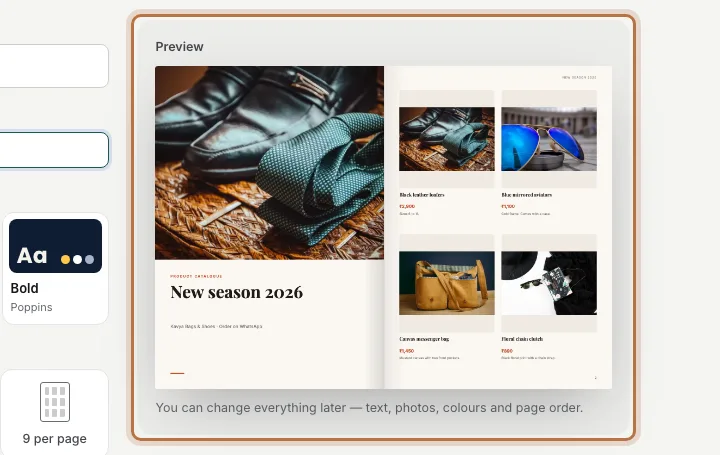
The fix: Type a price in the Price box on each product card. Then click Next: choose a look, open More options and check that Show prices is on. In the Prices list, pick ₹ Rupee so every price shows the same way, like ₹1,450.
If your prices change often, still show them. You can change them later and send the new version (see mistake 7).
2. Names that do not say what it is
What goes wrong: "Bag", "Shoes", "Item 4". The customer cannot tell two bags apart. When they order, they send a screenshot and you have to guess which one they mean.
The fix: In the Product name box, write what the product is: "Canvas messenger bag", not "Bag". Add one short line in the description box. Say the size, colour or what is in the pack, like "Sizes 6 to 10". Use the Code (optional) box too, so people can order by code.
3. Too many products on one page
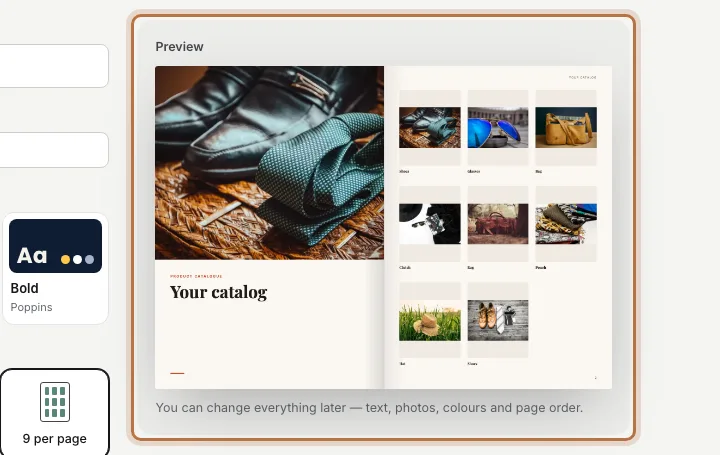
What goes wrong: Nine photos on a page look full, but many people read your catalog on a phone. On a small screen, each photo is tiny. The names and prices are too small to read.
The fix: On the Choose a look page, under Products on each page, pick 4 per page or 2 per page. For big or costly items, like leather bags, try 1 per page. You get more pages, but each product is easy to see.
Here is the same catalog after fixing mistakes 1 to 3. The names are clear, the prices are in rupees, and there are four products on the page.
4. Photos that are cut off
What goes wrong: A photo frame is often a different shape from your photo. The frame then cuts off the edges. A shoe can lose its toe, or a bag can lose its strap.
The fix: Click Customize to open the editor. Click the photo, and in the Photo part on the right, find Show. Pick Whole photo to see all of it. Or keep Fill frame and drag the dot to choose which part stays in view. If a photo is dark or blurry, click Replace photo and use a better one.
5. No way to contact you
What goes wrong: The customer is ready to buy. Then they look for your phone number and cannot find it. Or they find sample text that was never changed.
When you make a catalog from your photos, CatalogLeaf adds a contact page at the end. It starts with sample details, so you must change them.

The fix: Click Customize, go to the last page, and double-click the sample text. Type your real phone number, email and how to order. Also put your shop name and "Order on WhatsApp" in the short line on the cover. If the contact page is missing, click Add page and choose Contact page.
6. A PDF that is too big to send
What goes wrong: A big PDF is slow to send and slow to open. On mobile data, some customers give up before it opens.
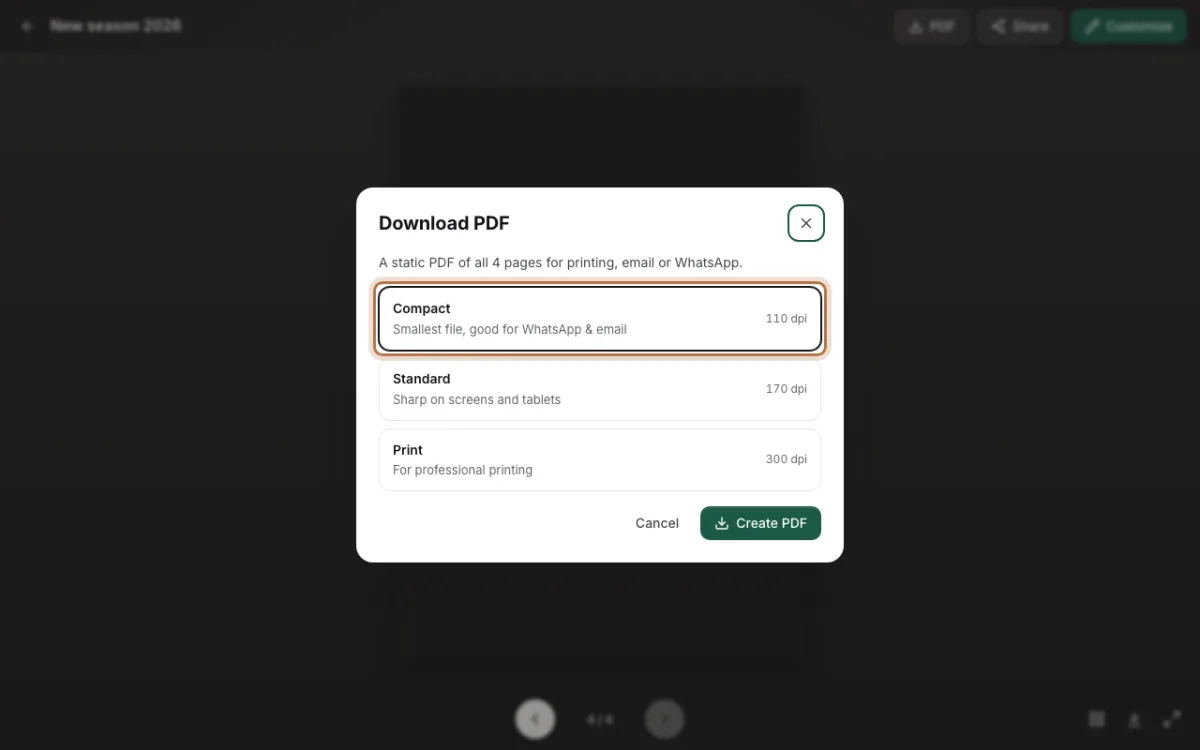
The fix: Click PDF, pick Compact, then click Create PDF. Compact makes the smallest file, and it is clear enough for a phone screen. Keep Print for when a print shop will print your catalog on paper.
7. Sending a new file every time a price changes
What goes wrong: You fix a price and send a new PDF. Now customers have two or three copies in their chat. Someone orders from the old one, at the old price.
The fix: Share a link instead of a file. Click Share, then Create my link, and send that link. When you change something later, open Share again and click Update link. Everyone who opens the same link now sees the new version. You do not need to send it again.
Before you send it
Look at your catalog once on your own phone. Check one price, one name and your phone number. It takes two minutes, and it catches most of these mistakes.
To start again with a clean design, try the fashion catalogue template or browse all catalog templates. If you mostly share on WhatsApp, read about making a catalogue for WhatsApp.
Open your catalog in CatalogLeaf and fix one of these mistakes today.