
Catalogue cover page design: one photo, one title
A good catalogue cover page design has one clear photo, one short title and room to breathe. Here are six tips, shown on finished covers you can open free.
Think of a shop window. People decide in two seconds if they will walk in. Your catalogue cover is that window. Good catalogue cover page design makes a customer swipe to page two.
You do not need a designer. You need one good photo, one short title and a bit of empty space. These six tips use finished covers from free CatalogLeaf templates. The photos are samples. Yours take their place.
Show one thing, not everything
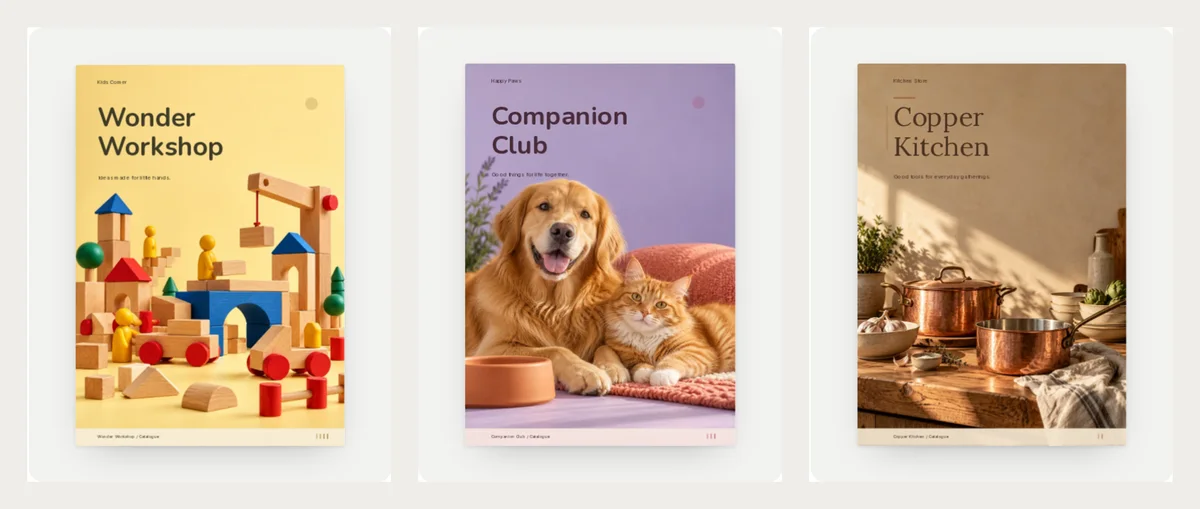
Look at the three covers above. Each one has a single idea: a pile of toy blocks, a dog and a cat, a copper pot. None of them shows twenty products.
Pick your best seller or your newest item. Show it large. The inside pages are there for the rest.
Keep the title short
The title is the biggest text on the page. Two or three words are enough, like "Copper Kitchen" or "Ink Society". Put a short line under it that says what you sell, such as "Paper, pencils and independent ideas".
Long titles get small. Small titles are hard to read on a phone. If your title needs a whole sentence, move the sentence to page two.
Match the colours to your photo
Look at the covers below. The dark green of the headphones, the navy of the necklace box and the purple of the pen all come from the photo. The title and the page colour follow the same family.
When the page colour fights the photo, the cover looks messy. Pick the colour from the photo itself. In the editor, click an empty part of the cover and use Background to change the page colour. The small swatches under it already hold your theme colours.

Leave empty space for the title
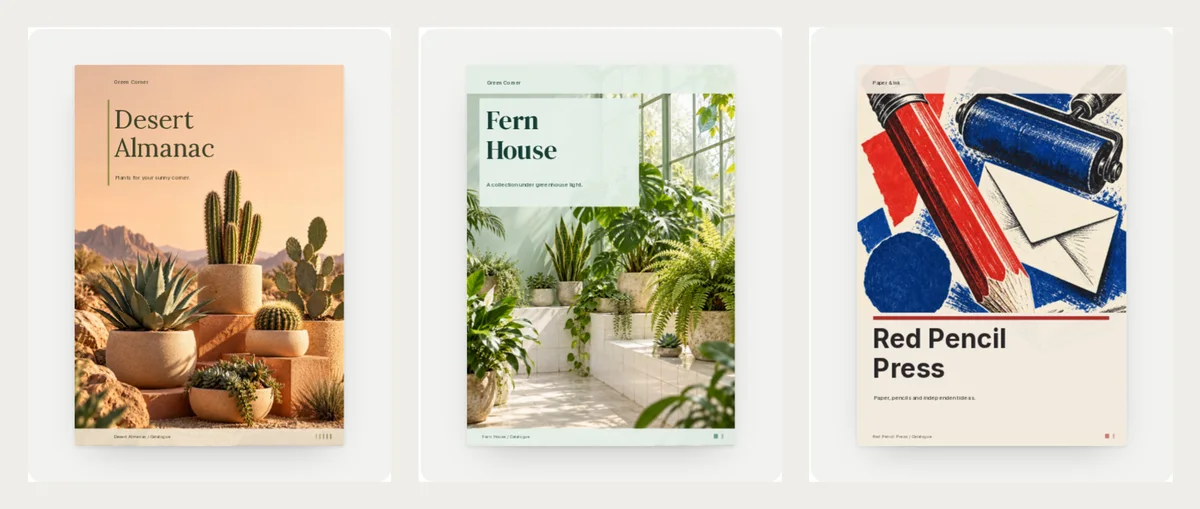
A busy photo makes the title hard to read. Look at the cactus photo: the pale sky is empty, so the title sits there and is easy to read. The fern cover does the same with a soft white panel behind the words.
Before you pick a photo, ask one question: where will the words go? Choose a photo with a calm corner. Or pick a template that already puts the title on a plain panel, like the Red Pencil Press cover.
Say who you are, quietly
A customer who loves your cover will want to know whose it is. Add your shop name in small letters at the top or bottom. Many templates already have a small line there.
Do not put your phone number or the full address on the cover. Those belong on the last page, where the customer is ready to order. Use the shop name here, and nothing more.
Change the cover each season
A cover is the easiest page to refresh. Keep the inside pages. Swap the cover photo and the title for Diwali, Christmas or a new collection.
Open the cover page. Next to Background photo, click Change and pick a new photo. Then click the title on the page and type the new words. Want the share window to match the new cover too? See how to change flipbook colours.
Try these covers with your own photo
- Open Wonder Workshop, Copper Kitchen or Fern House.
- Click Use with my photos.
- Drop in your photos.
- Open the cover page. Click Change next to Background photo to use your best photo, then click the title and type your own words.
You can also look at every style on the kids catalogue templates and stationery catalogue templates pages. Pick a cover you like, add your own photo and see how it feels. It is free to try in CatalogLeaf.