
Flipbook colours and buttons: match your brand
To change flipbook colours and buttons, open your catalog, click Share, and pick a look. Then set the Background and Buttons colours. Use More options to hide buttons you do not need.
A flipbook is the page where your customers turn your catalog pages. Its colours do not have to be dark. You can match them to your shop.
This guide shows how to change flipbook colours and buttons. Our example is a small toy shop. The steps are the same for any shop.
What you need:
- A catalog open in the editor.
- A colour code for your brand, like
#c2410c. If you do not have one, pick from the looks in Step 2.
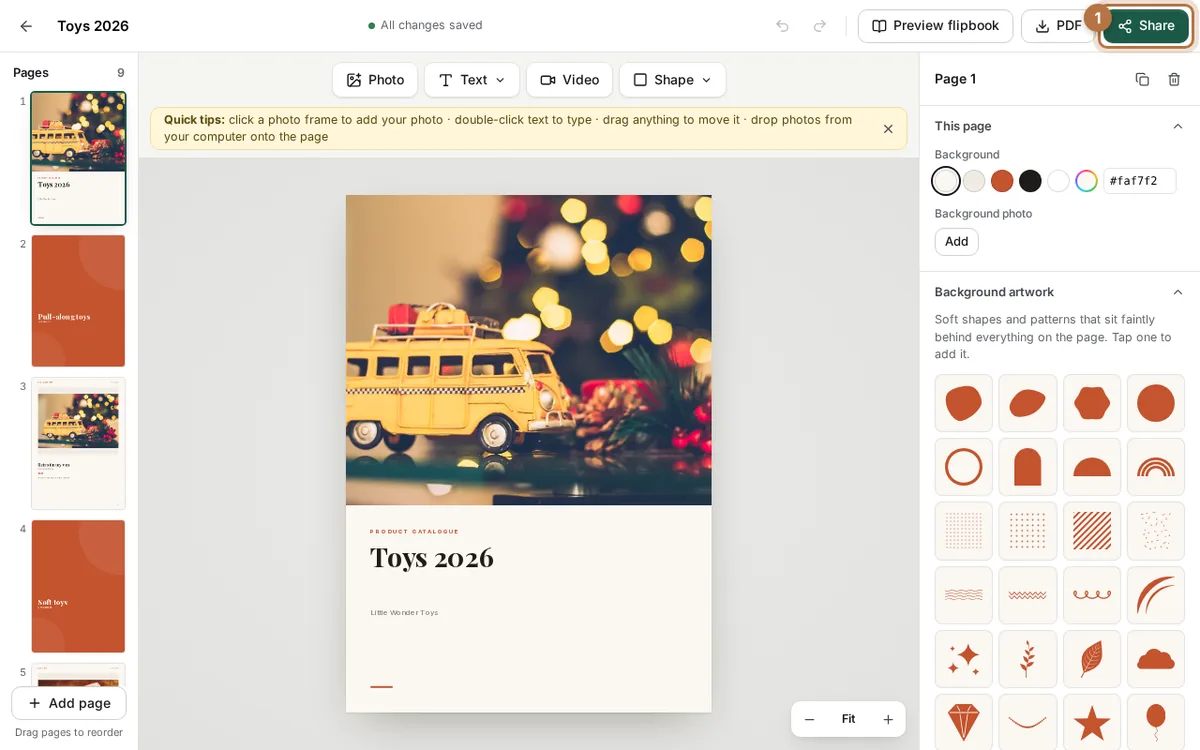
Step 1: Open the Share window
In the editor, click Share at the top right. A window called Share your flipbook opens.
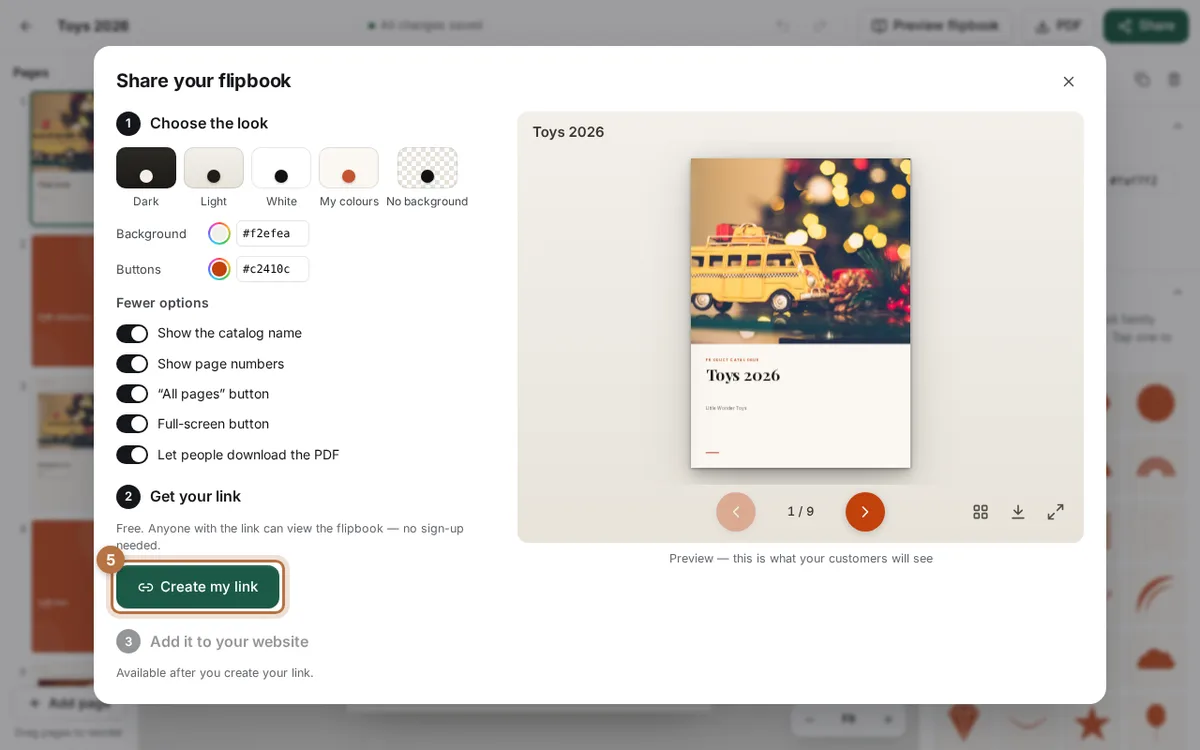
On the right you see a live preview. It is the same flipbook your customers will see.
Step 2: Pick a look
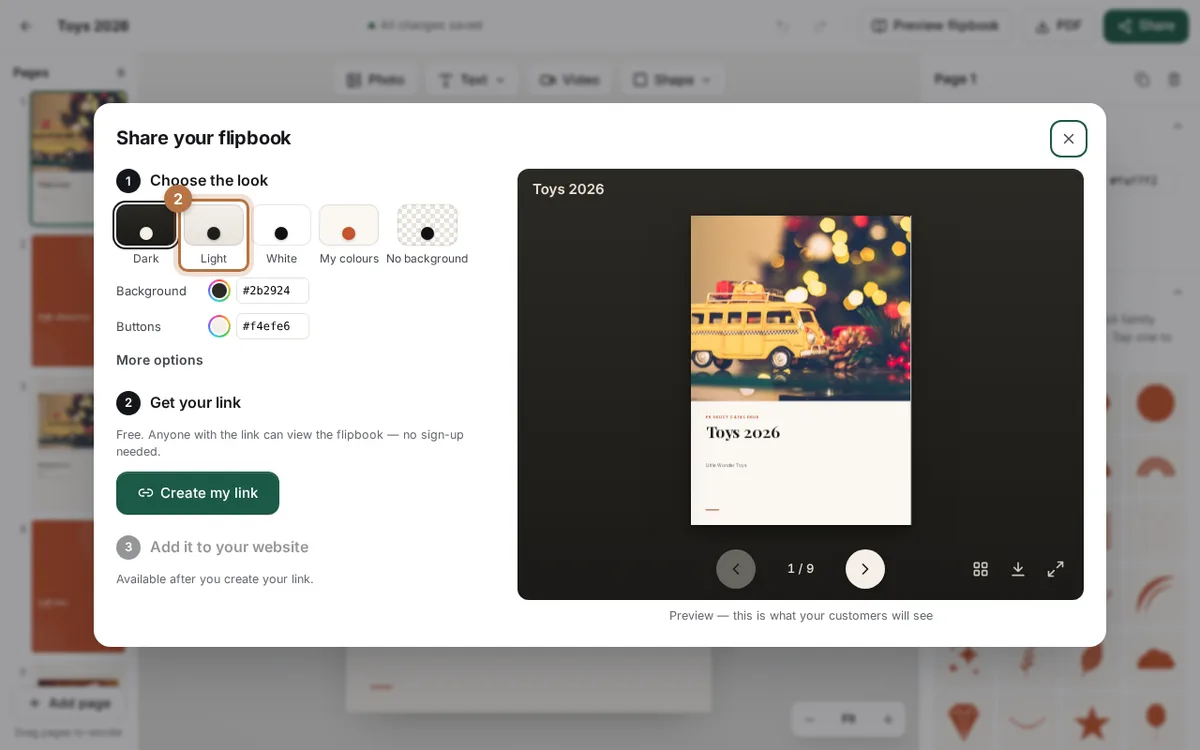
Under Choose the look, click one of five looks:
- Dark is the default.
- Light has a soft cream background.
- White is plain white.
- My colours copies the colours of your catalog.
- No background has no colour at all. It is good when you put the flipbook on your own website.
Click a look and watch the preview change.
Step 3: Set your own colours
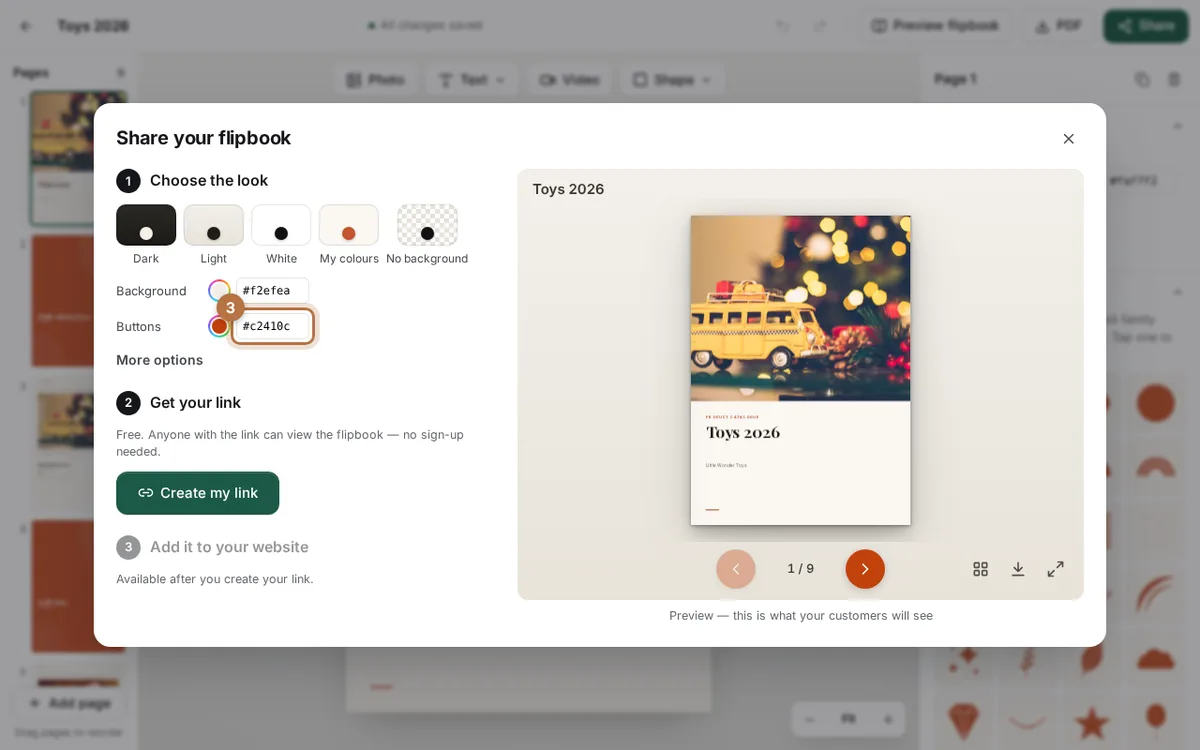
Two colour boxes sit below the looks. Background is the colour behind the pages. Buttons is the colour of the page arrows.
Click the code next to Buttons and type your colour code. Press Enter. The arrows in the preview change at once. Do the same for Background if you want.
Keep the background and the buttons very different. Then the arrows are easy to see.
Step 4: Hide the buttons you do not need
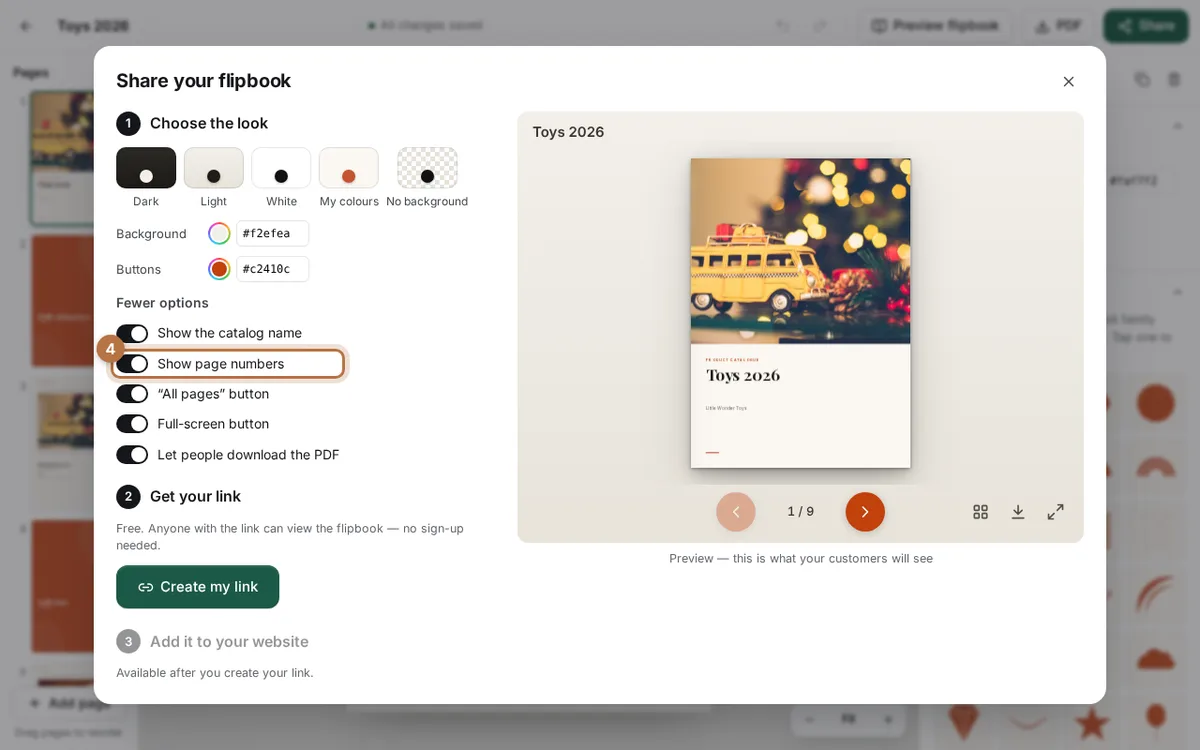
Click More options. You see five switches:
- Show the catalog name
- Show page numbers
- “All pages” button
- Full-screen button
- Let people download the PDF
Switch off what you do not want. For example, turn off Let people download the PDF if you want customers to read only in the flipbook.
Step 5: Create or update your link
Click Create my link. It is free. You get a link you can send on WhatsApp.
Already shared a link before? Change the colours, then click Update link. The same link shows the new look. You do not need to send it again.
Where the colours show
- On your link: customers see your background and button colours.
- On your website: the embed code uses the same look. Choose No background if you want the flipbook to sit on your page colour. Read more in the flipbook for website page.
- In the PDF: these colours do not change the PDF. They are only for the flipbook.
Not sure when to send a link and when to send a file? See PDF or flipbook link: which should you send?.
Tips for good flipbook colours
- Use your brand colour for buttons. Customers will know the flipbook is yours.
- Pick a light background for photos. Bright products look clean on cream or white.
- Check the preview. Look at the arrows and the page numbers. Can you read them easily?
- Use less, not more. A catalog name and page numbers are enough for most shops.
- Keep the PDF button on if customers like to save files. They can open your catalog later without the link.
To learn more about the player, see the flipbook maker.
Ready to try? Open your catalog in CatalogLeaf and click Share.