
Catalog with video: add a YouTube clip to a page
To make a catalog with video, click Add page, then Video page, and paste a YouTube or Vimeo link. The video plays inside your flipbook. In the PDF it shows as a picture that links to the video.
A photo cannot show how a bag opens or how a zip works. A short video can. Many shop owners already have such clips on YouTube.
You can put that clip inside your catalog. Here is how to make a catalog with video. Our example is a small bag shop. The steps are the same for any shop.
What you need:
- A catalog open in the editor.
- A link to a YouTube or Vimeo video. Or a video file (MP4) on your computer.
Step 1: Add a video page
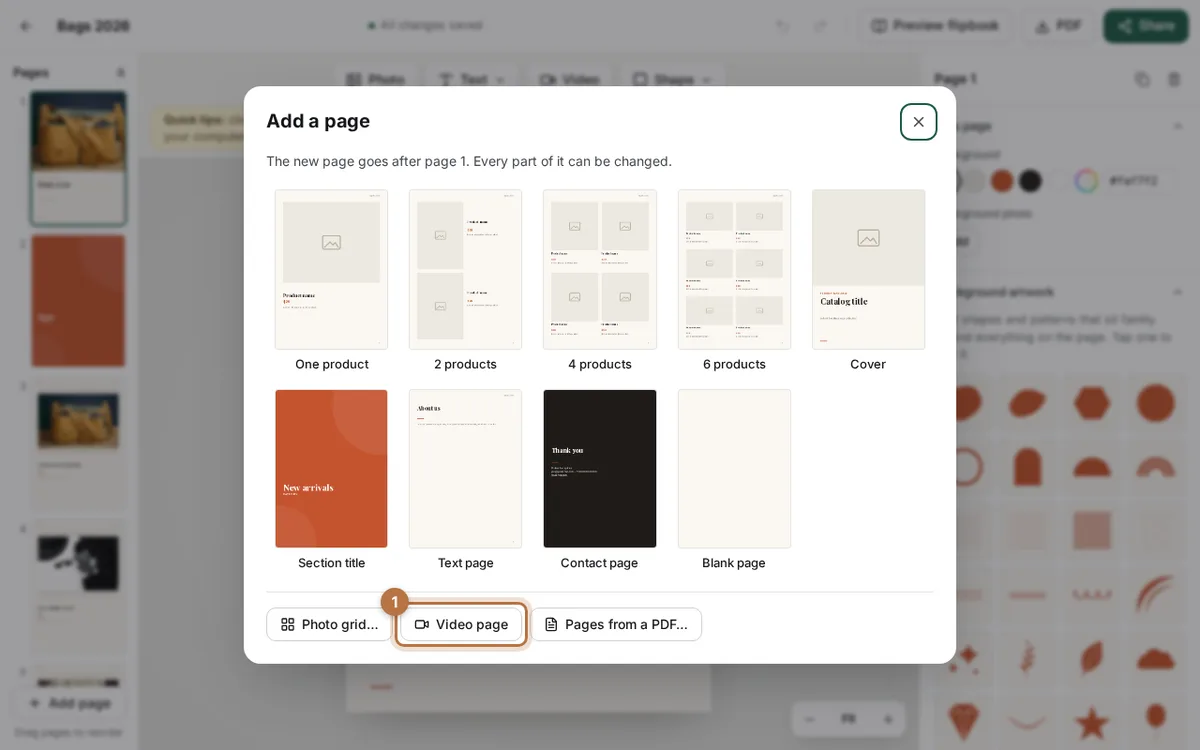
In the editor, click Add page under the page list. A window called Add a page opens. At the bottom, click Video page.
The new page goes after the page you are on. It has a video box, a heading and a short line of text.
Step 2: Paste your video link
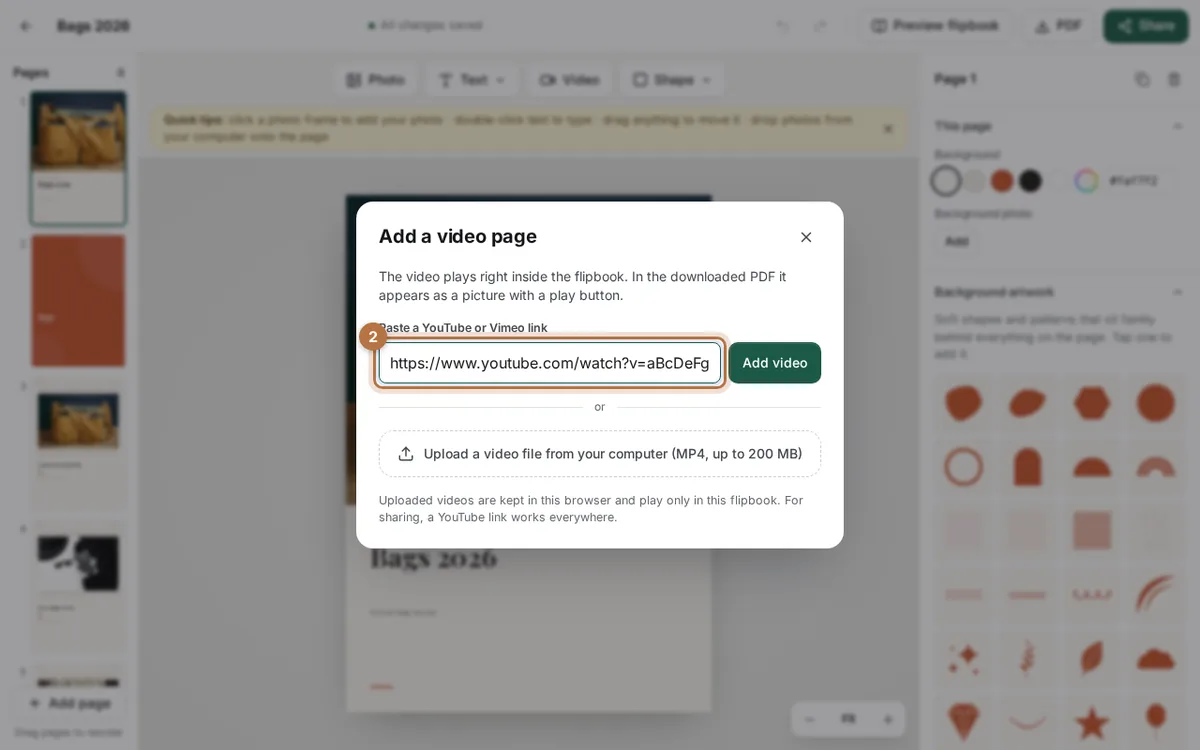
A window called Add a video page opens. Copy the link of your video from YouTube or Vimeo. Paste it in the box, then click Add video.
You can also upload an MP4 file from your computer. It can be up to 200 MB. But the file stays in your browser and plays only in your own flipbook. For sharing with customers, a YouTube link works best.
Step 3: Add a thumbnail
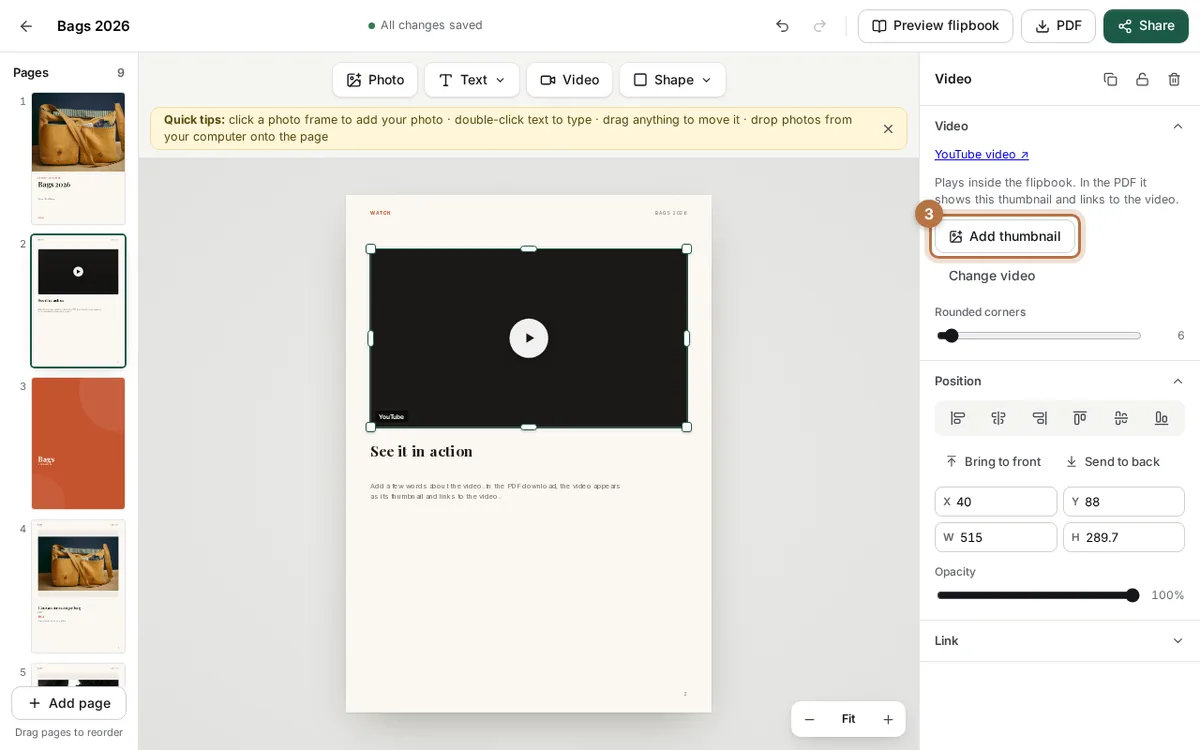
A thumbnail is the small picture that shows before the video plays. CatalogLeaf tries to get it from YouTube or Vimeo for you.
If it cannot, you will see a message, and the box stays dark. Then click the video. In the panel on the right, click Add thumbnail and pick a photo from your computer.
Step 4: Check the page
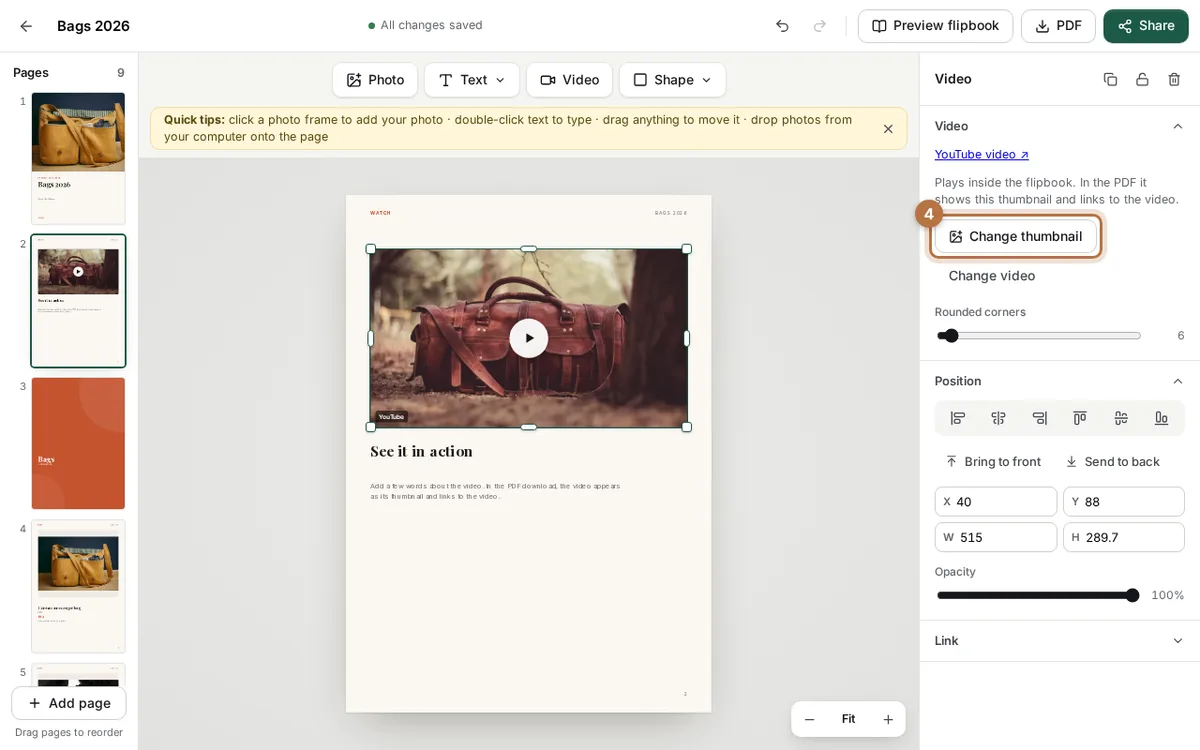
Now the video box shows your picture with a play button. A bag photo works well, because customers see the product before they press play.
To change the words under the video, double-click them and type. To use another video, click the video, then click Change video.
How the video looks to your customer
- In the flipbook: the video plays right on the page. Customers do not have to leave your catalog.
- In the PDF: a PDF cannot play video. So the video shows as its thumbnail, and it links to your YouTube or Vimeo video. A customer who taps it goes to the video.
- An uploaded file in the PDF: it shows only the thumbnail, with no link.
Before you download the PDF, the PDF window tells you how many videos it has and that they appear as thumbnails.
Put a video on a product page
You do not need a whole page for a video. Open any page, and click Video in the bar above the page. Paste your link and click Add video. The video lands on that page. Drag it to move it, or pull a corner to make it smaller.
This is useful on a product page. Keep the photo and add a small clip beside it.
Tips for a good video in your catalog
- Keep it short. Ten to thirty seconds is enough to show one product.
- Show the product in use. Open the bag, bend the shoe, pour from the jug.
- Use a clear thumbnail. Pick a bright photo with the product in the middle.
- Test the link. Open the link in a new tab before you share the catalog. A private video will not play for customers.
- Do not fill every page. One or two video pages are enough. Photos and prices are still the main part.
For more page ideas, read 8 product catalog ideas you can copy today. To learn what a flipbook can do, see the digital catalogue maker and the flipbook maker.
Ready to try? Open your catalog in CatalogLeaf, click Add page and choose Video page.