
Small catalog PDF for WhatsApp: make the file smaller
To make a small catalog PDF for WhatsApp, click PDF, choose Compact and click Create PDF. In our test, Compact made a file half the size of Print.
A customer asks you for your catalog on WhatsApp. You send the PDF, and it takes a long time. On mobile data, some people never open it.
A small catalog PDF fixes this. It sends fast and opens fast. CatalogLeaf has one choice that makes the file smaller. Here is how to use it. Our example is a small toy shop with a one-page price list. The steps are the same for any catalog.
What you need:
- A catalog you have already made in CatalogLeaf.
Step 1: Click the PDF button
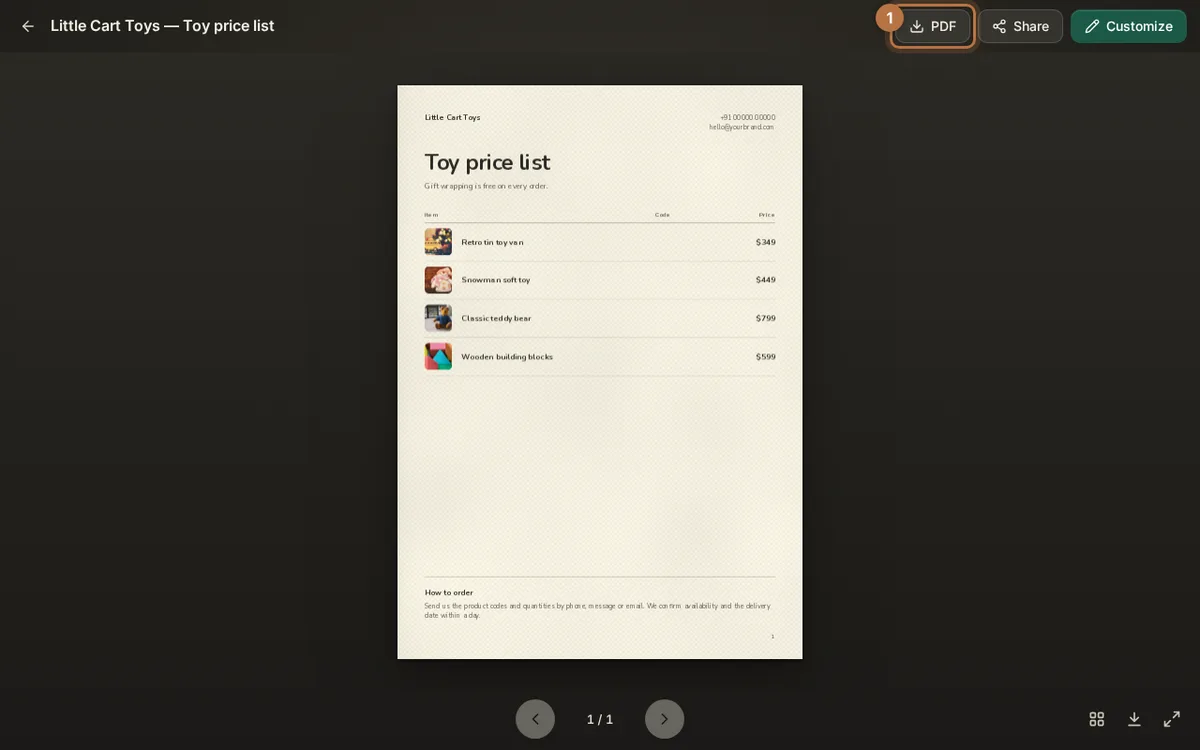
Open your catalog. At the top right, click PDF. You can do this in the preview and in the editor.
Step 2: Choose Compact
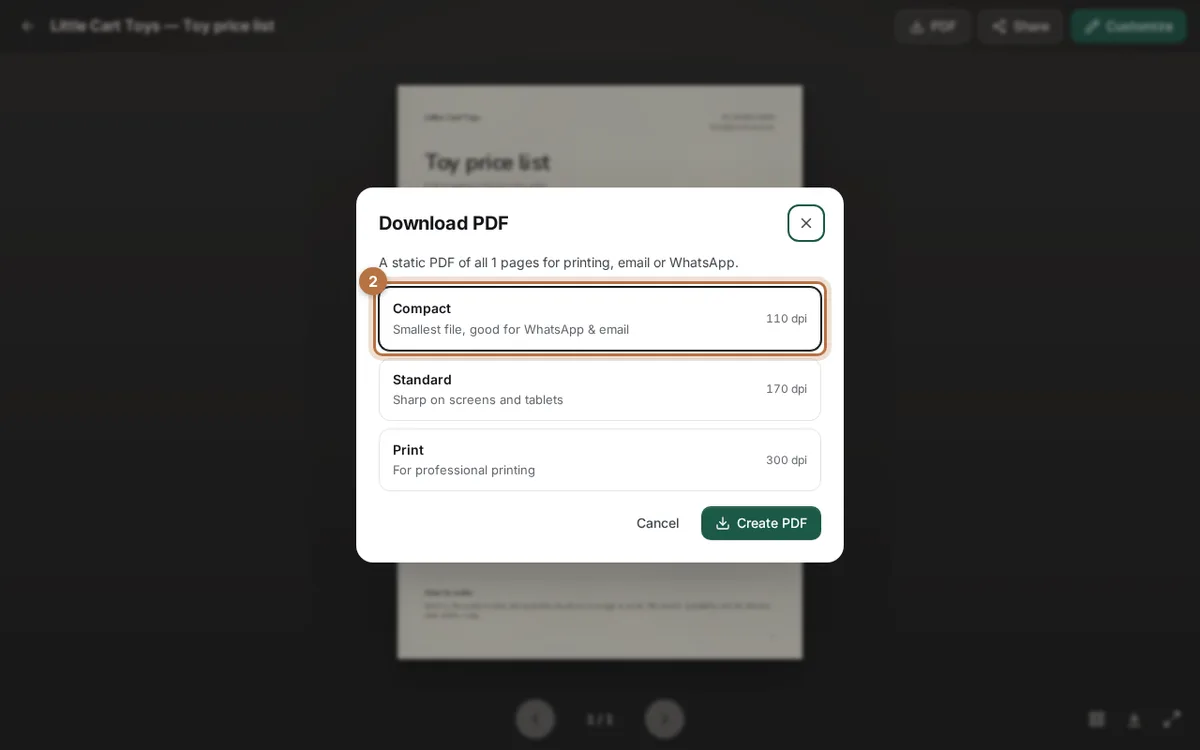
A window called Download PDF opens. It shows three choices. Each one trades picture sharpness for file size:
- Compact: the smallest file. Good for WhatsApp and email.
- Standard: sharp on screens and tablets. This is the choice selected when the window opens.
- Print: for professional printing. The file is bigger.
Click Compact.
Step 3: Create the PDF and check the size
Click Create PDF. A bar shows the progress. Everything happens on your own device, so nothing is uploaded.
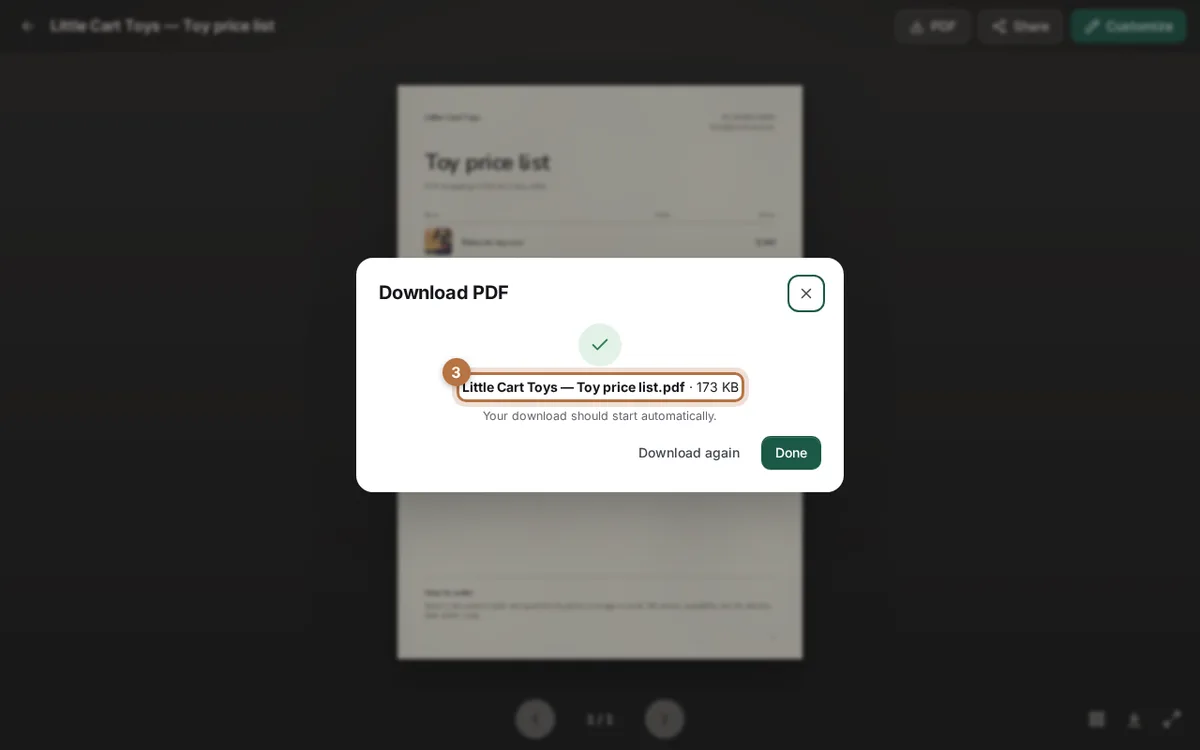
When it is done, the window shows the file name and its size. The download starts by itself. If it does not, click Download again.
In our test, the toy price list was 173 KB with Compact. That is very small.
Step 4: Compare with Print
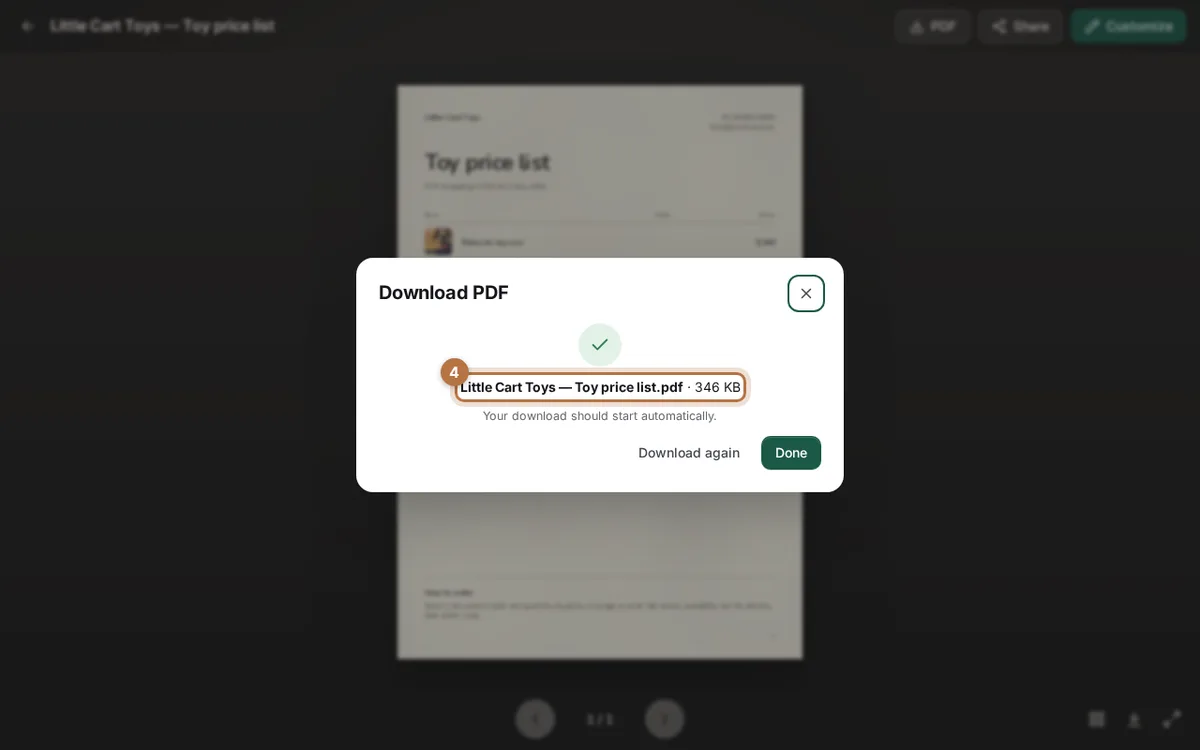
Want to see the difference? Click Done, click PDF again and choose Print. Then click Create PDF.
Our toy price list became 346 KB with Print. That is twice the size of Compact, with only one page and four photos.
A bigger catalog shows a bigger gap. In our tests, a catalog with 20 pages and 30 photos was about 0.7 MB with Compact and 5.2 MB with Print.
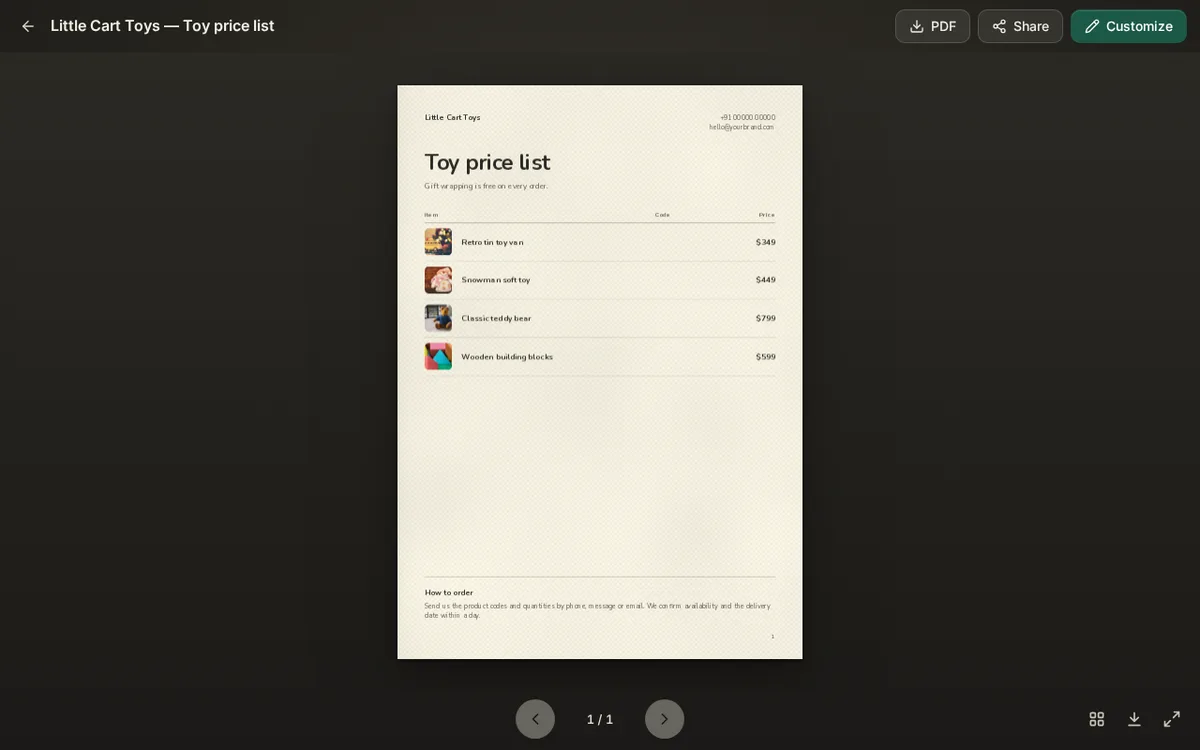
Your finished price list
This is the toy price list from this guide. Open your own Compact PDF on your phone and check that the photos look sharp enough.
When to pick each choice
- Sending on WhatsApp or email: pick Compact.
- Showing on a tablet or a laptop: pick Standard.
- Giving it to a print shop: pick Print. Print needs sharp pictures, so a bigger file is fine here.
If you are not sure, make a Compact PDF first. Look at it on your phone. If the photos look sharp enough, send it.
More ways to keep the file small
- Use fewer photos on each product. Every photo adds to the size.
- Send a link and not a file. Click Share, then Create my link. A link takes no space in the chat. Read PDF or flipbook link: which should you send? to decide.
- Keep one copy. If you change a price, make a new PDF and send only that one.
If you mostly sell on chat, see how to make a catalogue for WhatsApp. To learn more about PDF files, read about the catalog PDF maker.
Ready to try? Open your catalog in CatalogLeaf, click PDF and pick Compact.