
Product photos with phone: 7 easy tips for a catalog
You can take good product photos with a phone. Use window light, a plain background, one angle and a clean lens. Then pick Whole photo or Fill frame in CatalogLeaf so nothing is cut off.
You do not need a big camera to take product photos. The phone in your pocket is enough. What matters is light, a clean background and a steady hand.
Here are seven tips for taking product photos with your phone. They work for any product. Our example is a small home bakery, Crumb & Co. Bakes. It sells cakes, cookies, cupcakes and macarons.
Good photos help a catalog sell. People cannot touch your product, so the photo does the talking.
1. Use window light
Stand near a window in the daytime. Put the product beside the window, so the light falls on it from the side.
Soft daylight shows the true colour of a product. The flash on your phone makes hard shadows and shiny spots. Switch it off.
2. Keep the background plain
Put the product on a plain table, a white sheet or a sheet of paper. Move anything else out of the picture. Keys, cups and bags pull the eye away from your product.
A plain background also lets your catalog look tidy. All the photos on a page then seem to belong together.
3. Wipe the lens
A phone lens gets finger marks. They make every photo look foggy. Wipe the lens with a soft, clean cloth before you start.
This takes five seconds. It is the cheapest fix on this list.
4. Take every photo from the same angle
Pick one angle and one distance, and use them for all products of one kind. For cakes, shoot from slightly above. For cookies, shoot from the top.
When the angle is the same, the catalog page looks calm and neat. Photos from many angles look messy side by side.
5. Leave some space around the product
Do not fill the whole screen with the product. Leave a little space on every side.
Later, a catalog page may show the photo in a frame with a different shape. If you left space, the edges of your product are safe. If not, a cake can lose its top or a shoe can lose its toe.
6. Hold the phone steady
Rest your elbows on the table, or lean the phone on a pile of books. Tap the product on the screen so the phone focuses on it. Then take the photo.
A blurry photo cannot be fixed later. Take two or three shots and keep the sharpest one.
7. Name the files before you upload
Give each file the name of the product, like "chocolate-cupcakes.jpg". CatalogLeaf uses the file name as the product name when you add the photo. You then have less typing to do.
Fit the photo on the page
Photos from a phone are often a different shape from the frame on your catalog page. Here is how to control what shows.
First, pick a template made for your shop. We used Celebration Cakes, a bakery catalogue. You can see all bakery styles on the bakery catalogue templates page.
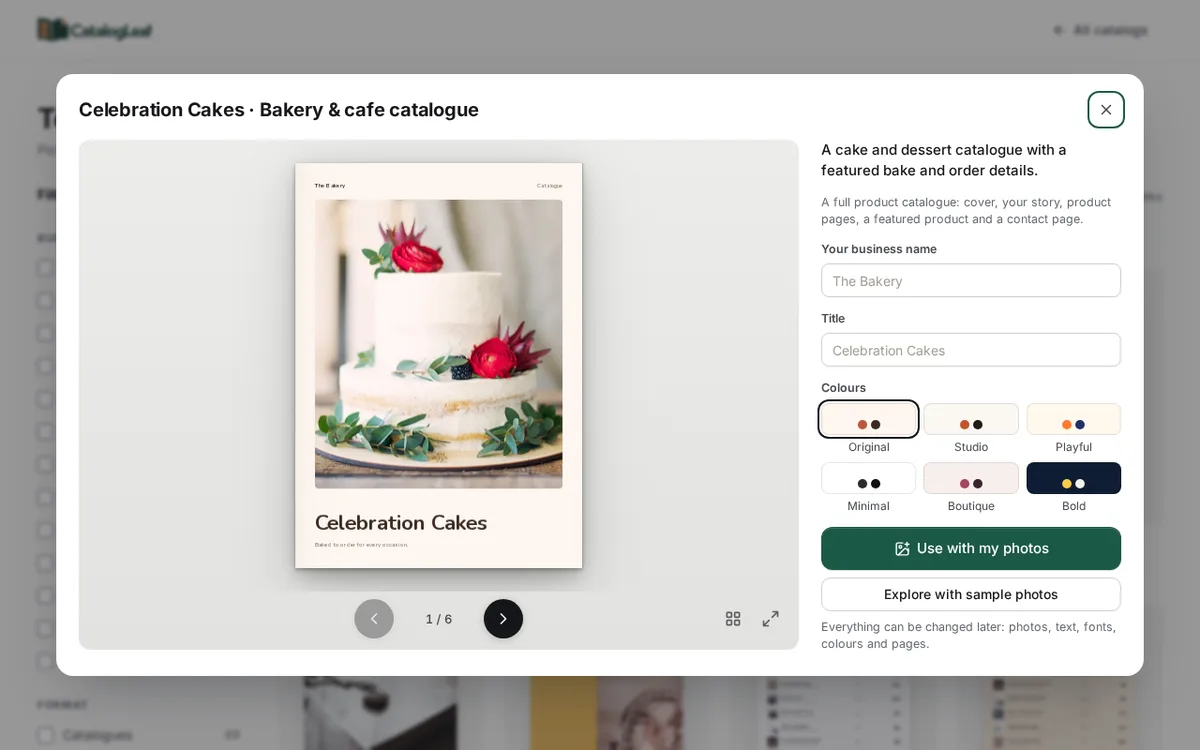
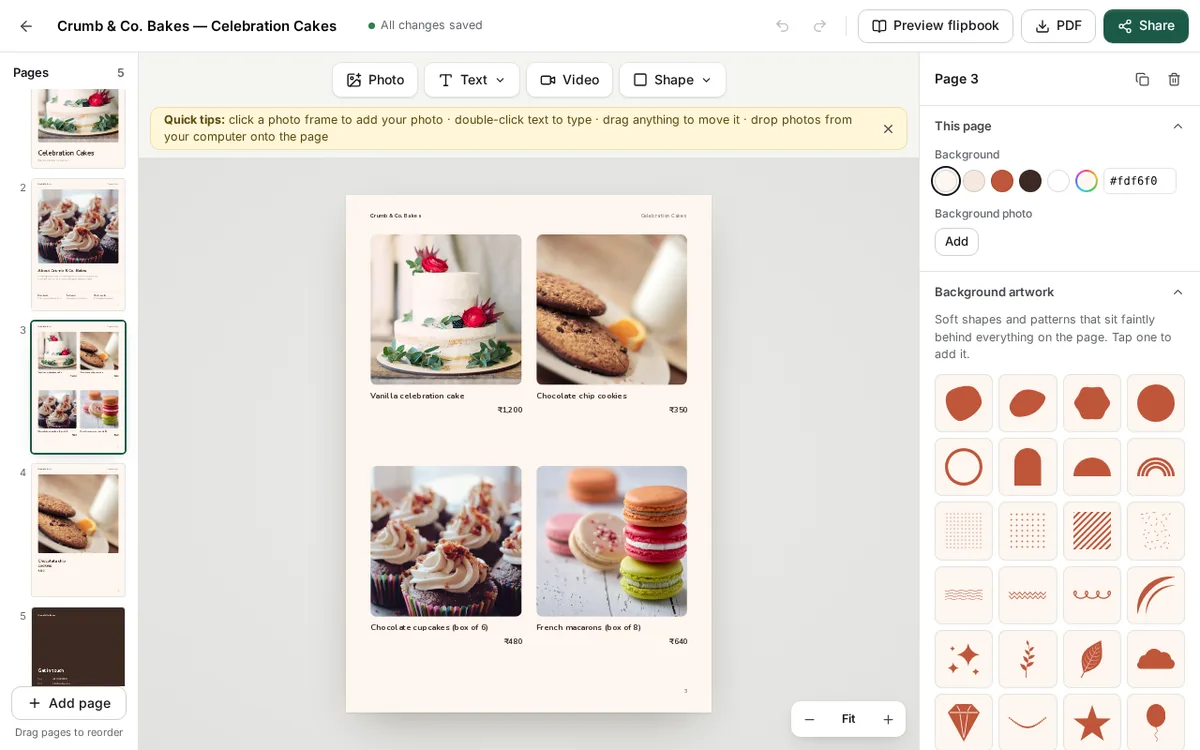
Click Use with my photos and add your photos. Each photo becomes one product. Then type the name and price. Here is the finished page.
If a frame cuts off part of your photo, click Customize to open the editor. Click the photo. In the Photo part on the right, find Show. Pick Whole photo to see all of it. Or keep Fill frame and drag the dot to choose which part stays in view.
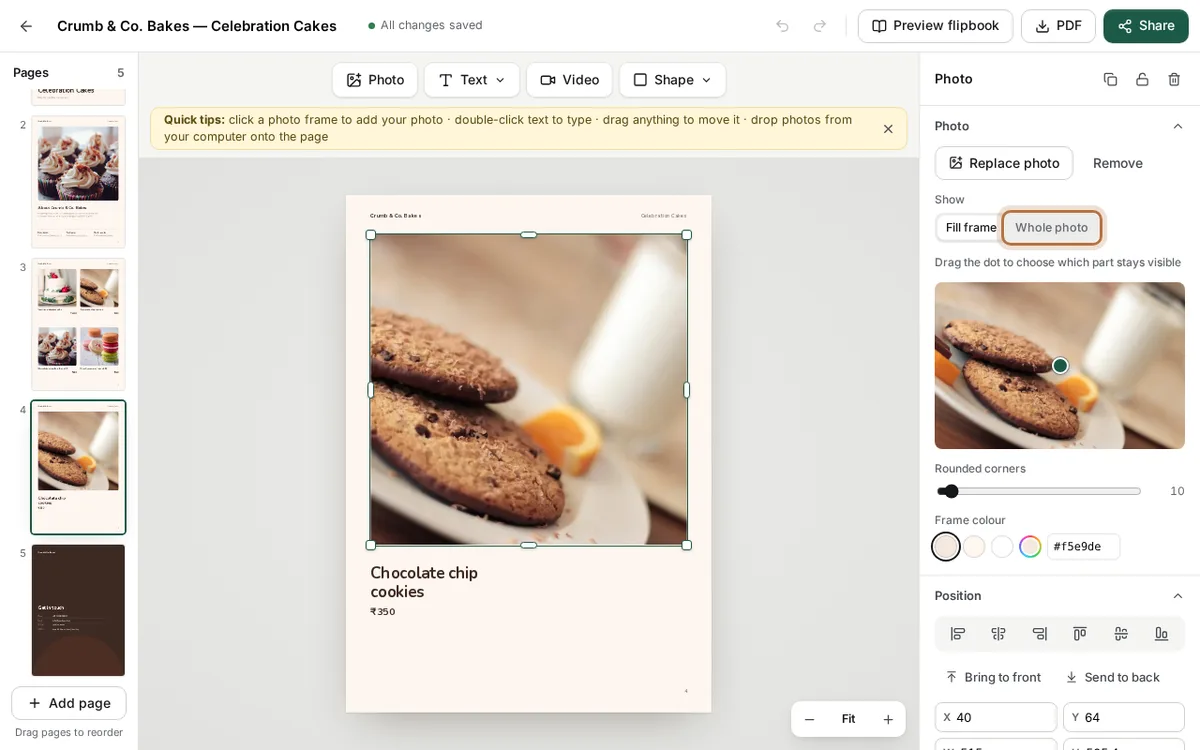
If a photo is dark or blurry, click Replace photo and pick a better one.
Good photos are a small habit, not a big job. Take a few product photos by the window today, and make your catalog with them for free.