
Plant nursery brochure: a 12-point checklist
A good plant nursery brochure shows healthy plants, names each one, adds a care note and a price, and ends with how to order. Use this checklist, then open a free plant template to fill in.
A customer holds your plant nursery brochure in one hand and a watering can in the other. She has two questions. Which plant suits my home? What does it cost?
If the brochure answers both, she calls you or visits. If not, she puts it down. This checklist helps you check a plant nursery brochure before you print it or send it on WhatsApp. The photos in this post are samples. Yours take their place.
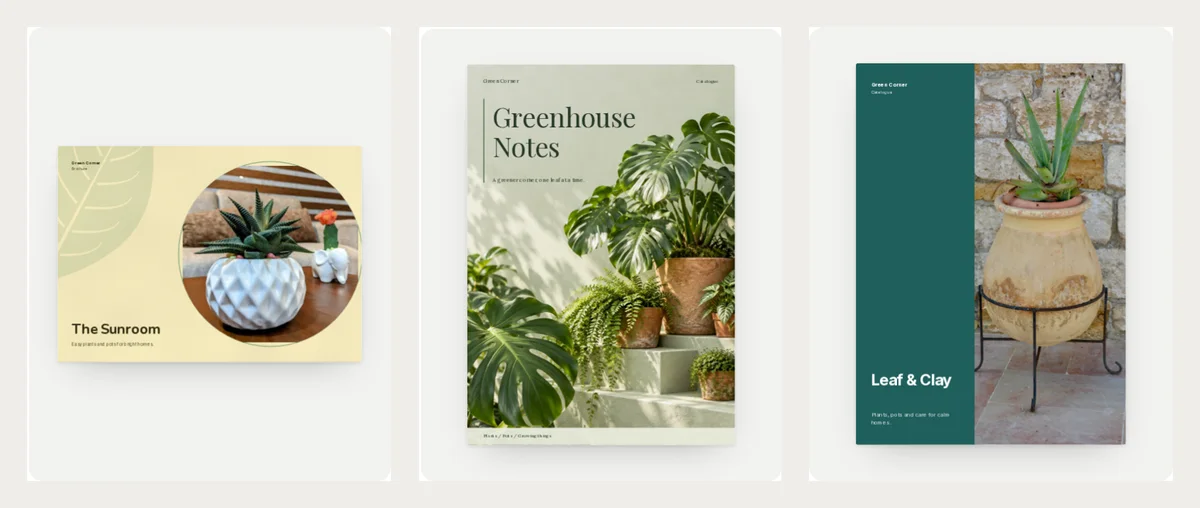
Start with the right shape
Plant buyers like to browse. A short brochure of 4 to 8 pages is enough for most nurseries. If you sell more than 30 plants, a longer catalogue or a plant price list may work better.
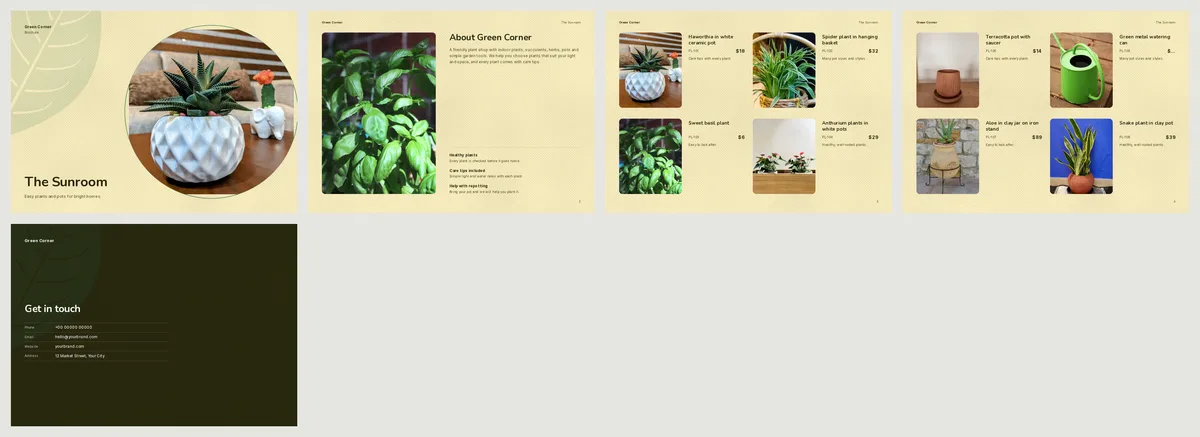
The free Sunroom brochure is a landscape brochure with five pages. See all of its pages below. The cover has one round photo. Page two says who you are. Two pages hold the plants. The last page has your contact details.
Photos: check these first
- Use one plant per photo. Customers should see what they will carry home.
- Show the plant in its pot. People want to know the size.
- Take photos in daylight, near a window or outside. Green looks fresh in daylight.
- Remove dry leaves before you take the photo. A brown leaf looks like a problem.
- Keep the background plain. A wall or a wooden bench works well.
Why it matters: a plant photo is your promise. A sad photo says the plant is sad. For more ideas, read how to take product photos with your phone.
Words: check these next
- Write the plant's common name, such as "Snake plant". Customers search for this name.
- Add the pot or size in the name, such as "Snake plant in clay pot". Two sizes can have two prices.
- Add one care line under each plant, such as "Easy to look after" or "Bright light, little water".
- Say if the plant is for indoors, outdoors or both.
- Explain any hard word. Write "Likes shade" and not "Sciophyte".
Why it matters: most buyers are not plant experts. A short care line gives them courage to buy. It also means fewer questions for you on the phone.
Prices: check these too
- Put a price on every plant. A missing price makes people think it is expensive.
- Use a short code, such as PL-101, so customers can order by code on WhatsApp.
- Write the price next to the name, not on a different page.
- Show pots and tools with their own prices.
- Add a date or a note if prices change by season.
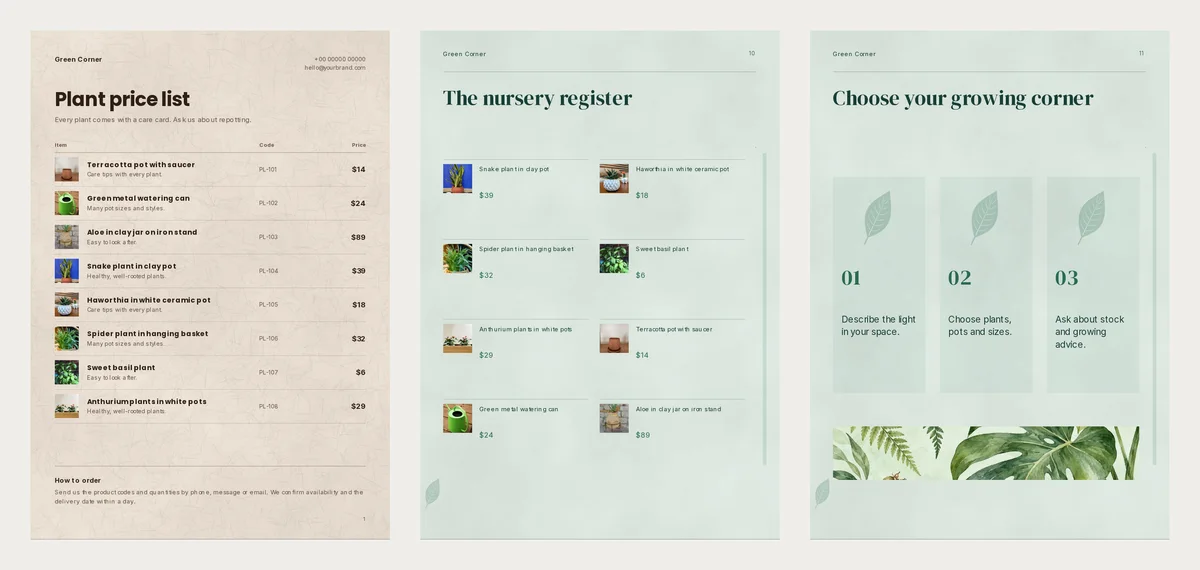
Why it matters: a code and a price turn a nice brochure into an order. The template pages show both under each photo. Below is a finished price list and the "nursery register" page from the Fern House catalogue. Both put the whole range on one page.
Trust and contact: check the last page
- Say something that builds trust. For example: "Every plant is checked before it goes home."
- Offer help. For example: "Bring your pot and we will help you plant it."
- Add three easy steps to order, such as "Describe your light. Choose plants, pots and sizes. Ask about stock."
- Put your phone number, email, website and address on the last page.
- Test the phone number and the link yourself.
Why it matters: a customer ready to buy must find your number in five seconds. In the sample, the numbers are placeholders like +00 00000 00000. Replace them with yours.
Make it in CatalogLeaf
- Open The Sunroom.
- Click Use with my photos and drop in your plant photos.
- Click each name and price on the page and type your own. Add a care line under each plant.
- Open the last page and replace the sample contact details with yours.
- Download the PDF, or share the brochure as a flipbook link on WhatsApp.
Want a fuller book instead? The Fern House catalogue has 12 pages with a nursery register and a three-step order page. Most plant buyers also like a short list they can scan, so keep the price list ready as a second file. If you plan to print, read how to print your catalog first.
You can look at every style on the plant brochure templates page, or use the brochure maker to start. It is free to try in CatalogLeaf.