
Print catalog PDF: 6 tips for a sharp paper copy
To print a catalog PDF, pick the page size first, then click PDF and choose Print quality. Check one test page at home before you order many copies.
A customer says, "Can I have a printed copy?" Many shops get this question. Some buyers like paper they can hold, mark and keep on a desk.
A catalog PDF can be printed at home or at a print shop. These six tips help you print a catalog PDF that looks sharp. Our example is a small bag shop, Weave & Carry Bags.
1. Pick the page size first
Paper comes in fixed sizes. Most shops in India use A4. Shops in the US use US Letter. Choose the size before you start, because it is set when you create the catalog.
When you start from your own photos or a blank catalog, you can pick A4 portrait, A4 landscape, US Letter or Square. A ready-made template comes in its own size.
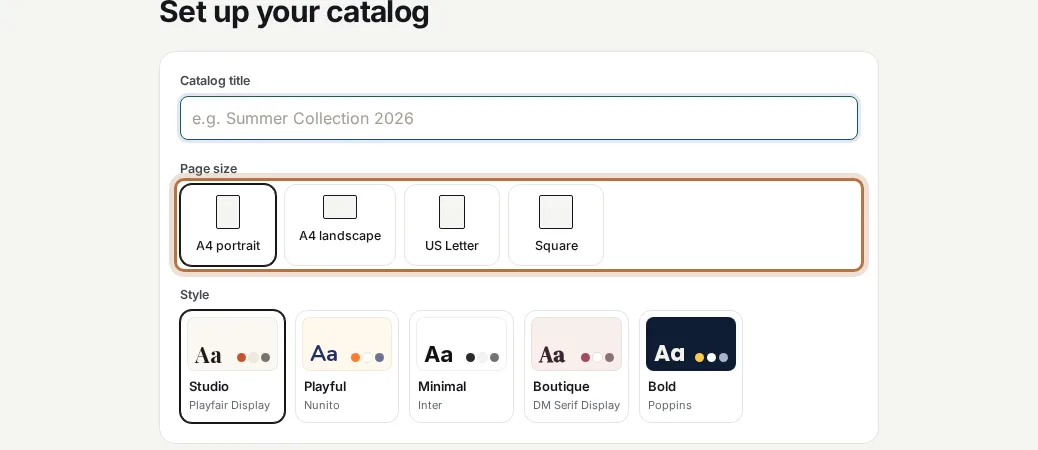
Choose A4 portrait for a booklet that opens like a book. Choose A4 landscape for a wide price list.
2. Choose Print quality
This is the most important tip. When you download the PDF, Print makes pictures sharper than the other choices. Open your catalog and click PDF. Then pick Print and click Create PDF.
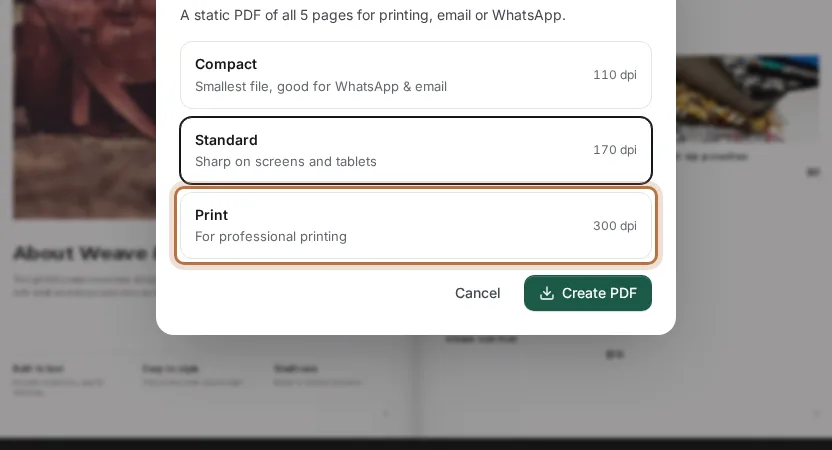
Here is what each choice means:
- Compact: 110 dots per inch (dpi). Good for WhatsApp, too soft for paper.
- Standard: 170 dpi. Good for screens and tablets.
- Print: 300 dpi. Made for printing.
Dpi means dots per inch. More dots make a sharper picture. The file gets bigger, but that is fine for a print shop.
3. Start with sharp photos
Print shows every flaw. A blurry photo on your phone looks even more blurry on paper. CatalogLeaf cannot add detail that the photo does not have.
Use the original photo from your phone or camera. Do not use a copy that came through a chat app, because those copies are made smaller. Read our tips for product photos with a phone for more.
4. Print one page at home first
Do not order 100 copies on the first try. Open the PDF and print one or two pages on your own printer. Hold them at reading distance.
Check three things. Can you read the small text? Are the colours close to the screen? Is any text too near the edge of the paper? Fix the problems in the editor, then click PDF again.
5. Do not rely on clicks and videos
A printed page cannot be clicked. A video is only a picture on paper. If your catalog has a video, the printed page shows a small thumbnail, and nobody can play it.
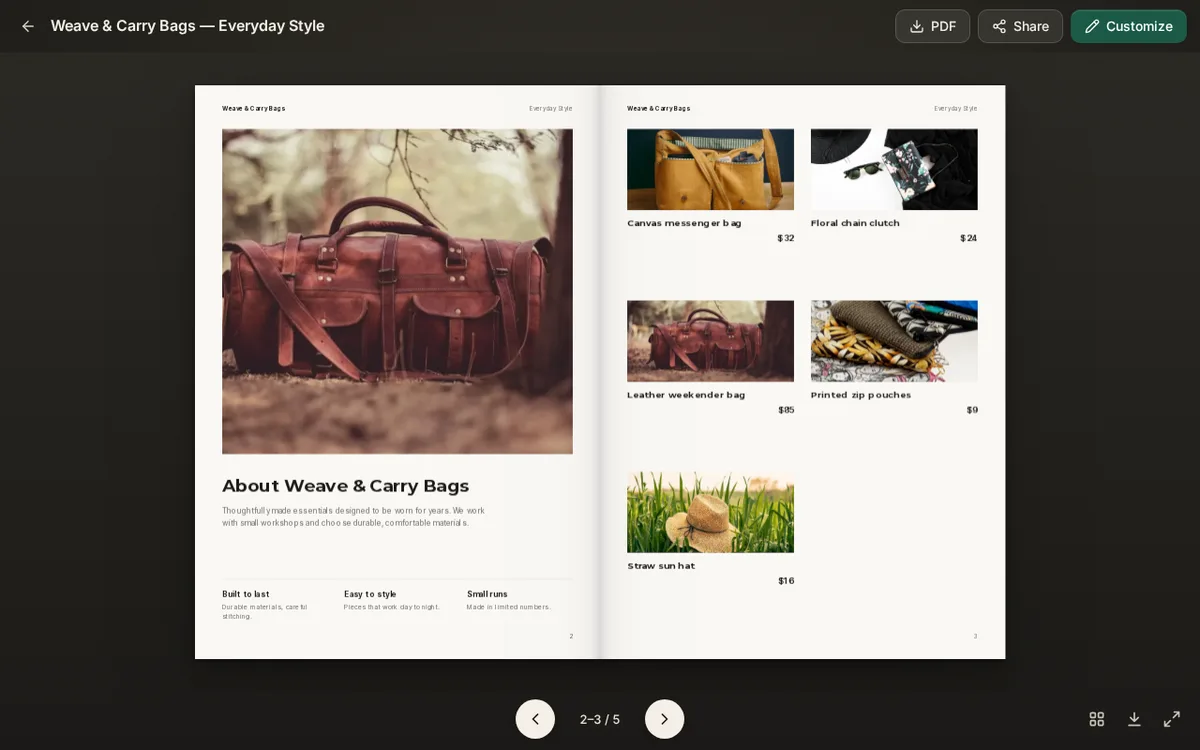
Write the shop's phone number and web address in plain text on the last page. Use your real details instead of the template's sample words, for example +00 00000 00000 and yourbrand.com. Also read the sample text in your template, such as the "About" page, and change it to your own story.
6. Ask the print shop before you pay
Call or visit the print shop with your PDF. Ask these questions:
- Which paper do you have, and how thick is it?
- What does one copy cost, and what is the price for 50?
- Can you staple or bind the pages?
- Can you print one test copy first?
Take the PDF on a pen drive, or send it by email. Tell them the page size you chose, so they do not shrink or stretch it.
Make your print catalog today
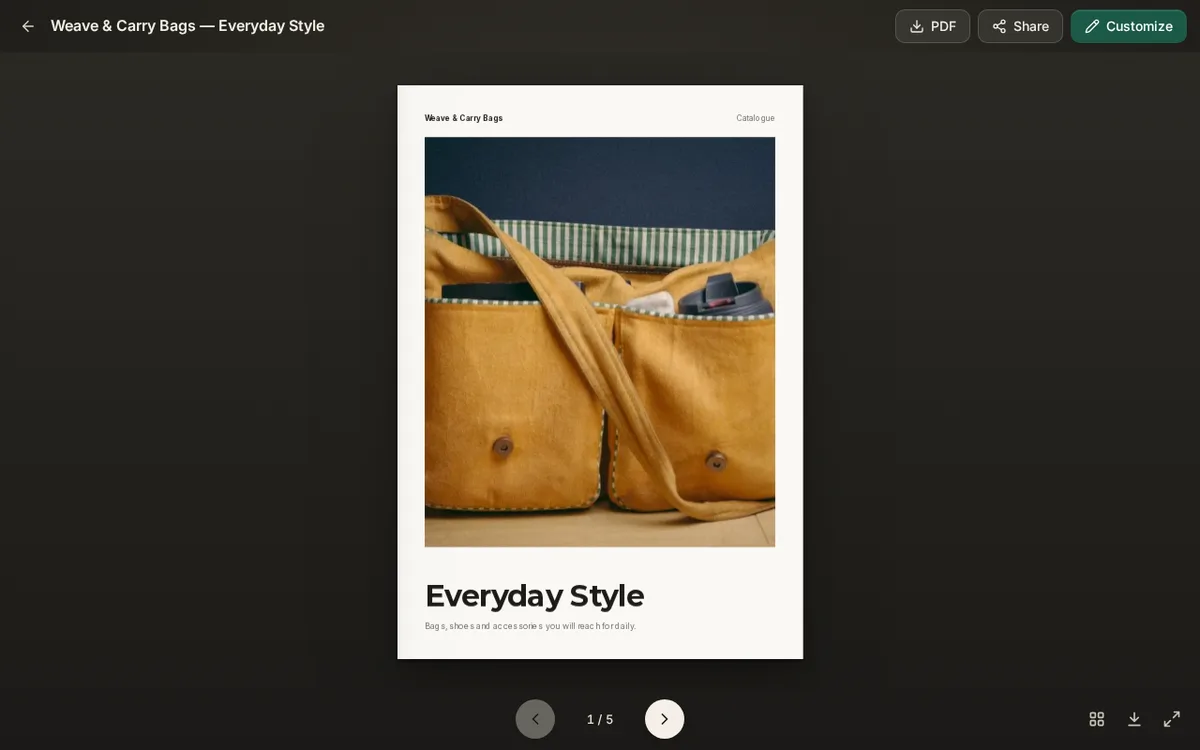
Decide how many pages you need, and keep the cover simple. A cover with one big photo and a short title, like the one below, looks good on paper.
Not sure if paper is the right choice? Read PDF or flipbook link: which should you send?. To learn more about print-ready files, see the catalog PDF maker. For a ready-made style like this one, open the fashion catalogue templates.
Ready to try? Open your catalog in CatalogLeaf, click PDF and pick Print.