
How to add a WhatsApp link in a PDF catalogue
Turn your number into a wa.me link, paste it into the Link box of a photo or a line of text, then download the PDF. A tap opens a WhatsApp chat with you, and the message can already name the product.
To add a WhatsApp link in a PDF, turn your phone number into a wa.me web address. Then put that address on a photo or a line of text before you save the PDF. When a customer taps it, WhatsApp opens a chat with you.
Our sample is Clay & Wick, a small home goods shop. Its buyers used to send a screenshot of page 3 and ask which one costs what. Now each product photo carries its own link, made free in CatalogLeaf.
What you need:
- Your WhatsApp number, with the country code.
- A short code under each product, like CW-04. A code is a short name for one product.
Build the link before you start
WhatsApp explains the format on its click to chat help page. Start with https://wa.me/. Then add your full number with the country code first. WhatsApp says to leave out extra zeros, brackets and dashes, and its example has no plus sign or spaces either.
Our sample number is +00 00000 00000. Drop the plus sign and the spaces, and the plain link is https://wa.me/000000000000.
You can also add a message that WhatsApp types in for the customer. Put ?text= after the number, then the message. A web link cannot hold spaces or some signs, so you swap them for short codes. A space becomes %20, a comma %2C, a question mark %3F and an & sign %26.
| The customer sees | You write after ?text= |
|---|---|
| Hello, I want to order CW-04 | Hello%2C%20I%20want%20to%20order%20CW-04 |
| Is CW-02 in stock? | Is%20CW-02%20in%20stock%3F |
Here is the whole link for the white jug:
https://wa.me/000000000000?text=Hello%2C%20I%20want%20to%20order%20CW-04
For the next product, copy it and change only the code at the end. The customer still presses send, and they can change the words first.
Step 1: Open your catalogue in the editor
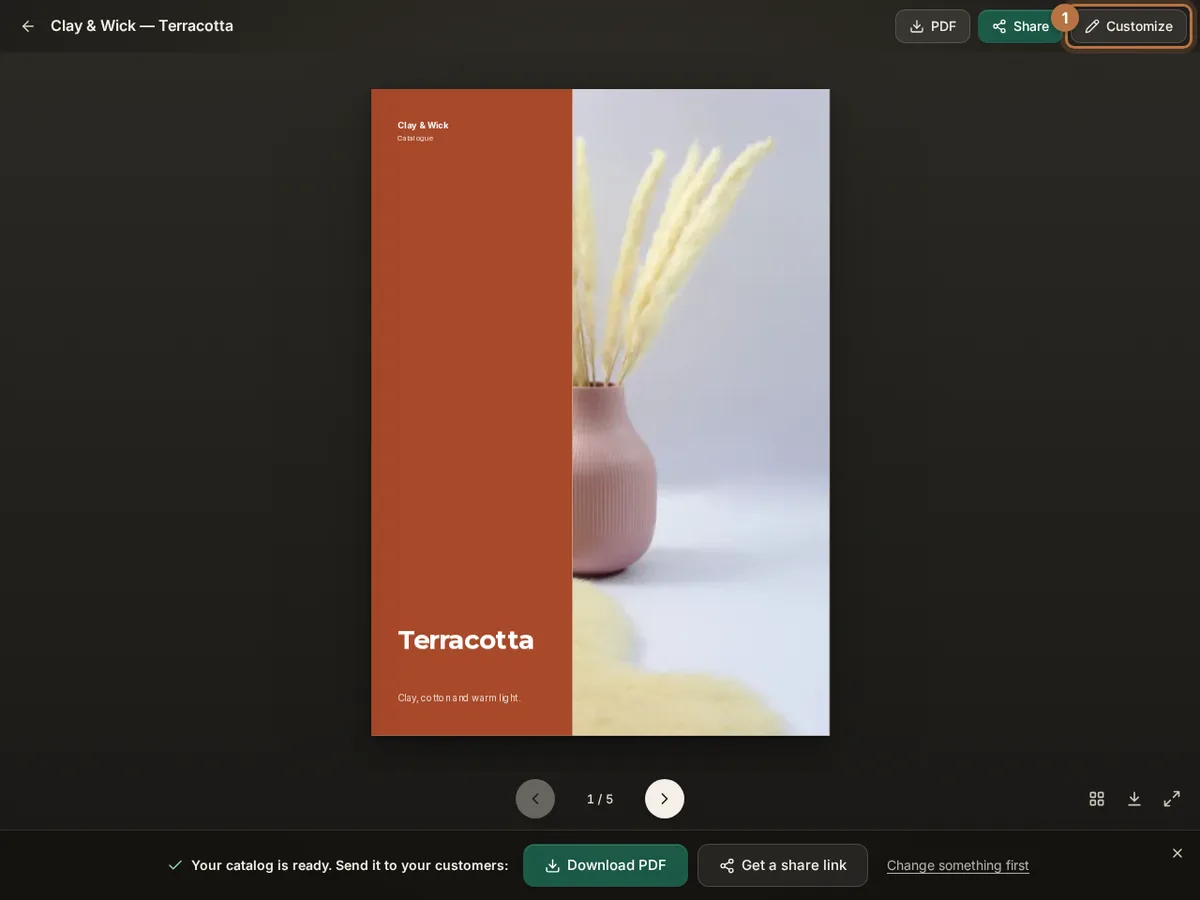
Make a catalogue from a template with your own photos, or open one you made before. We used the free Terracotta catalogue. Click Customize at the top.
Step 2: Click a product photo
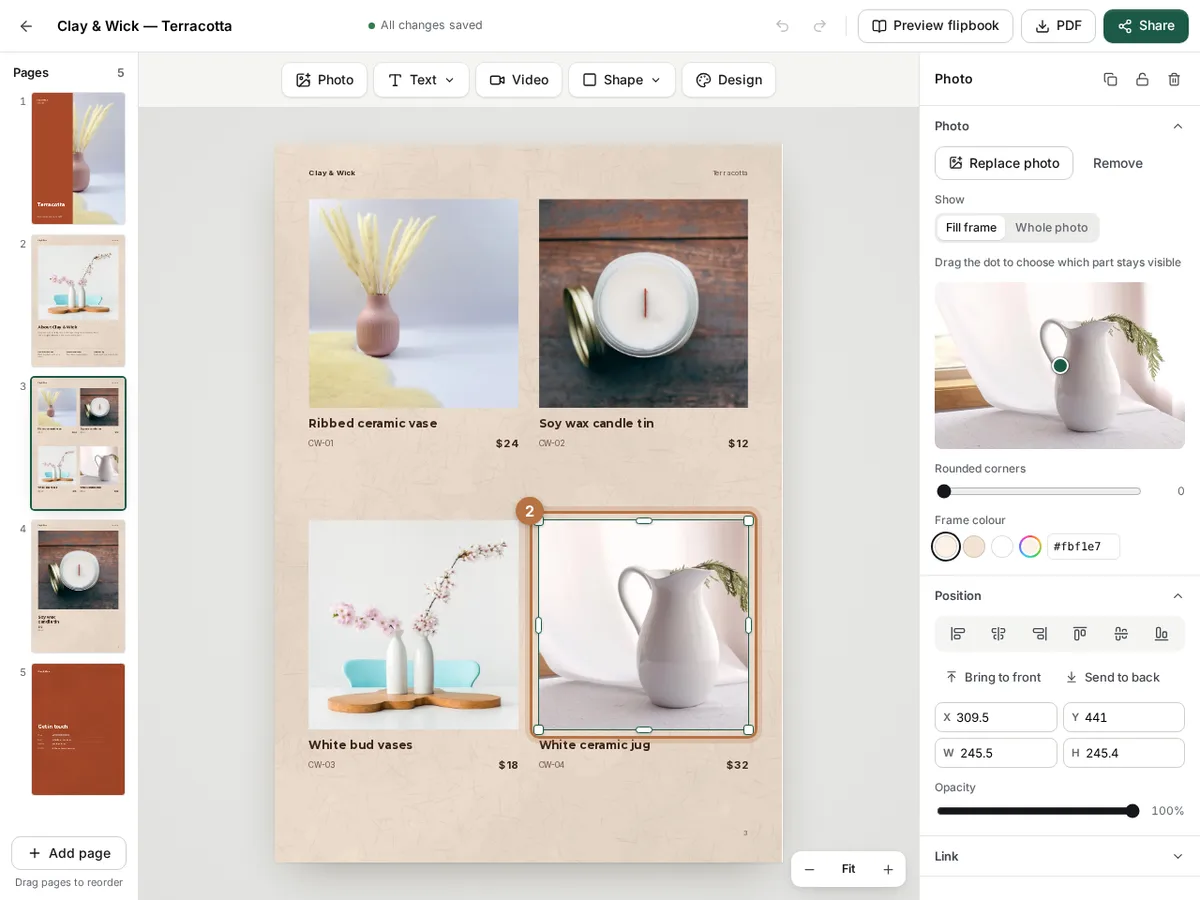
Go to the page with your products. Click one photo once. A frame shows it is chosen, and its settings open on the right.
Step 3: Paste the link into the Link box
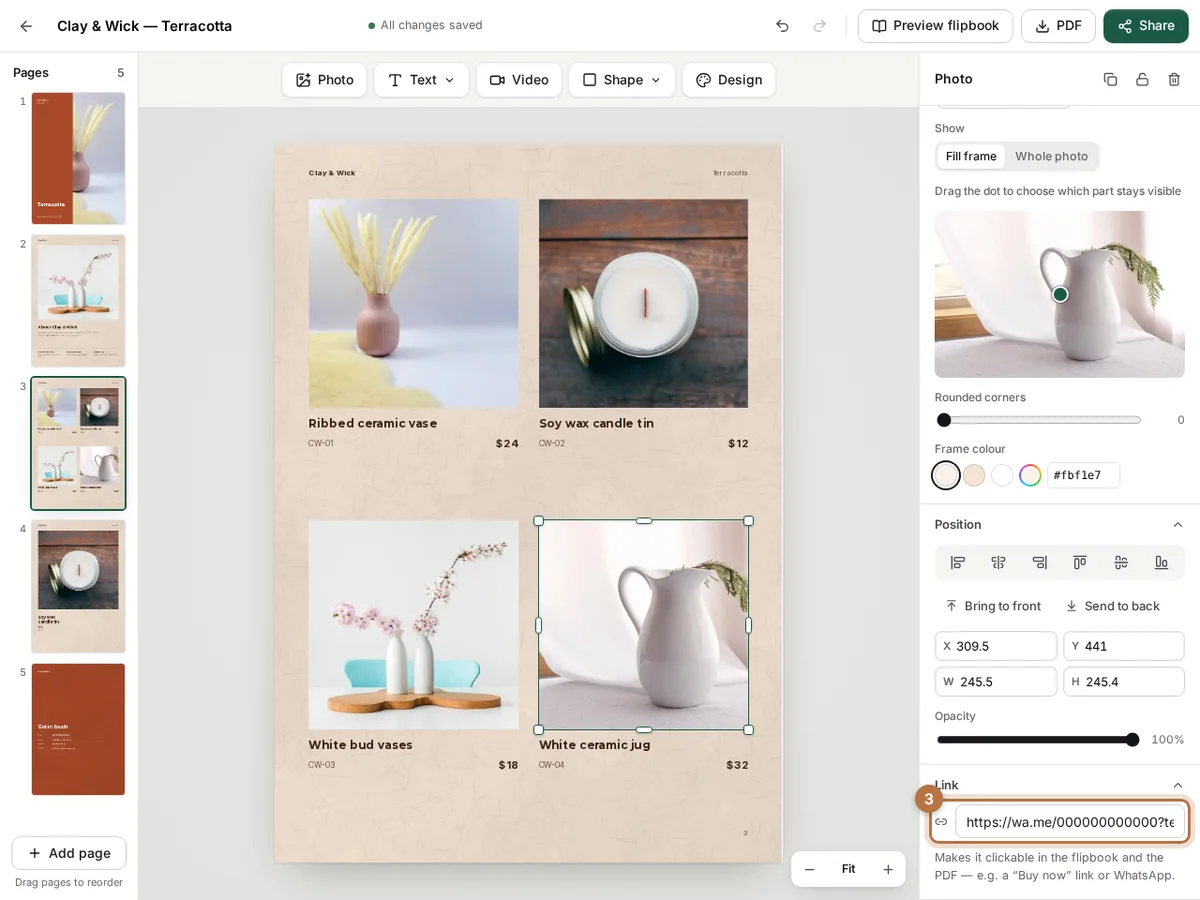
Scroll to the bottom of the right panel and click Link to open it. Paste the link with this product's code, then click outside the box to save it. Do the same for every product photo, each with its own code.
Step 4: Link your phone number too
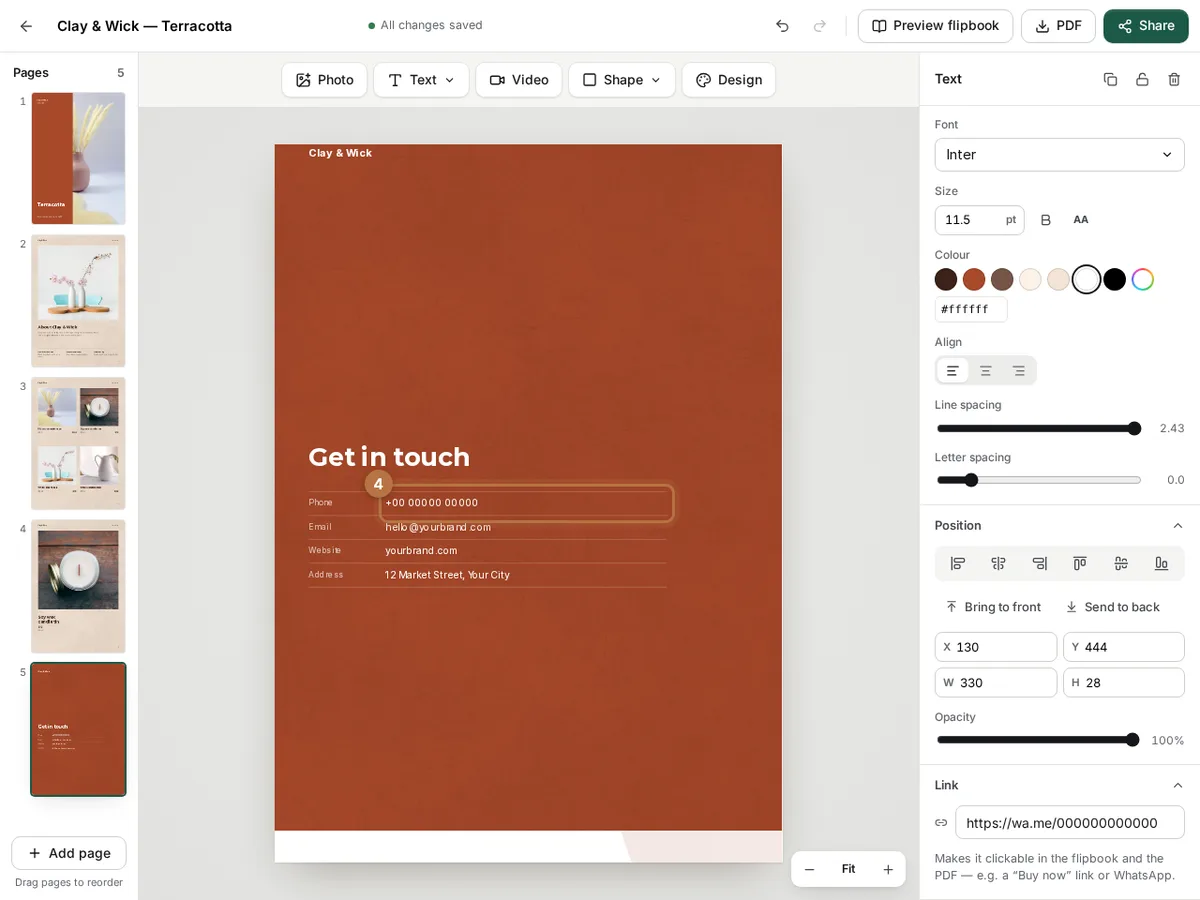
Open your last page and click the phone number. Give it the plain link, with no message. Now a customer with a general question can tap the number.
Step 5: Download the PDF
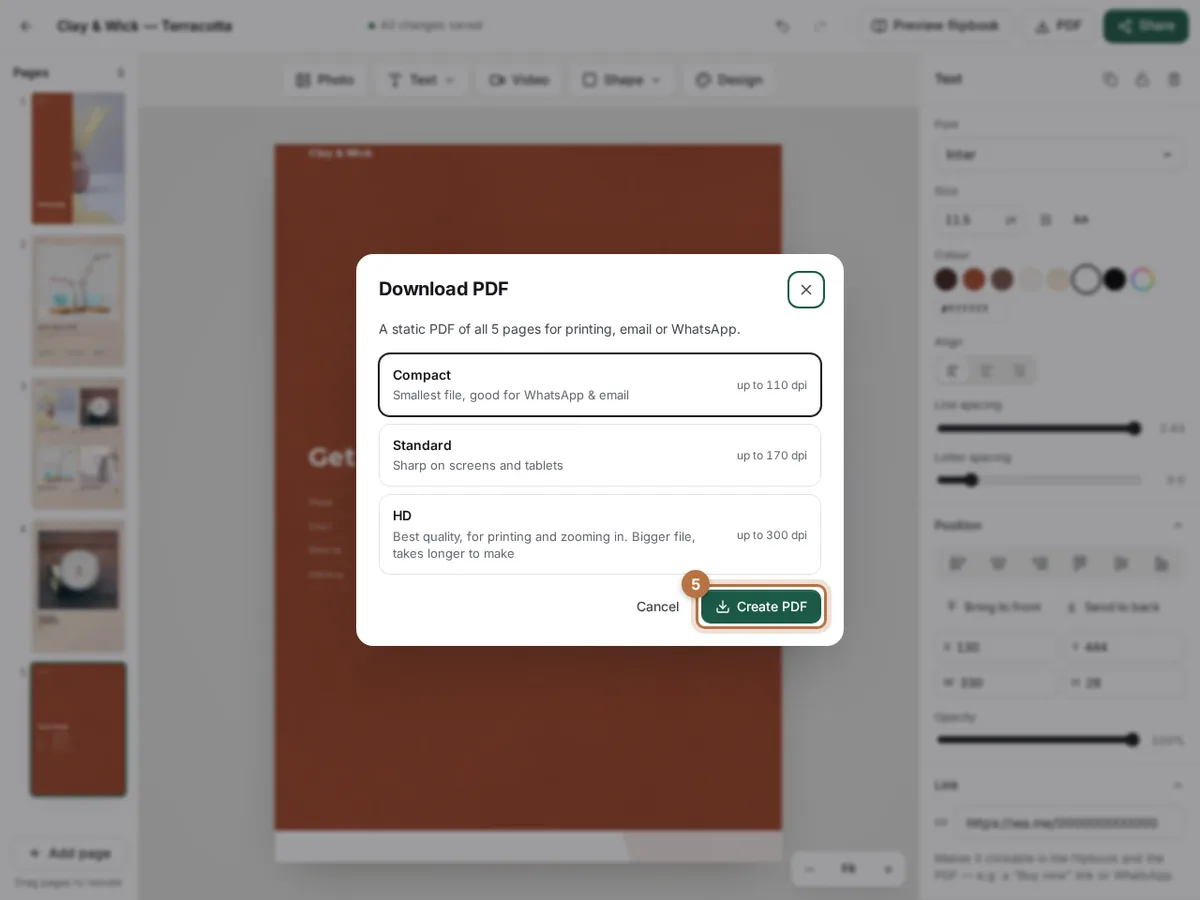
Click PDF at the top and choose Compact. Then click Create PDF. Compact makes the smallest file, so it sends fast in a chat.
What we found when we tested it
We made the Clay & Wick PDF at all three qualities, then opened each file and counted its links. All five were there in Compact, Standard and HD: four product photos and the phone number.
The links cost almost nothing. Each file stayed the same size with or without them: 342 KB, 535 KB and 785 KB. All five links together added less than 300 bytes.
We checked the files, not every phone. That is why the first tip below matters.
Your finished pages
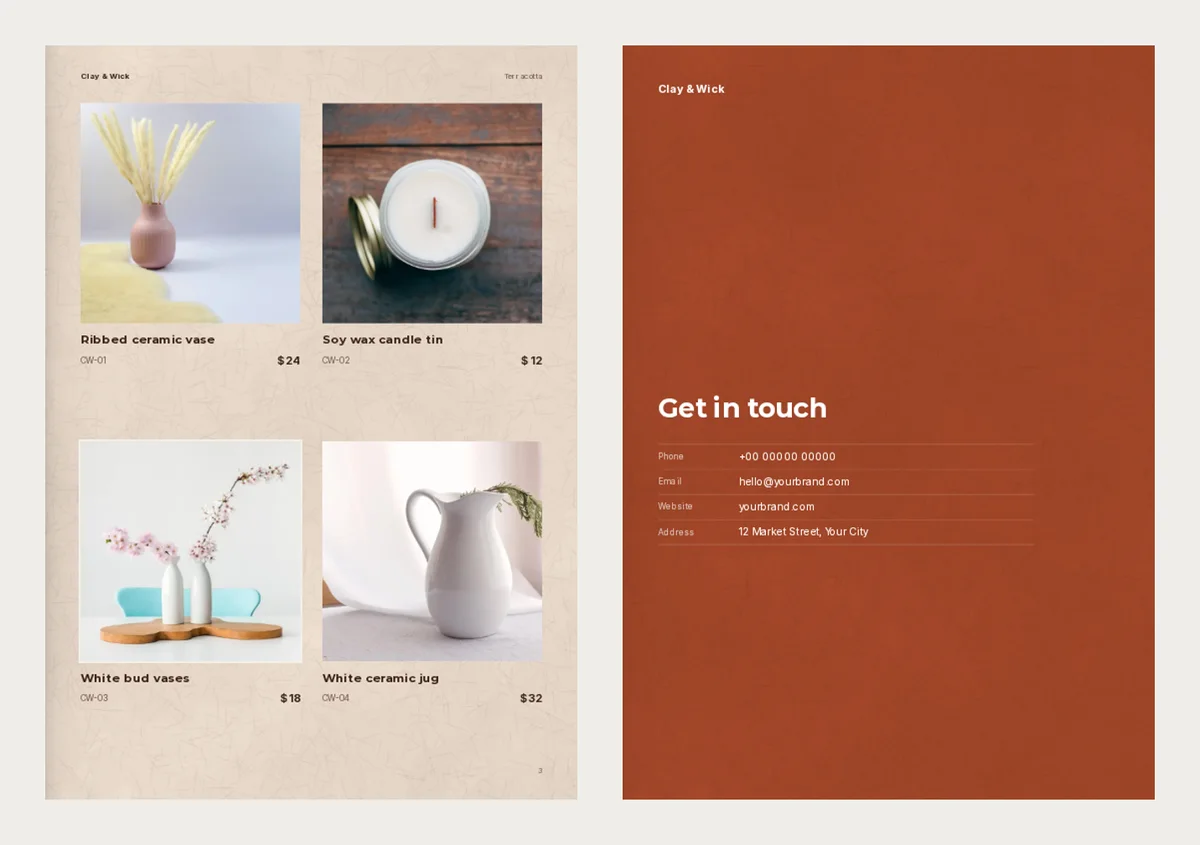
On the left, each photo opens a chat that names its own code. On the right, the phone number opens a plain chat. The same links work in the flipbook too, if you send a link instead of a file.
Tips
- Test it on a friend's phone first. Send them the PDF on WhatsApp and ask them to tap two photos. Each message should show the right code. If nothing happens, check the number: WhatsApp's help page says the link only works for a number with an active WhatsApp account.
- Tell people they can tap. A photo does not look like a button. Add one short line, such as "Tap a photo to order on WhatsApp", with Text and then Paragraph.
- Print the number in full. A link does nothing on paper. Keep the phone number written out on the last page.
To build a whole catalogue for WhatsApp orders, see our WhatsApp catalogue maker page. After that, the next order on your phone will start with "CW-04", not with "Which one?".