
Excel to catalog: turn your product list into a PDF
Click From a spreadsheet, drop in your Excel or CSV file and check the columns. Then add your photos, named by product code, and click Create catalog. CatalogLeaf makes every page for you.
Quick answer: if your products are already in Excel, you don't need to type them again. Upload the file to CatalogLeaf, add your photos, and it makes the catalog pages for you.
Going from Excel to catalog takes about five minutes. It is free, and you don't need an account. In this guide we use a small kitchen shop with six products. The steps are the same for a short list or a long one.
What you need:
- Your product list as an Excel file (.xlsx) or a CSV file.
- The first row should hold column names, like Name, Code, Price, Category and Description.
- One product on each row below it.
- Your product photos, if they are not inside the Excel file.
Tip: name each photo after its product code, like KT-01.jpg. Then CatalogLeaf puts the right photo next to the right product. A second photo can be KT-01_back.jpg.
Old Excel files that end in .xls do not work. In Excel, choose File, then Save As, and pick .xlsx or .csv.
Step 1: Choose From a spreadsheet
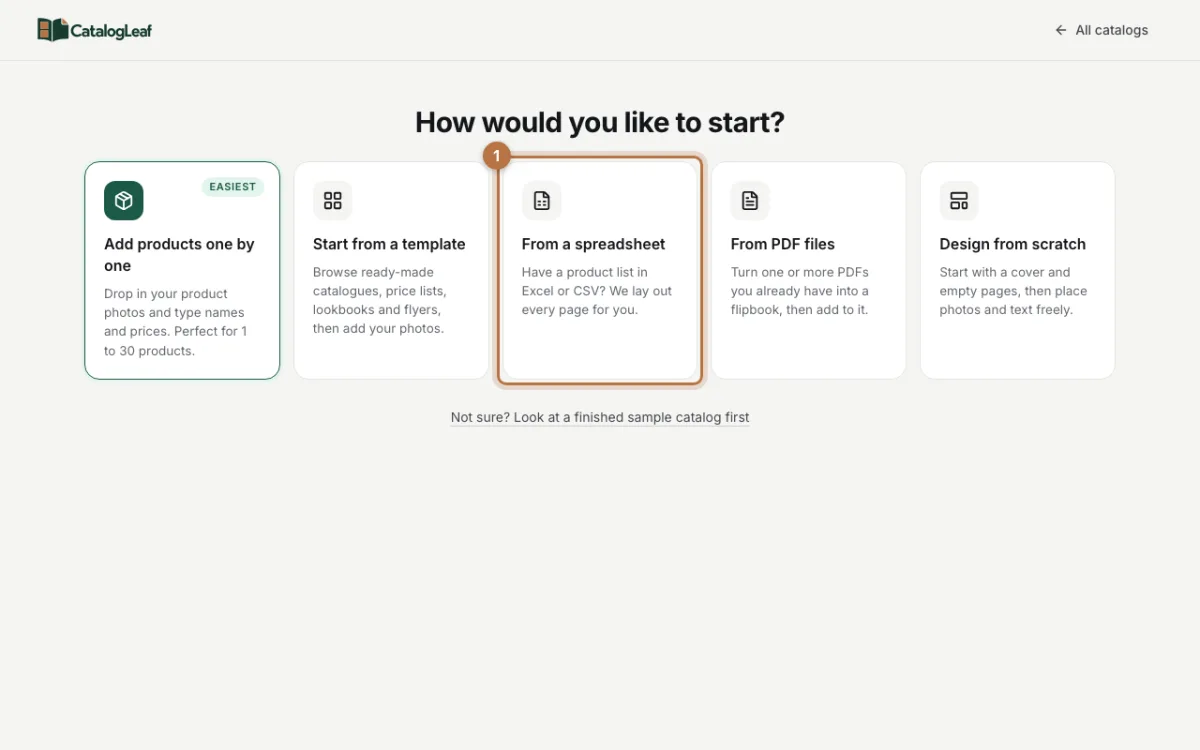
Open a new catalog. You see a few ways to start. Click From a spreadsheet.
Step 2: Upload your Excel file
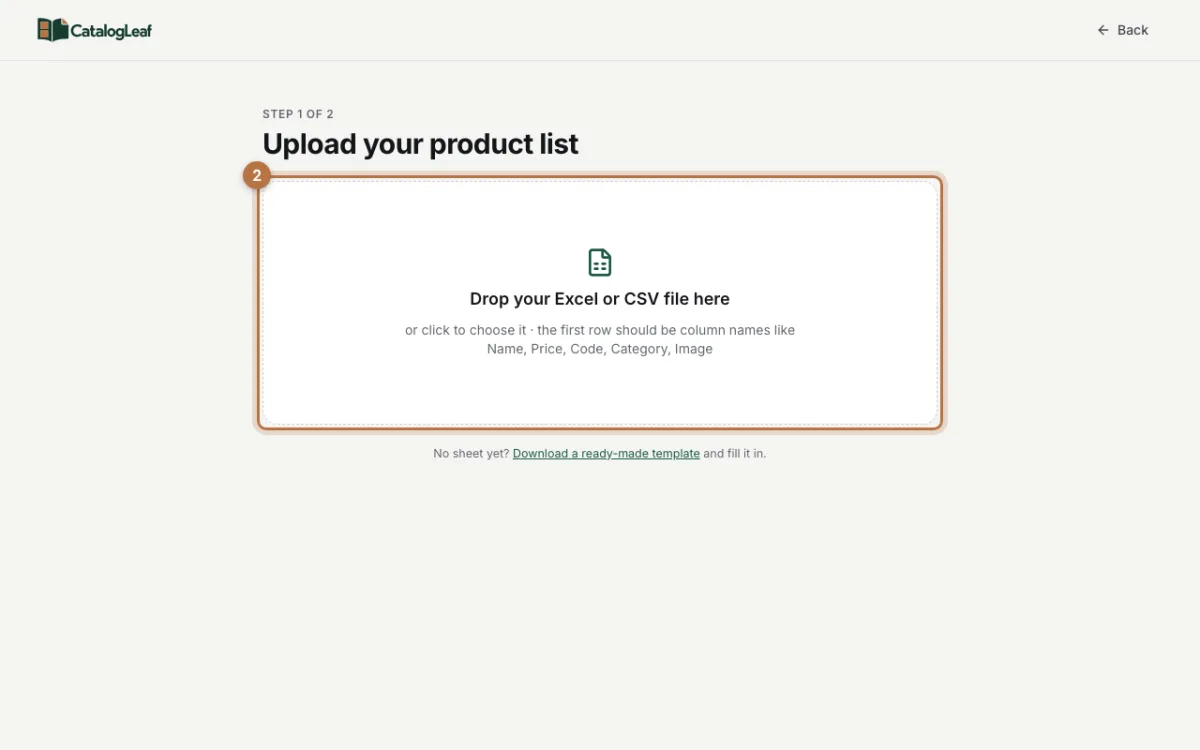
Drag your Excel or CSV file into the big box. You can also click the box and choose the file.
No list yet? Click Download a ready-made template. It is a small CSV file with the right columns. Fill it in, save it and upload it.
Step 3: Check the columns
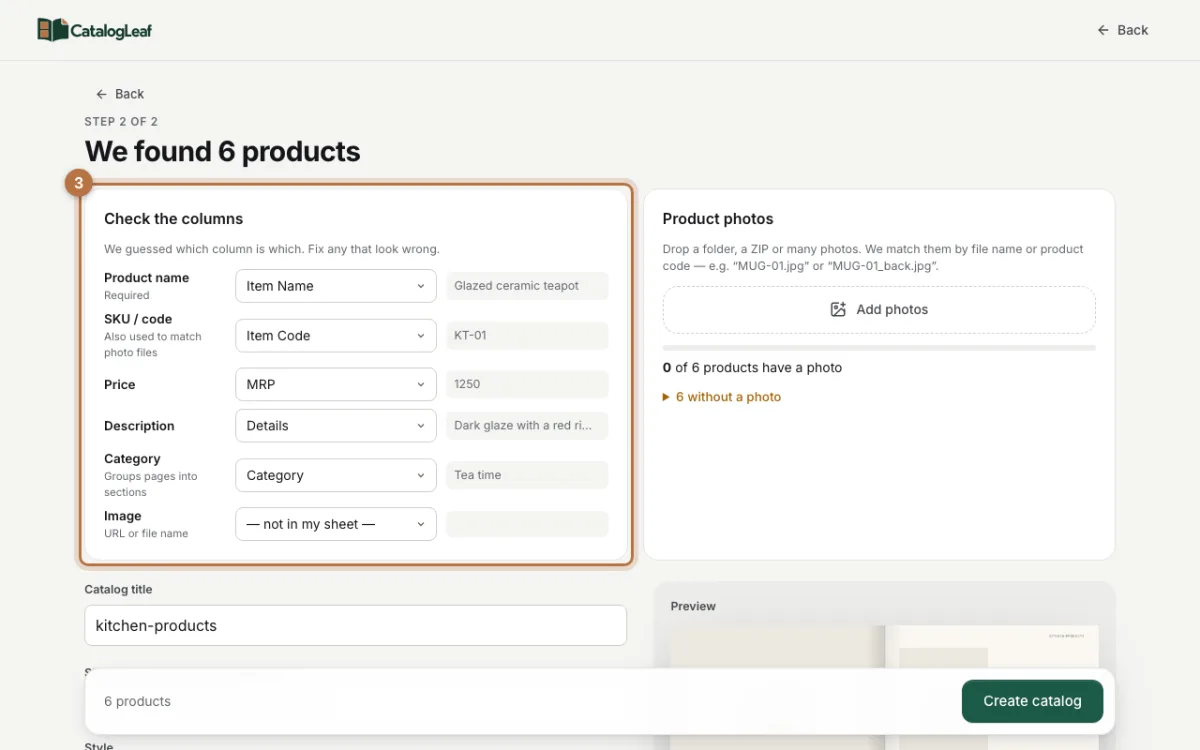
CatalogLeaf reads your file and shows how many products it found. It also guesses which column is which. In our file the price column is called MRP, and it was still found.
Look at the Check the columns part. If a guess is wrong, pick the right column from the list. Only the product name is required. Choose not in my sheet for anything you don't have.
The Category column matters. Each category can start on its own page, like a chapter in a book.
Step 4: Add your photos
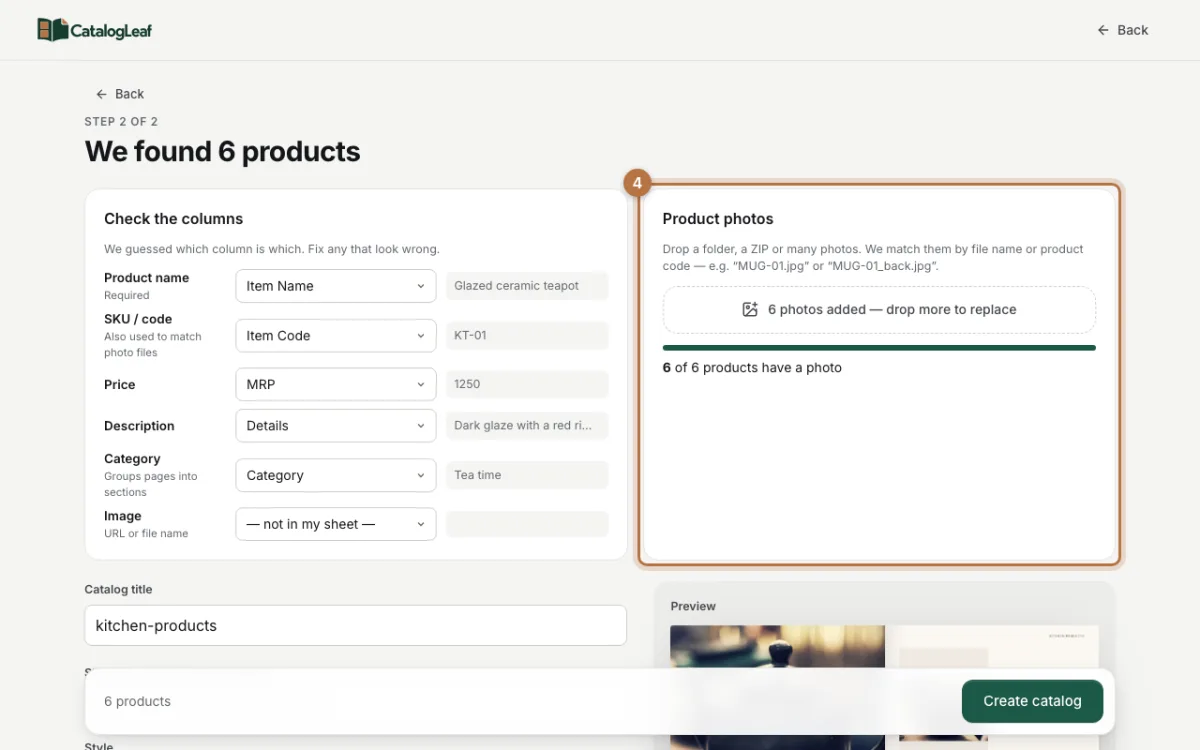
Drop your photos onto Add photos. You can drop many photos at once, a whole folder, or a ZIP file. A ZIP file is one file that holds many files.
CatalogLeaf matches each photo by its file name or product code. The green bar shows how many products have a photo. If some are missing, click the line that says how many are without a photo to see which ones.
Are your photos inside the Excel file, on the same row as each product? Then CatalogLeaf finds them by itself. You will see a line like "Found 6 photos inside your Excel file". This works for the first sheet in the file.
Step 5: Choose a look
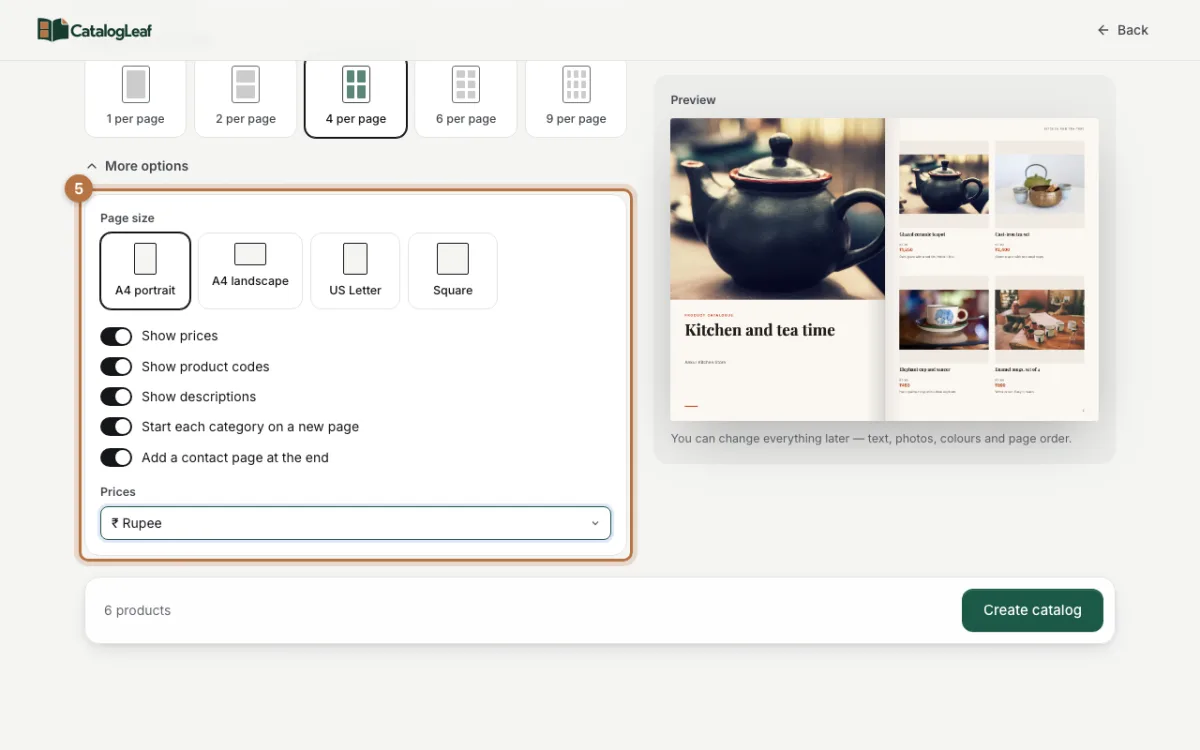
Scroll down. Type your catalog title and a short line under it, like your shop name. Then pick a style and how many products go on each page.
Click More options for a few more choices. Turn on Start each category on a new page. Under Prices, pick your currency, like ₹ Rupee. The preview on the right changes as you go.
Step 6: Create the catalog
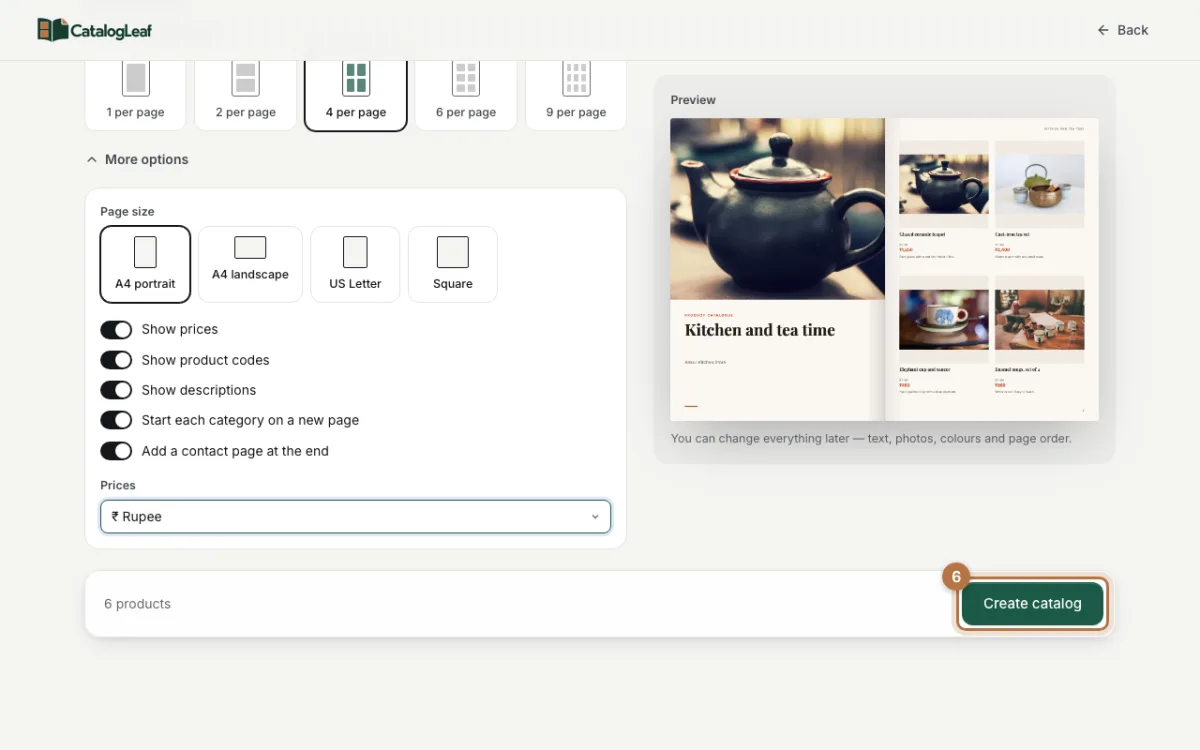
Click Create catalog at the bottom. It takes a few seconds. A product without a photo gets an empty photo frame, and you can add the photo later.
Your finished catalog
Here is the kitchen shop catalog from this guide:

It has a cover, a page for each category, the product pages and a contact page at the end. Each product shows its photo, name, code, price and short description.
Click PDF at the top to download it. Click Share to get a link instead. Click Customize to change any text, photo or colour.
Tips for a clean Excel list
- Keep one product on each row. Don't merge cells.
- Type prices as plain numbers, like 1250. The currency is added for you.
- Use the same spelling for each category, so products don't split into two sections.
- Keep descriptions short. One line about size, colour or material is enough.
- Prices changed? Fix the Excel file and upload it again, or change the price in the catalog with Customize.
Want to show more than one photo of a product? Read how to add more photos to one product. You can also read more about making a product PDF.
Ready to try? Start from your spreadsheet and see your catalog in a few minutes.