
Interactive PDF catalogue: buttons customers can tap
An interactive PDF catalogue has buttons people can tap, like Buy now or Order on WhatsApp. From 24 October 2026, CatalogLeaf adds them free, in your flipbook link and your PDF.
An interactive PDF catalogue is a catalogue people can tap. A Buy now button opens your shop. A WhatsApp button starts a chat. Your logo at the top tells them who you are.
Think of a customer who likes a pair of shoes on page 3. Today they send you a screenshot and ask the price. With a button on that photo, they tap once and land on the product.
From 24 October 2026, CatalogLeaf adds these buttons for free. They work in your PDF and in your flipbook link, which swipes on phones.
Try a live example
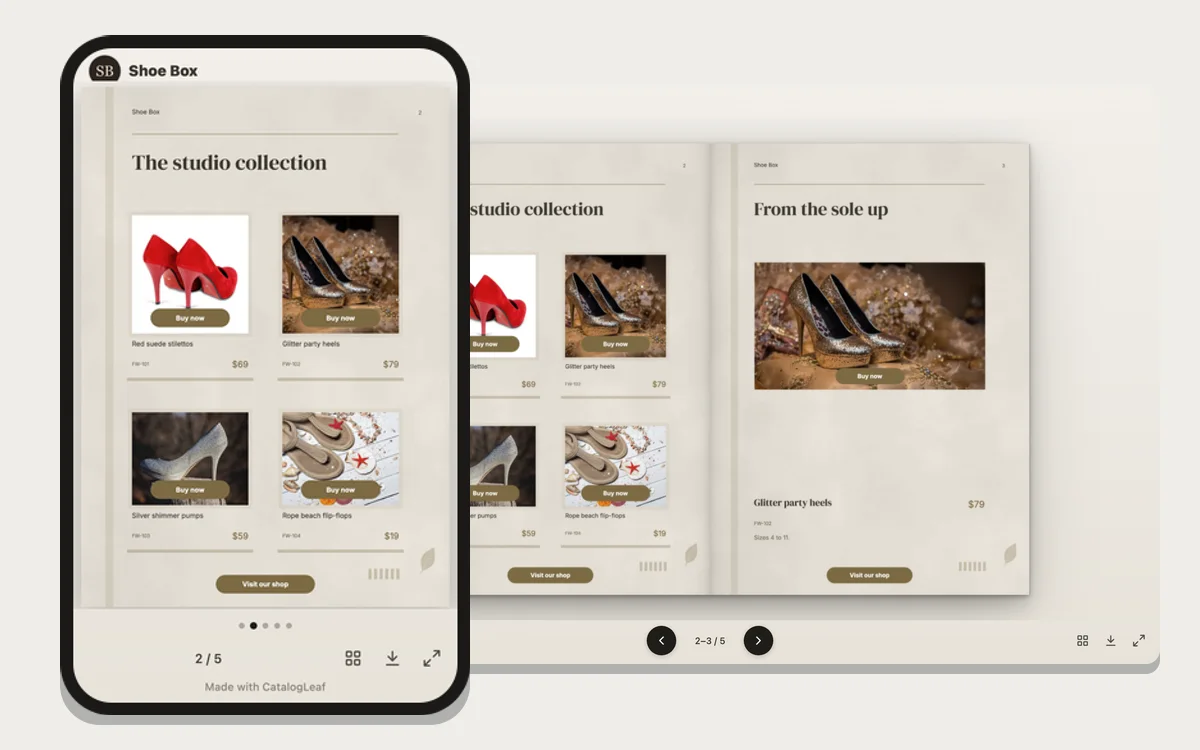
This is a real share link, made in CatalogLeaf with sample photos. The shop name is made up. Every button opens example.com, a web address kept for examples.
On a computer it opens as a flipbook, and the pages turn like a book. On a phone, the pages swipe one by one. Tap a Buy now button, or Visit our shop at the bottom of any page.
What's new: clickable buttons in your PDF and flipbook
Your logo and name on your link
Your logo and brand name now sit at the top of your link. It looks like a post from your brand, not a plain file. On phones, people swipe through the pages like photos in an Instagram post, with dots under them.
To add them, open your catalogue and click Share. Under Choose the look, click Add logo and type your Business name.
A Buy button on any product
In the editor, select a product photo and click Buy button in the toolbar. The button lands at the bottom of the photo. In When tapped, open, paste your shop link or your WhatsApp number. Type the number with the country code first, like +1 or +91.
With a WhatsApp number, a tap opens a chat. WhatsApp calls this click to chat. The message is already typed for your customer. It names the page, and the product too when the Product (optional) line is filled in.
Buttons and links people can click
A button can say more than "Buy now". Pick View more, Enquire, Call us or Follow us, or type your own words, like "Learn more". Type your social media name, like @yourbrand, and choose the app. The button then shows that app's icon.
Want a logo, a phone number or a whole banner to work as a link? Click Link in the toolbar and drag the box over that part of the page. Customers don't see the box. They see your design, and a tap goes to your link.
One order button for every page
In the Share window, fill in Where should customers order? with a WhatsApp number or a shop link. An order button now sits near the bottom of every page.
Any button can do this too. Select it and switch on Show on every page. Switch on Full width, edge to edge, and it becomes a bar across the page.
Where the buttons work
Buttons are saved into the page itself. So they go wherever the page goes.
| Where people see your catalogue | Can they tap the buttons? |
|---|---|
| Your link on a phone (swipe) | Yes |
| Your link on a computer (flipbook) | Yes |
| The flipbook on your own website | Yes |
| The PDF you download with PDF | Yes, when it opens in a PDF reader |
| A printed copy | No, so print your number too |
Not sure how a customer will open your PDF? Send the link instead. It opens in any web browser.
Tips for buttons people tap
- Use one button per product. Two buttons on one photo make people stop and think.
- Say what happens next. "Order on WhatsApp" tells people more than "Click".
- Check the product line. The Buy button copies the name and price under the photo into Product (optional). That line goes into the WhatsApp message, so fix any typo there.
- Refresh an older link. Links shared before this update still open as a flipbook. For the swipe view on phones, open Share. Under Choose the look, pick Swipe on phones, then click Update link.
Make your own interactive PDF catalogue
Start from your product photos, a spreadsheet or a PDF you already have. With an existing PDF, upload it as a flipbook. Its own links keep working, and you can add buttons on top.
Add your buttons, then click Share and Create my link. It is free, and you don't need an account. Make your catalogue now.
Before you send it to everyone, send it to one regular customer. Ask them to tap Buy now and tell you what opened.