
How to make a boring catalogue PDF look better
To make a PDF look better, switch off its white background, then add a colour, a paper texture, artwork and Buy buttons. Your words stay sharp.
Your catalogue PDF does its job. It lists every product and every price. But it is white page after white page, and on a phone it looks like a bank statement.
You can make your PDF look better without designing it again. Use the file you already have: a soft colour behind it, a paper texture, a little artwork and buttons people can tap. It is free and takes about ten minutes.
We use a sample shop, Juniper Bath Co. Its catalogue is four plain pages: black text, white paper, a few product photos.
What you need:
- Your catalogue as a PDF, from any program.
- Your shop link or WhatsApp number, if you want buttons.
Step 1: Upload your PDF
Open the PDF upload page and drop your file in, or click Choose PDF files. Then click Create flipbook. Your PDF stays on your device until you share it.
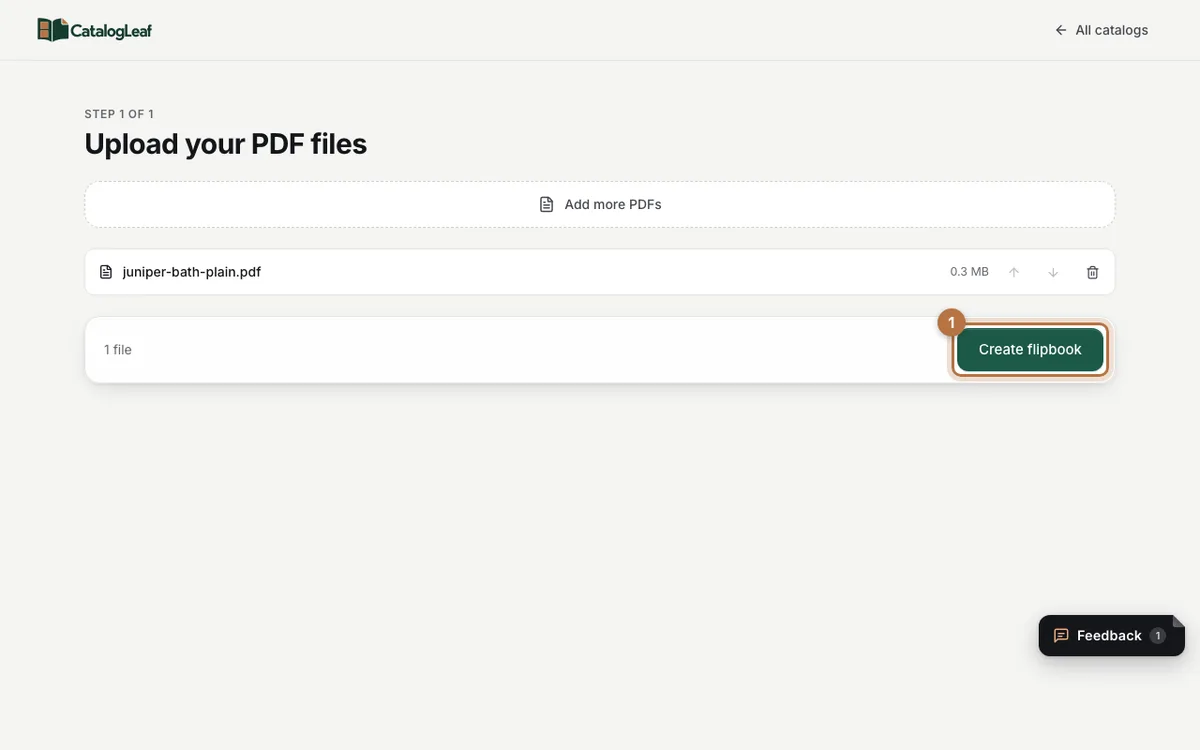
Have the catalogue in two files? Add both. They join into one catalogue, in the order you add them.
Step 2: Switch off the white background
The editor opens with the Your PDF settings on the right. Switch off Show the PDF’s own background.
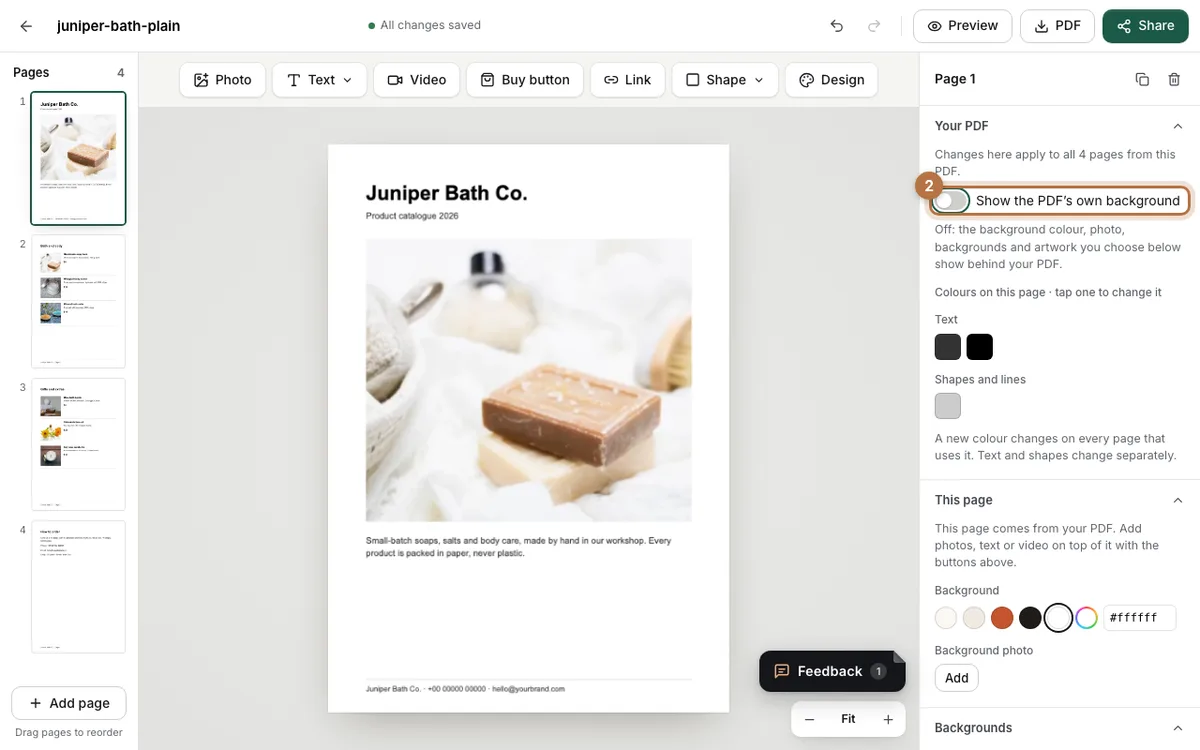
The page still looks white, and that is right. Your PDF now lies on the page like a clear sheet. Whatever you put behind it in the next steps shows through.
Step 3: Pick a colour and a paper texture
Scroll down to This page. Under Background, tap a colour or type one in. We typed a pale green, #e4eee6.
Under Backgrounds, tap a paper texture. We picked Linen. Then click Use on every page, so all four pages match.
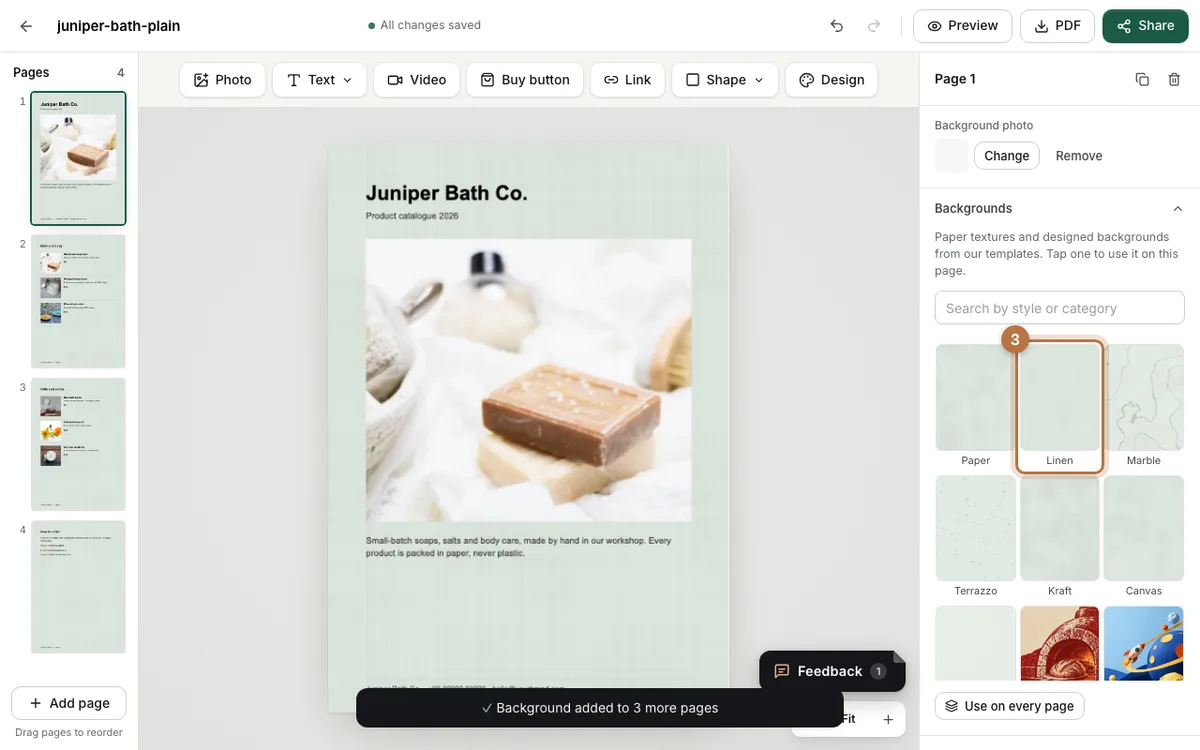
You can also use a photo of your own. Under Background photo, click Add.
Step 4: Add artwork behind your products
Under Background artwork, tap a shape. We picked Leafy sprig and gave it a light green.
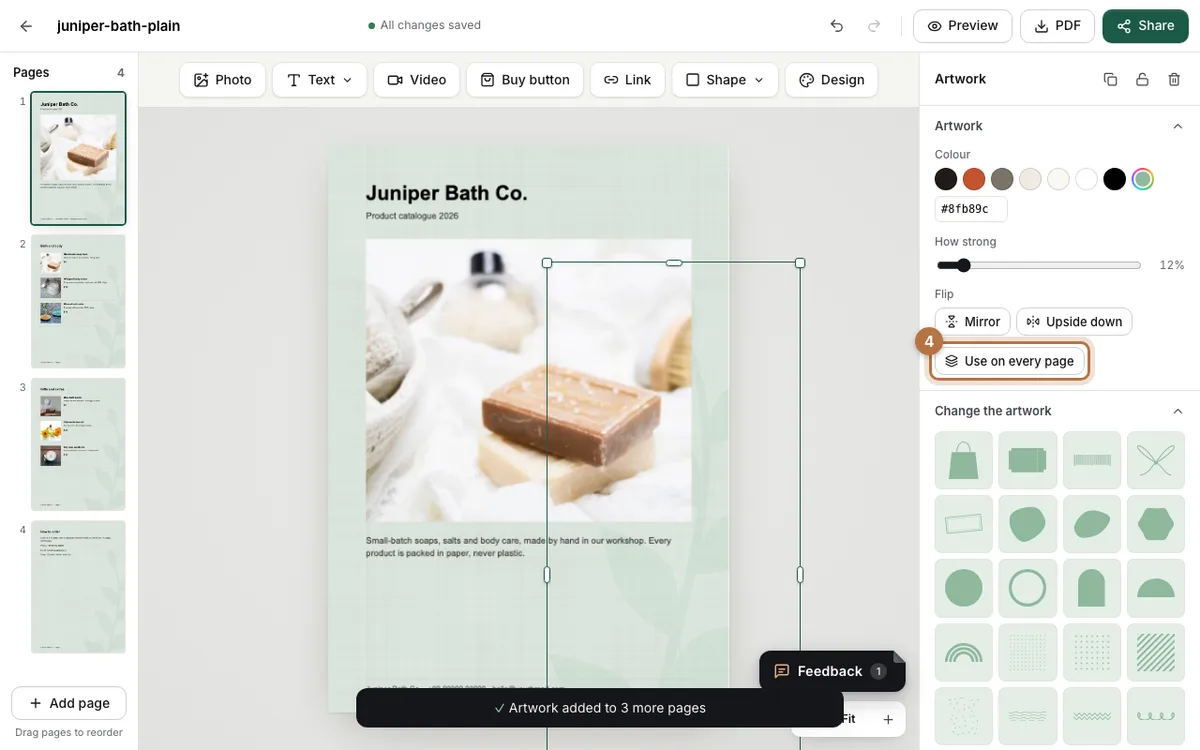
The artwork sits behind your words and photos, never on top. How strong sets how faint it is; ours is at 12%. Click Use on every page again to add it to the other pages.
Step 5: Give your headings a new colour
Back in Your PDF, look at Colours on this page. These are the colours your PDF already uses. Tap one to change it.
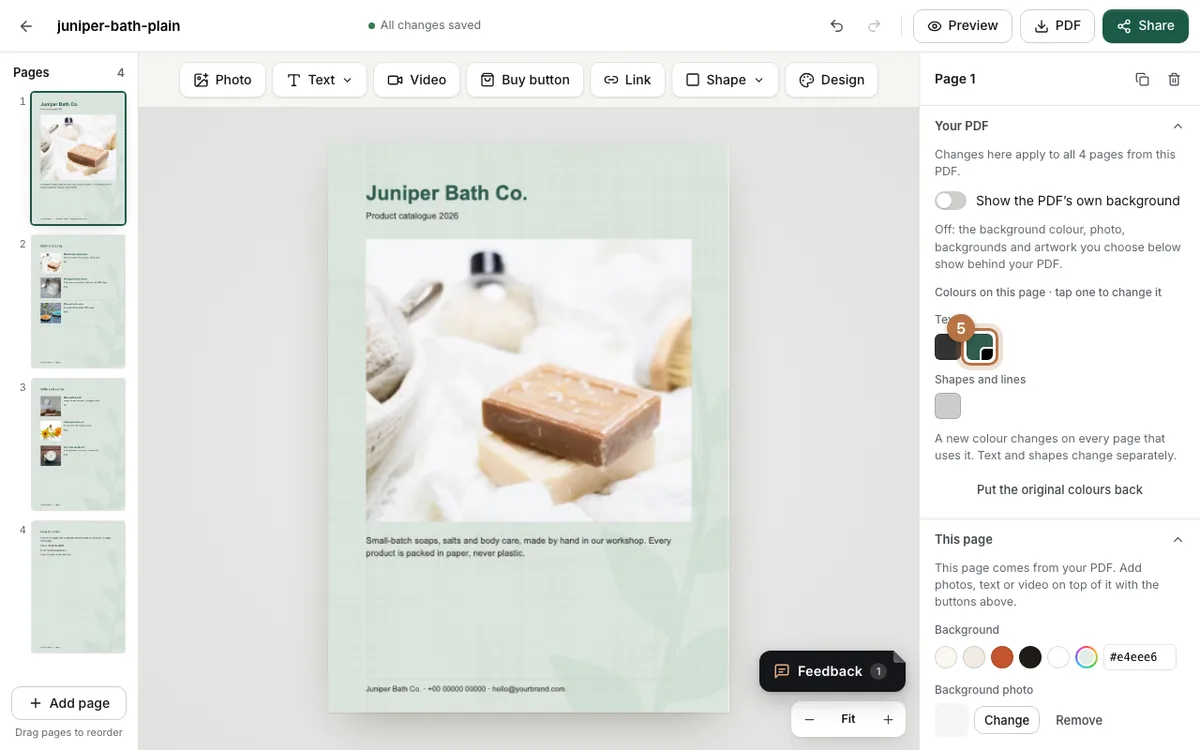
In our PDF, black was used for the shop name, product names and prices. We changed it to a dark green, #2f5d50. The grey body text stayed grey. A new colour changes on every page that uses it. Changed your mind? Click Put the original colours back.
Step 6: Put a Buy button on a product
Click page 2, then Buy button in the toolbar. Under When tapped, open, paste your shop link or WhatsApp number. Drag the button next to the price.
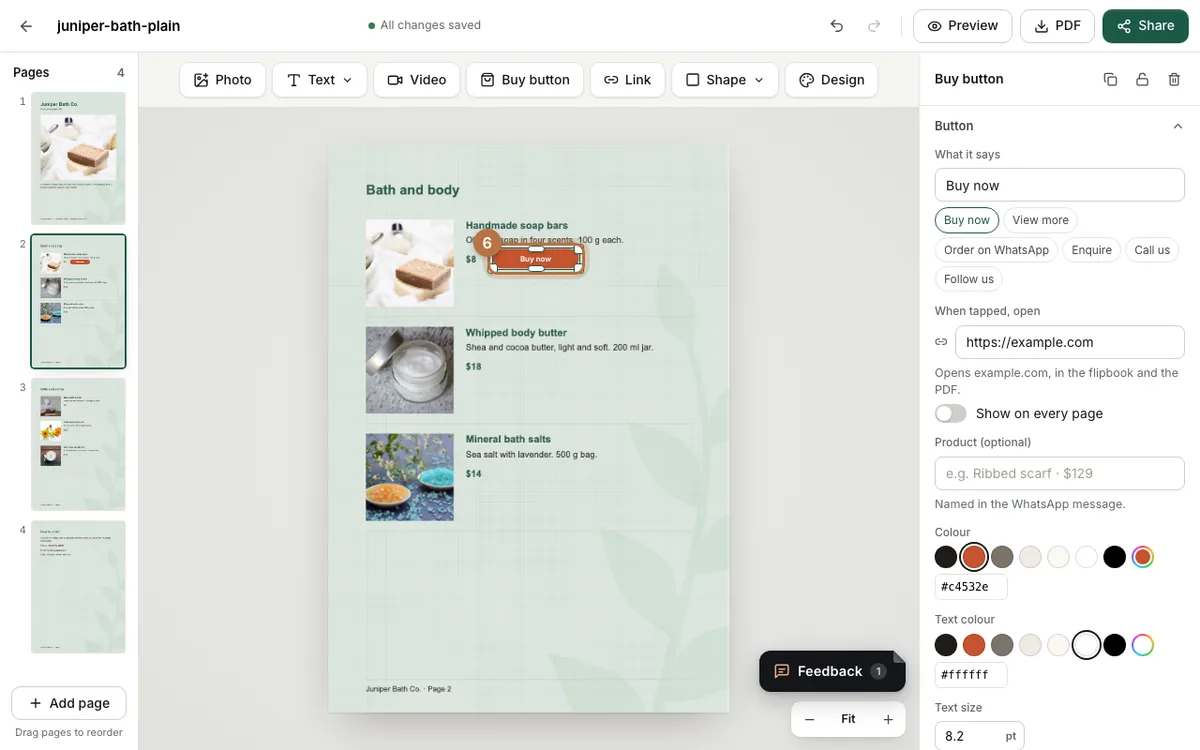
Our buttons open example.com, a web address kept for examples. Yours would open your shop.
Step 7: Add one order button for every page
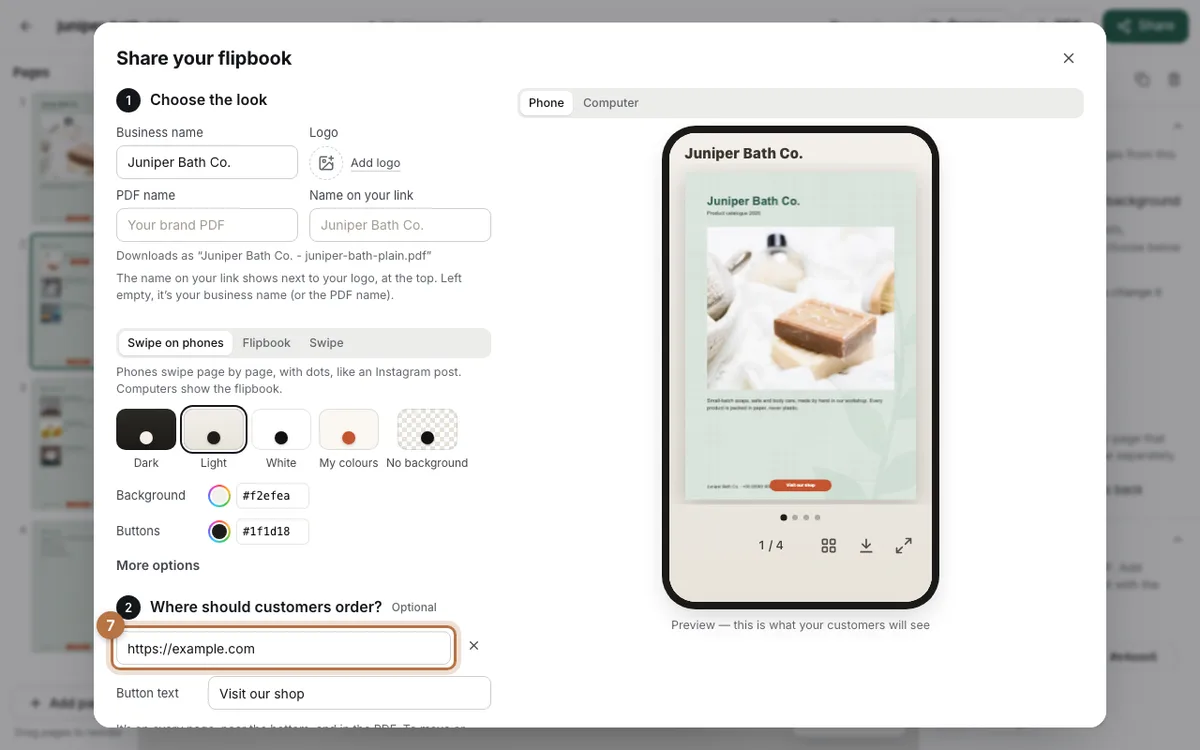
Click Share. Under Where should customers order?, paste the same link or number. A Visit our shop button now sits near the bottom of every page, in the link and in the PDF.
Step 8: Move it off your footer
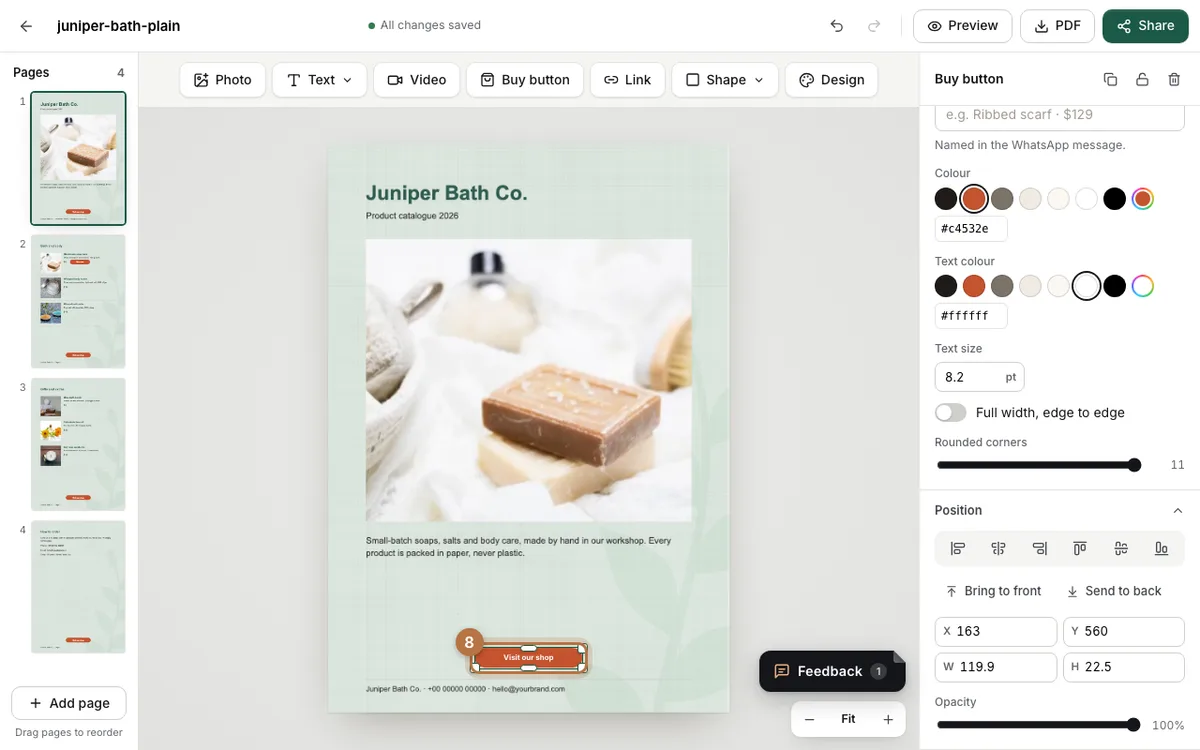
A PDF often has a footer at the bottom of each page. Ours has the shop name and phone number there, and the new button covered part of it. CatalogLeaf can't see the words inside your PDF, so check this yourself.
Close the Share window and click the button on page 1. Drag it up a little, or type a smaller number in Y. It moves on every page at once.
Step 9: Create your link
Click Share, then Create my link. Copy the link or click Send on WhatsApp.
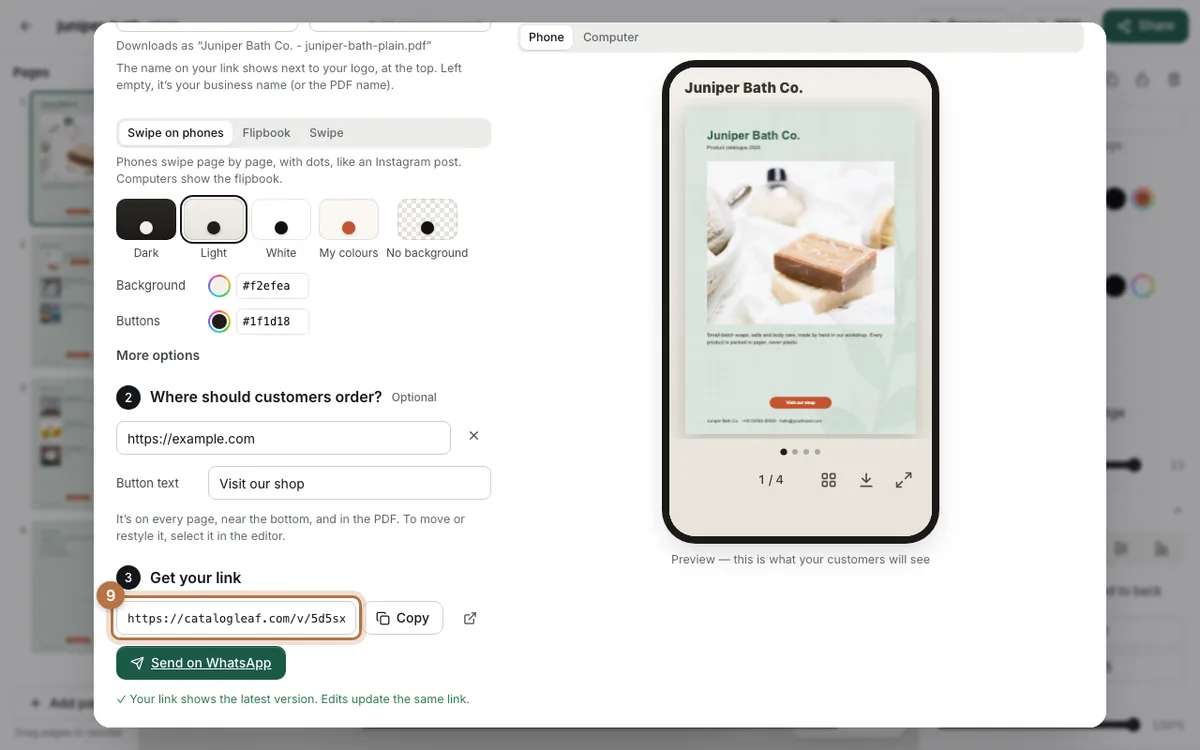
Want a file instead? Click PDF at the top of the editor. The download has the same new look.
Before and after
The same page 2, before and after the nine steps:
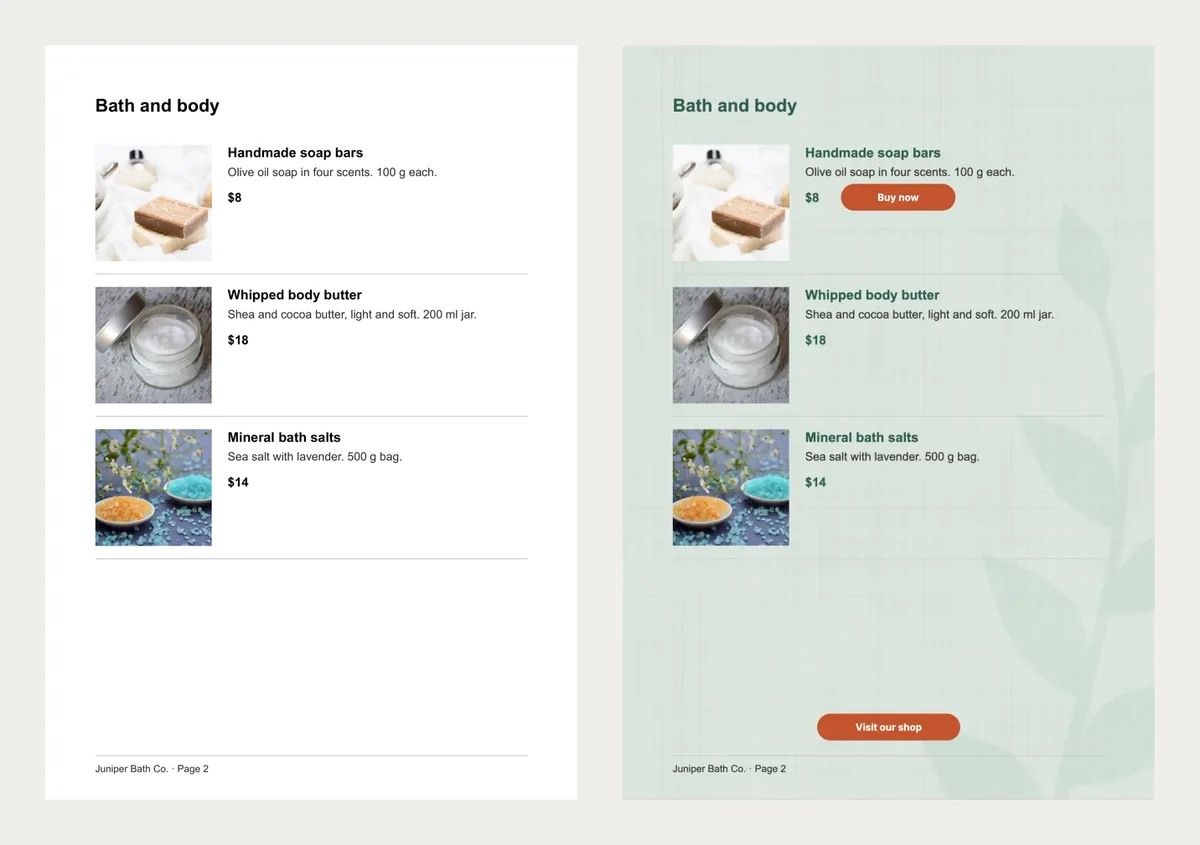
And this is the real link from step 9. Turn the pages, or tap Buy now.
We also checked the new PDF file. The plain one was 295 KB. With the texture, artwork and buttons, it is 453 KB for the same four pages. The linen picture is saved once and used on all four pages, so it doesn't add up page by page.
We copied the words out of the new PDF too. They are still text, not a picture of text. So they stay sharp when a customer zooms in, and a PDF reader can still search them.
Tips to make your PDF look better
- Keep the colour light behind dark words. The rule for readable text on websites asks for a contrast of at least 4.5 to 1. Our green headings on the pale green reach 6.3 to 1.
- Never use the artwork colour for words. Our sprig green is only 1.9 to 1 on that background. That is fine for a faint leaf and too weak for a price.
- Pick one colour family. We used greens for the background, the artwork and the headings. The orange buttons then stand out.
- A scanned PDF has no colours to change. If your pages are photos or scans, CatalogLeaf says so. You can still add buttons, text and photos on top.
- A locked PDF can't be changed. Save it again without a password, then upload it again.
Your products and prices didn't change. Only the paper they sit on did, and now people stop to look. To change only the colour behind your pages, see how to change a PDF's background colour. For more on buttons, read what makes a PDF catalogue interactive.