
Which catalogue page size reads best on a phone?
For a catalogue read on phones, pick A4 portrait or US Letter. In our test, both showed photos twice as wide as A4 landscape, at the same page count.
On a phone, a landscape catalogue page shows photos half as wide as a portrait one. We measured it.
Many buyers open your catalogue on a phone, from a WhatsApp chat, an email or a link. The phone shows each page as wide as its screen. A wide page must shrink more to fit, so its photos and prices get smaller.
Choose the catalogue page size before you create the catalogue. In CatalogLeaf, you cannot change it afterwards.
The test
Our test shop, Harbour & Hide, sells 12 travel items. There are bags, a sun hat, sunglasses and shoes. Each one had a photo, a name, a code, a price and one line about it. We used no categories.
We made the catalogue four times in CatalogLeaf. Only the page size changed. Each had 4 products per page, which the app picks for 12 products.
Then we did the sums for a phone screen about 6.5 cm wide. The page fills nearly all of it, about 6 cm. We measured the first photo, a canvas bag. It is wider than it is tall.
What we measured
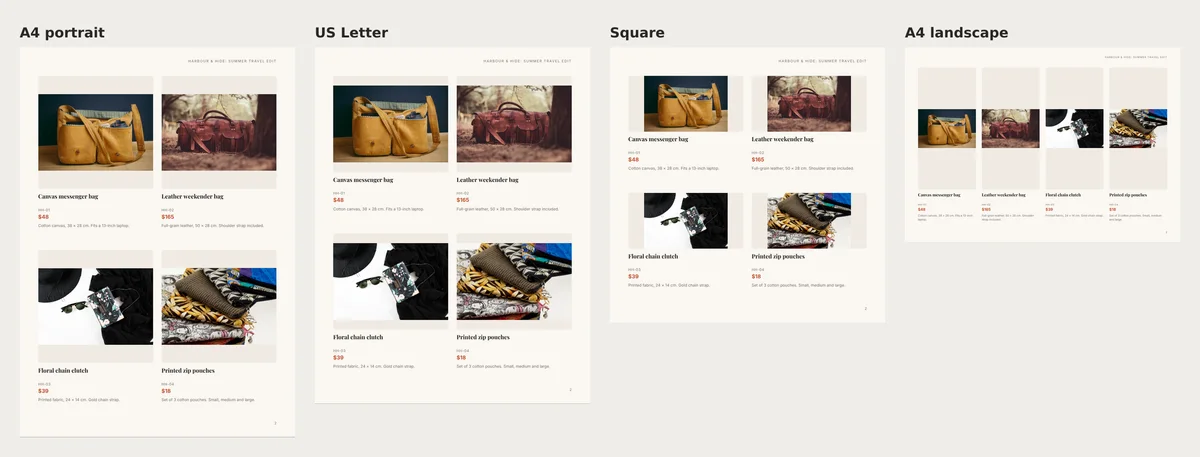
| Page size | Pages | Bag photo on a phone | Product name | Description | Compact PDF |
|---|---|---|---|---|---|
| A4 portrait | 5 | 25 mm wide | 7.7 pt | 5.2 pt | 411 KB |
| US Letter | 5 | 25 mm wide | 7.7 pt | 5.2 pt | 417 KB |
| Square | 5 | 18 mm wide | 7.7 pt | 5.2 pt | 303 KB |
| A4 landscape | 5 | 13 mm wide | 5.4 pt | 3.7 pt | 312 KB |
The text sizes are counted the way an iPhone counts them. For scale, Apple's typography guide gives 17 pt as the normal text size in iPhone apps. Its smallest is 11 pt.
Every size made five pages: a cover, three product pages and a contact page. So the size did not change the page count.
The size did change the photos. The bag was 25 mm wide in portrait and 13 mm in landscape. Its name dropped from 7.7 to 5.4 pt.
No size reached Apple's 11 pt with 4 products per page. Buyers will zoom in to read each description. So put what matters most in the name and the price.
All four PDFs were small. Compact is the app's setting for WhatsApp and email.
Tall photos lose less
Is your stock tall, like backpacks, tote bags or bottles? Then the gap is smaller. For a photo taller than it is wide, we did the same sums. It was 25 mm tall in A4 portrait and 19 mm in landscape. Square did worst, at 12 mm, because its frames were short.
Why landscape loses on a phone
A landscape A4 page is about 40% wider than a portrait one. Both must fit the same 6 cm of screen. So the landscape page shrinks about 30% more.
With 4 products, landscape also made four tall, thin frames in one row. Our bag photo was wider than tall. So it sat in the middle, with empty space above and below.
Need landscape? Change the number per page
Some shops want a wide page. It suits a price list on a laptop or a counter. Then try another number under Products on each page before you give up on it.
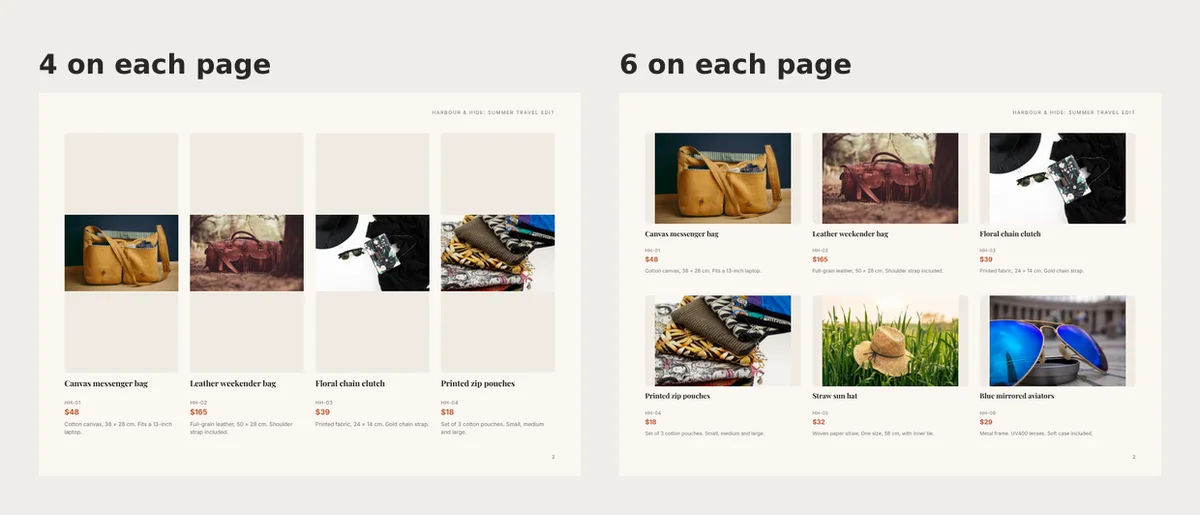
| A4 landscape | Pages | Bag photo on a phone | Product name | Compact PDF |
|---|---|---|---|---|
| 4 per page | 5 | 13 mm | 5.4 pt | 312 KB |
| 6 per page | 4 | 15 mm | 4.8 pt | 340 KB |
| 2 per page | 8 | 27 mm | 7.4 pt | 624 KB |
Six per page gave bigger photos than four, and one page fewer. That surprised us. The six sat in two rows of three, so each frame was wide, like the photo.
There is a cost. With more products per page, the app sets the text smaller. At six, the names fell to 4.8 pt.
Two per page gave the biggest bag photo of the whole test, 27 mm. But it made eight pages and a file twice the size.
Square pages and short frames
Square works well for one product per page, like a flyer. With more products, its frames get short and wide.
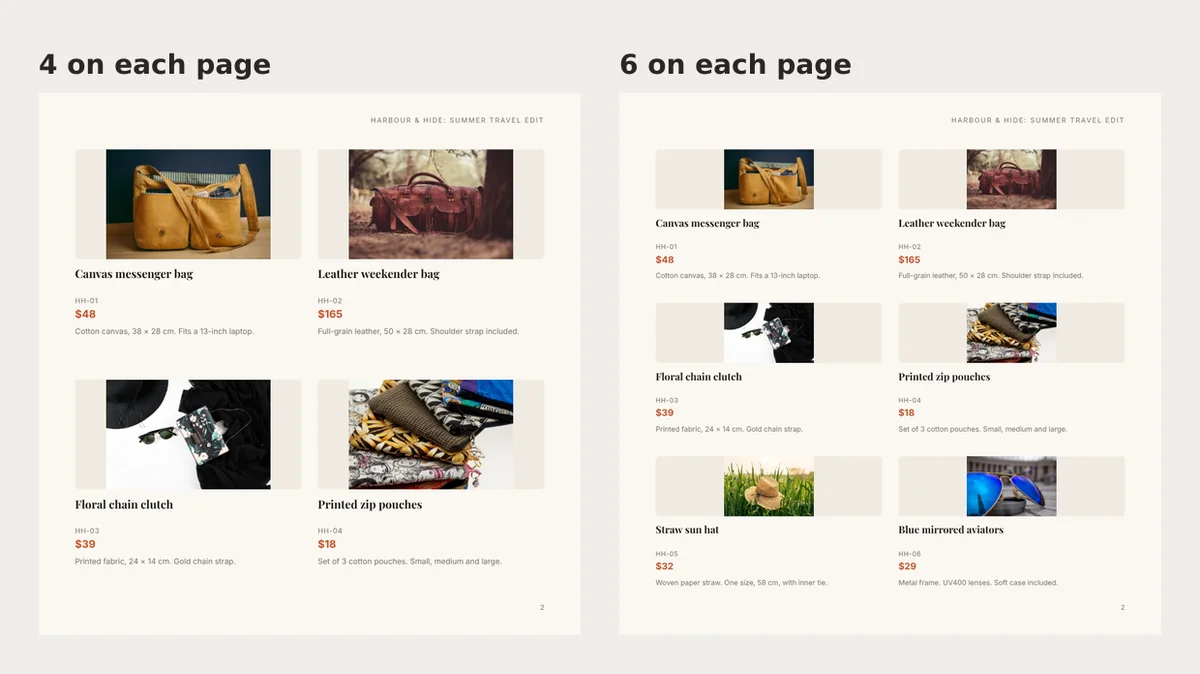
At 6 per page, our bag photo shrank to 10 mm. Each frame was a thin strip, with empty space on both sides of the photo. If you pick square, keep it to 1, 2 or 4 products per page.
If you will print it
Print changes the question. Here the right size is the paper your print shop already uses.
- A4 (210 × 297 mm) is the paper size in India, the UK, Australia and most other countries. It comes from the ISO 216 paper standard. That standard names catalogues in its scope.
- US Letter (8.5 × 11 inches) is what most offices in the US and Canada use.
- Square has no standard sheet. A print shop will trim it from a bigger sheet, so ask about the cost first.
People also ask for a page size in pixels. A PDF page has a size, not pixels. For photos to print sharp, plan on 300 pixels for each inch of paper. Then an A4 page is 2480 × 3508 pixels. US Letter is 2550 × 3300. The HD PDF in CatalogLeaf uses 300 per inch for photos too.
Set the page size in CatalogLeaf
- Open the new catalogue page and click Choose photos. Add a name and a price for each product.
- Click Next: choose a design. Keep Simple picked.
- Under Products on each page, keep 4 for a portrait page. Pick 2 if your names must read without zooming: in A4 portrait, they grew to 10.5 pt.
- Click More options and find Page size. Pick A4 portrait, A4 landscape, US Letter or Square.
- Watch the Preview. It shows the cover and one product page as you change each setting. Then click Create catalog.
A ready-made template comes in its own size, and it hides these choices. For more on page counts, read how many pages a catalogue should have.
Open page 2 on your own phone. If you have to zoom to see the price, the page is too wide or too full.