
Can you add music to a PDF your customers will hear?
Adobe's help covers sound in Acrobat and Reader, but your customer picks the app. Upload the PDF as a flipbook, add music and send the link: it plays after one tap.
A customer forwards your new catalogue PDF to a friend, with a note to turn the sound up. You put a soft song inside it with Adobe Acrobat Pro, and on your laptop it plays. The friend taps the file in a WhatsApp chat. Will they hear it?
You can't tell. Here is why, and a free way to add music to a PDF that customers hear after one tap: send it as a flipbook link.
Why you can't count on a song inside a PDF
Adobe's help shows how to put an MP3 into a PDF with Acrobat's rich media tool. But a PDF doesn't play anything by itself. The app that opens it has to.
Adobe's page is about its own apps, Acrobat and Acrobat Reader. Your customer may open the file in a WhatsApp chat or an email instead, and you don't choose that app. If it can't play the song, nobody tells you.
A web page can play music in any phone browser. So keep your PDF for printing and email, and put the music on a link.
Our sample catalogue
Linden Lane Home is a home-decor business we made up. Its catalogue PDF has 6 pages, from a $12 candle tin to a $34 wicker picnic basket. The file is 403 KB.
For the song, use one of CatalogLeaf's free tracks or an MP3 you own the rights to.
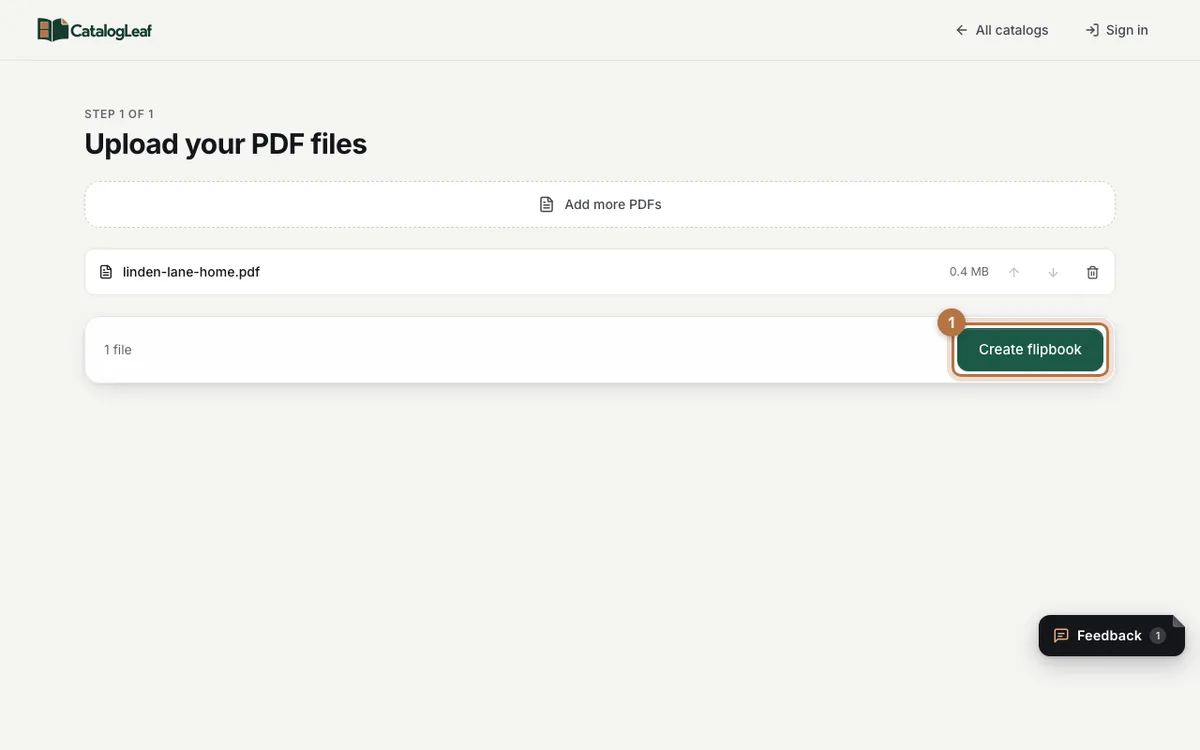
Step 1: Upload your PDF
Go to PDF to flipbook. Click Choose PDF files, or drag your PDF onto the box. Then click Create flipbook. No sign-up is needed.
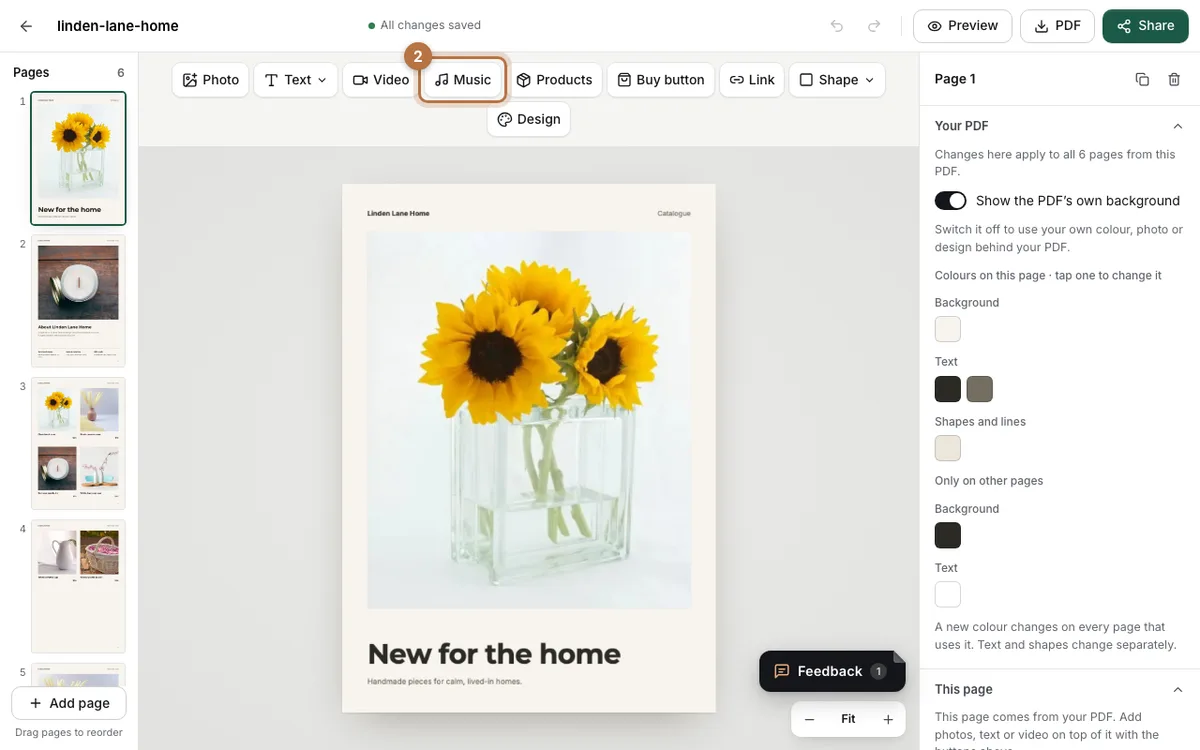
Step 2: Click Music in the toolbar
The editor opens with every page of your PDF. Your pages stay as they were. Click Music at the top.
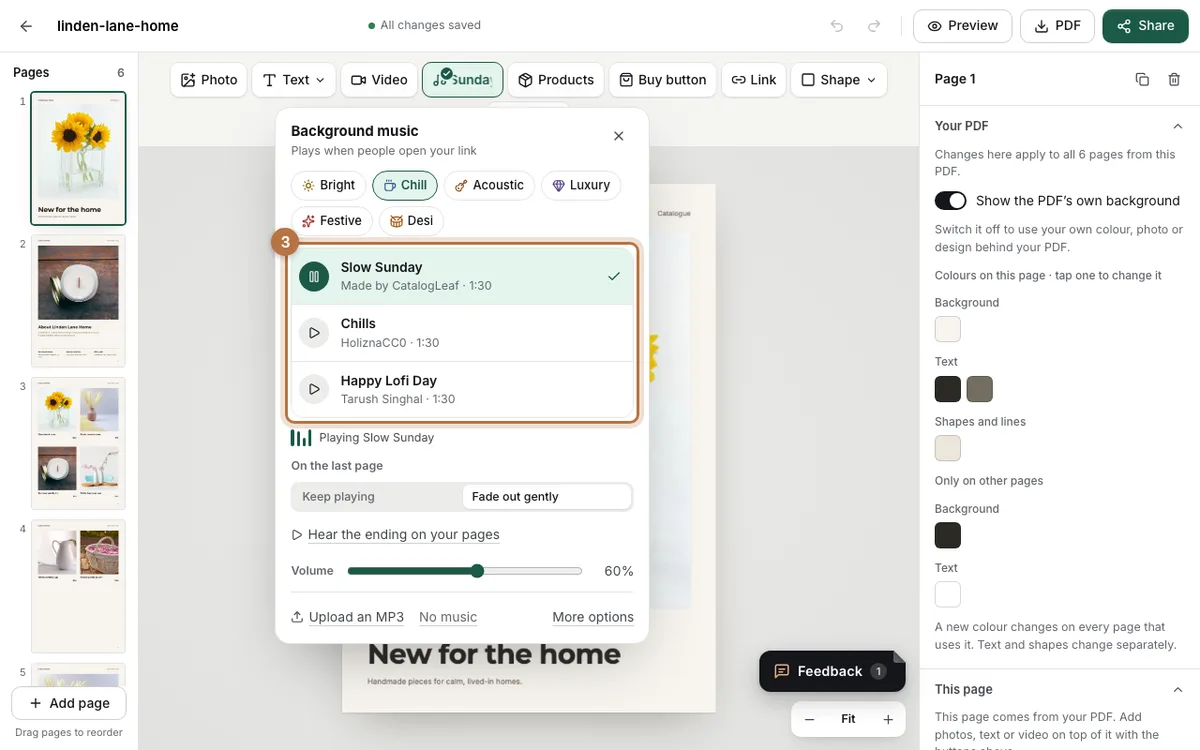
Step 3: Pick a mood, then a track
Pick a mood: Bright, Chill, Acoustic, Luxury, Festive or Desi. For soft music, try Chill or Luxury, which is soft piano. Click a track to hear it. Most are a minute and a half long and loop with a soft join.
For vases and candles we chose Slow Sunday under Chill. Have your own song? Click Upload an MP3.
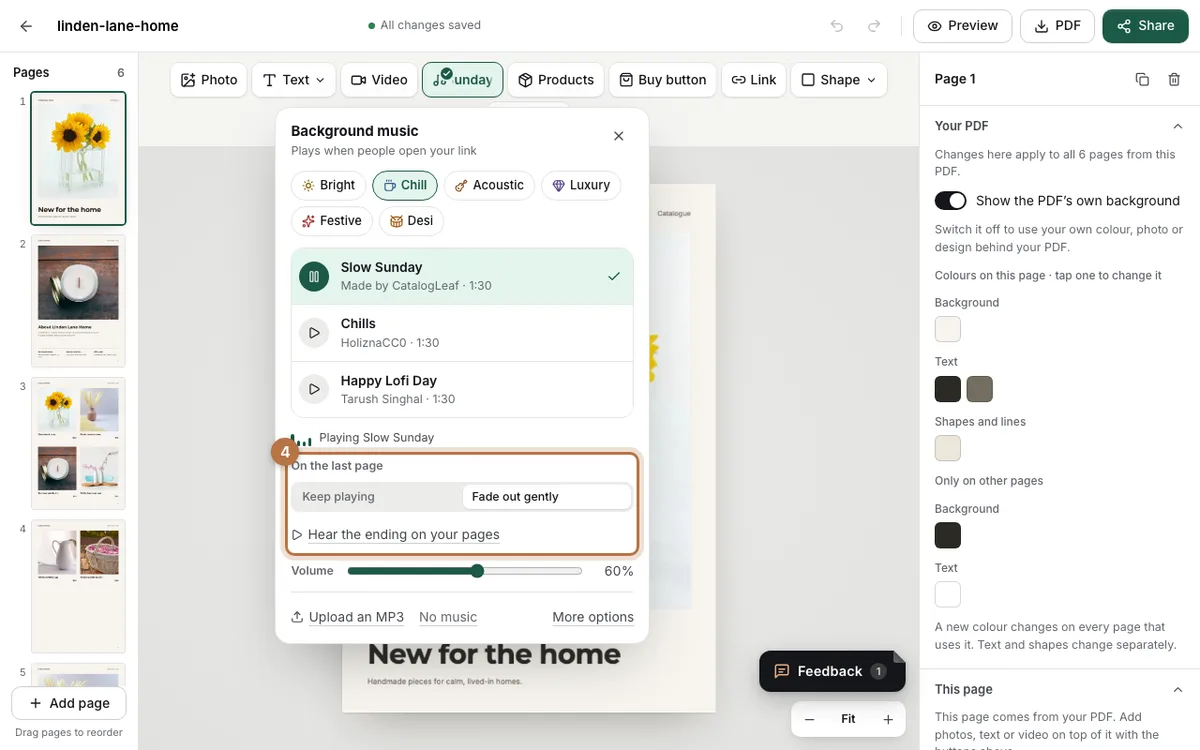
Step 4: Choose what the last page does
Under On the last page, pick Keep playing or Fade out gently. With Fade out, the song fades away a few seconds after the last page opens. Click Hear the ending on your pages to try it.
The Volume slider starts at 60%. Keep it there or lower, so the song isn't too loud in a quiet room.
Step 5: Put your name on the link
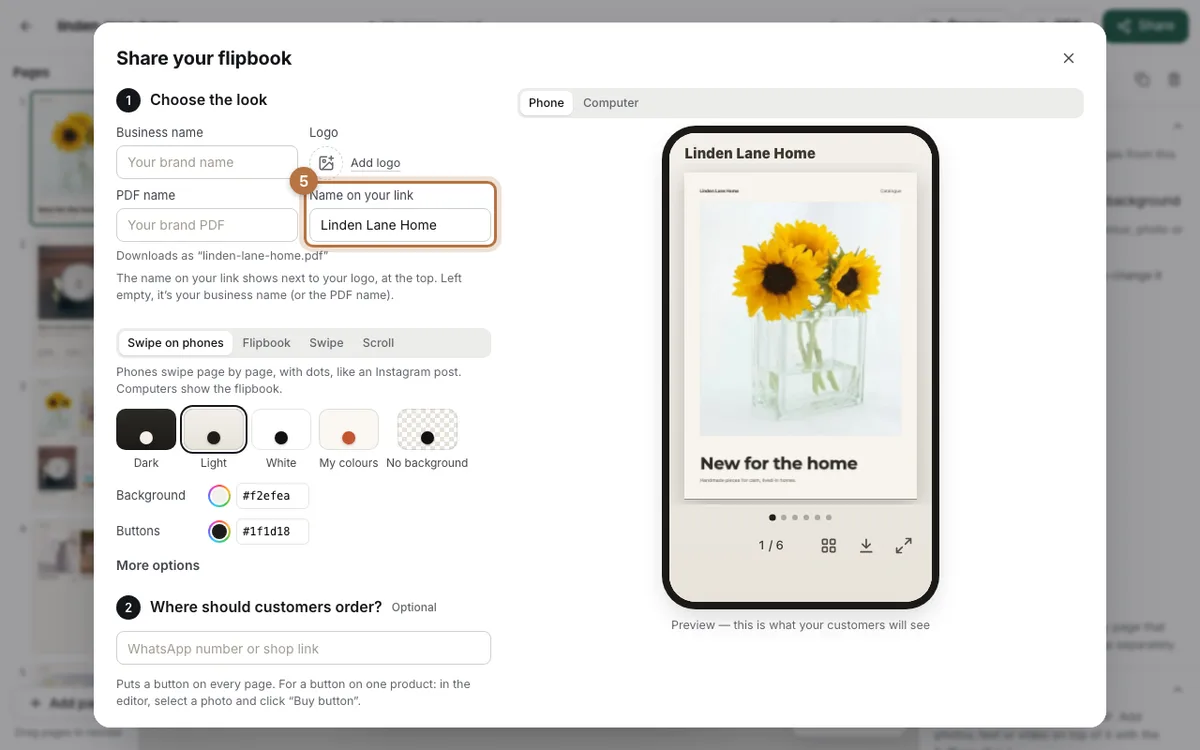
Click Share. Type your business name in Name on your link. It shows at the top of the flipbook.
We needed this. The flipbook takes its title from the PDF's file name, and ours came in as "linden-lane-home". So name your PDF file the way you want it called.
Step 6: Create your link
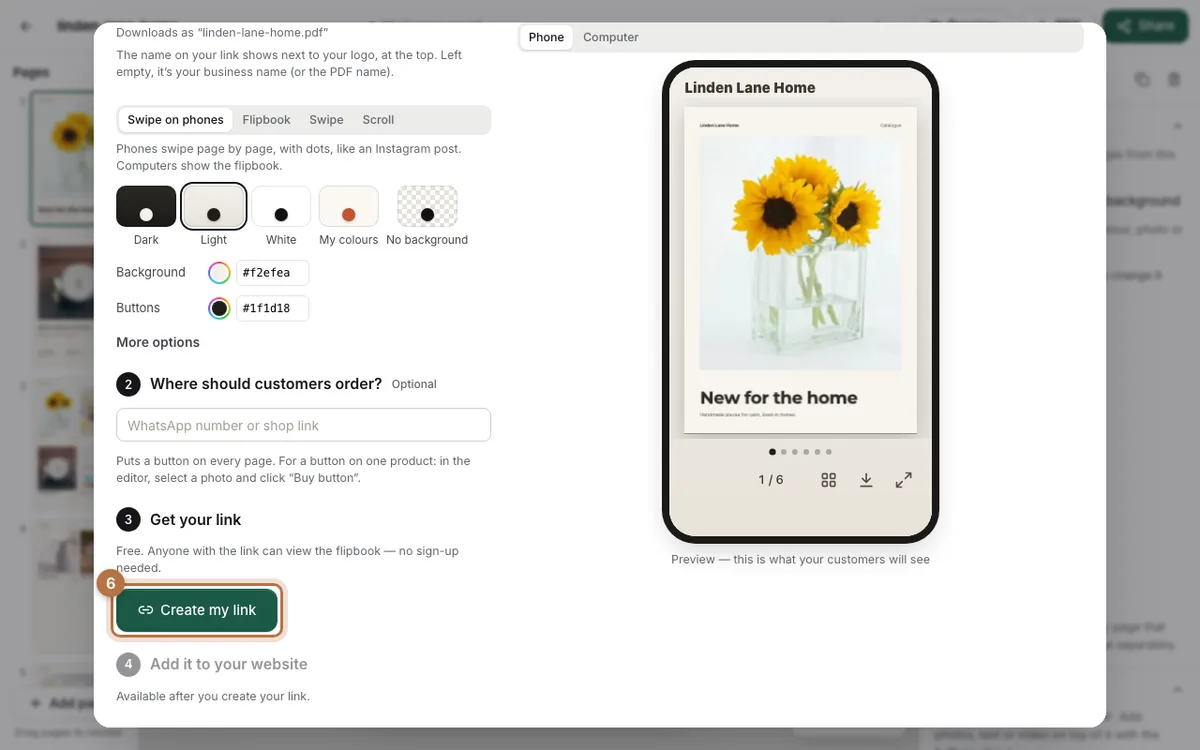
Click Create my link, then Send on WhatsApp, or copy the link into an email. The music plays in all four looks for the link: Swipe on phones, Flipbook, Swipe and Scroll.
Nothing plays until the first tap
We opened our link in a phone-sized browser that waits for a tap before it plays sound. That is how Chrome treats a site the person hasn't used yet. Chrome's autoplay policy explains it: sound is allowed after a click or a tap.
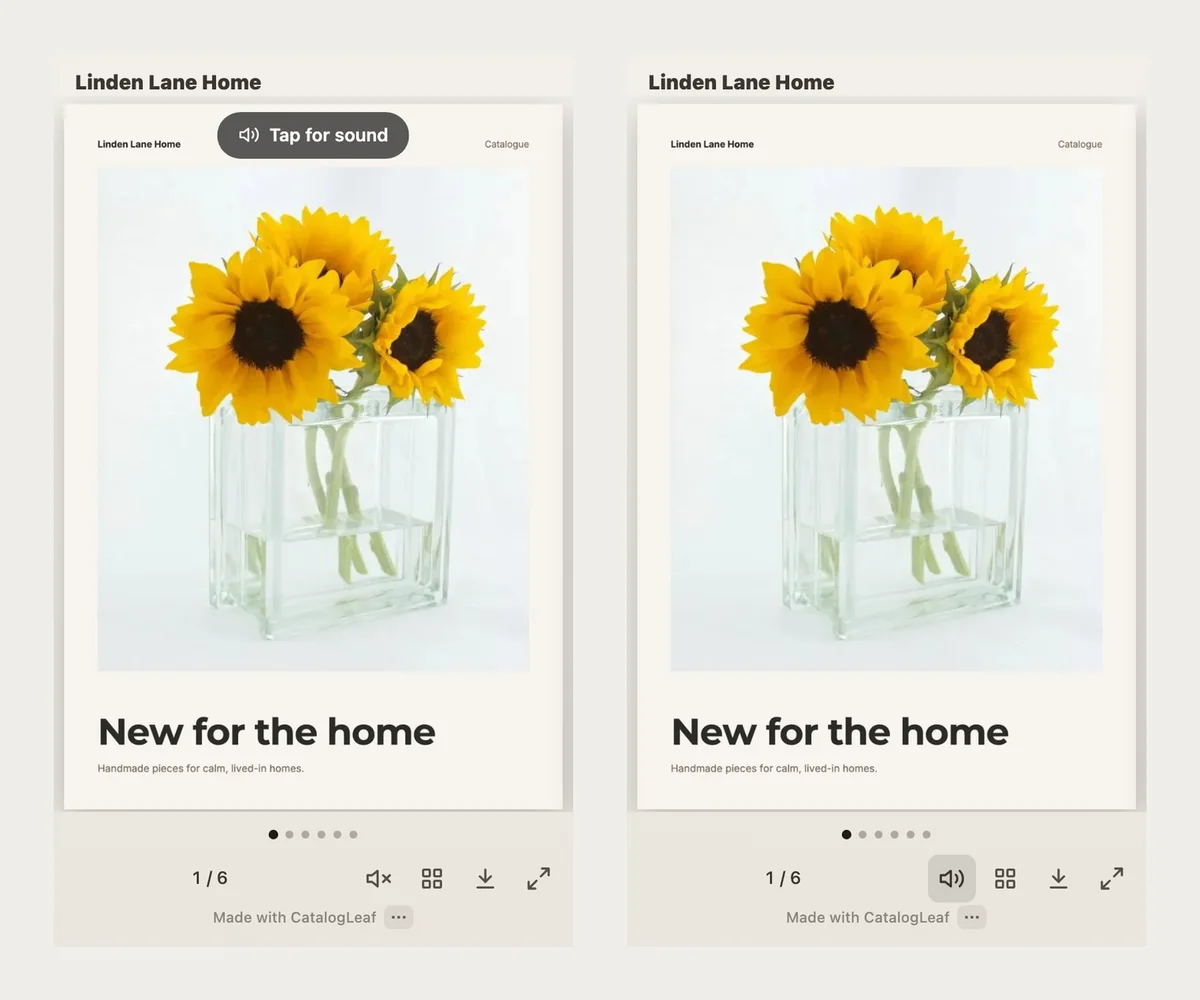
So the link shows Tap for sound over the first page. One tap on the page starts the song. The speaker button under the page turns it off again.
We also measured what it loaded. Before the tap: about 750 KB, and no music. The song, 1.5 MB, came only after the tap. So the music costs your customer no data until they want it.
Try it here. Tap the cover, then turn the pages.
Picking the song
- Big song files are cut to 3 minutes. In Chrome, Edge or Safari, a file over 4 MB is made lighter and keeps its first 3 minutes. Our 4-minute MP3 of 9.2 MB became 2.9 MB in about 3 seconds.
- Pick music without words. Words compete with your product names.
- Use music you have the right to use. The full Music window, under More options, says so too. Its tracks can be shared with no credit.
- Change it any time. Pick another track, open Share and click Update link. The link stays the same.
More questions, like what readers can switch off? See what happens when you add music to a flipbook.
A customer who never taps hears nothing. One tap, and the song plays until it fades on your back page.