
How to use a flipbook maker with photos of your products
Name your photos after the products, drop them in, add prices and pick a design. Join a product's extra photos to it: in our test that kept 4 pages, not 9.
Nine pages, or four. That was the gap between two flipbooks we made from the same seven product photos.
Three of the photos showed one leather bag. So we tested what a flipbook maker with photos does when one product has three. First, the short version of how to make one, free and with no sign-up.
From photos to a flipbook in four steps
- Name each photo after its product, like
leather-weekender-bag-1.jpg. - Drop them all into the free flipbook maker and add a price to each product.
- Click Next: choose a design, pick one and click Create catalog.
- Click Share, then Create my link, and send the link.
Step 1 is where most of the choices are. The rest of this post is about it.
Seven photos, one bag shown three times
Saddle Row is a leather-goods business we made up for this test. It sells two bags, a clutch, loafers and boots. The star is a $129 leather weekender with three photos: the whole bag, the handles and a front pocket.
Those close-ups answer what a buyer asks before paying $129. How are the handles fixed? Does the pocket close?
We built the flipbook three times in CatalogLeaf's plain Simple design, so only the photos changed:
- Album: one photo per page, like a photo album. Each photo was its own product.
- Split: 4 products per page. The close-ups became "Weekender handles" and "Weekender pocket".
- Joined: 4 products per page. The bag was one product with three photos.
Album, split or joined: what we measured
| Album | Split | Joined | |
|---|---|---|---|
| Flipbook pages | 9 | 4 | 4 |
| PDF pages | 9 | 4 | 5 |
| Compact PDF | 491 KB | 266 KB | 257 KB |
| Standard PDF | 700 KB | 421 KB | 401 KB |
| HD PDF | 912 KB | 909 KB | 905 KB |
| To see all 3 bag photos | Turn two pages | Find three tiles, all $129 | Tap once, then swipe |
The album nearly doubled the Compact PDF, the size you send on WhatsApp. A photo drawn across the whole page keeps more detail. Our photos were 960 pixels wide at most, so HD kept every one whole, and those files came out close. Still, every file stayed under 1 MB, far below Gmail's 25 MB attachment limit.
The real cost of the album is nine pages. A buyer swipes seven times to reach the boots.
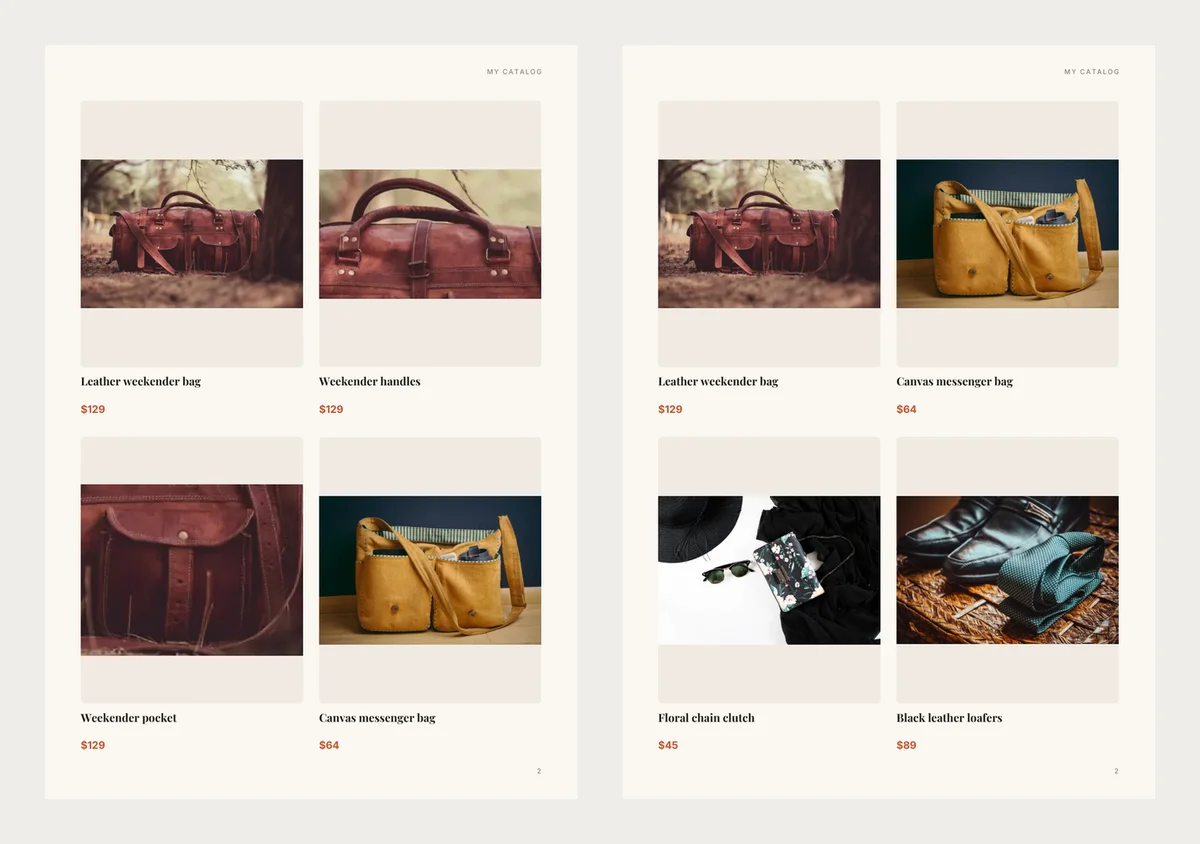
The split version looks fine to you, because you know the bag. A buyer sees three bags at $129 and may ask which one you mean. The close-ups also push the clutch and loafers onto the next page.
Joining cost one extra PDF page and saved 9 KB.
What a buyer sees on a phone
On the link, the bag's main photo has a small strip of its other photos in one corner. A tap opens them full screen, where the buyer swipes from photo to photo and pinches to zoom.
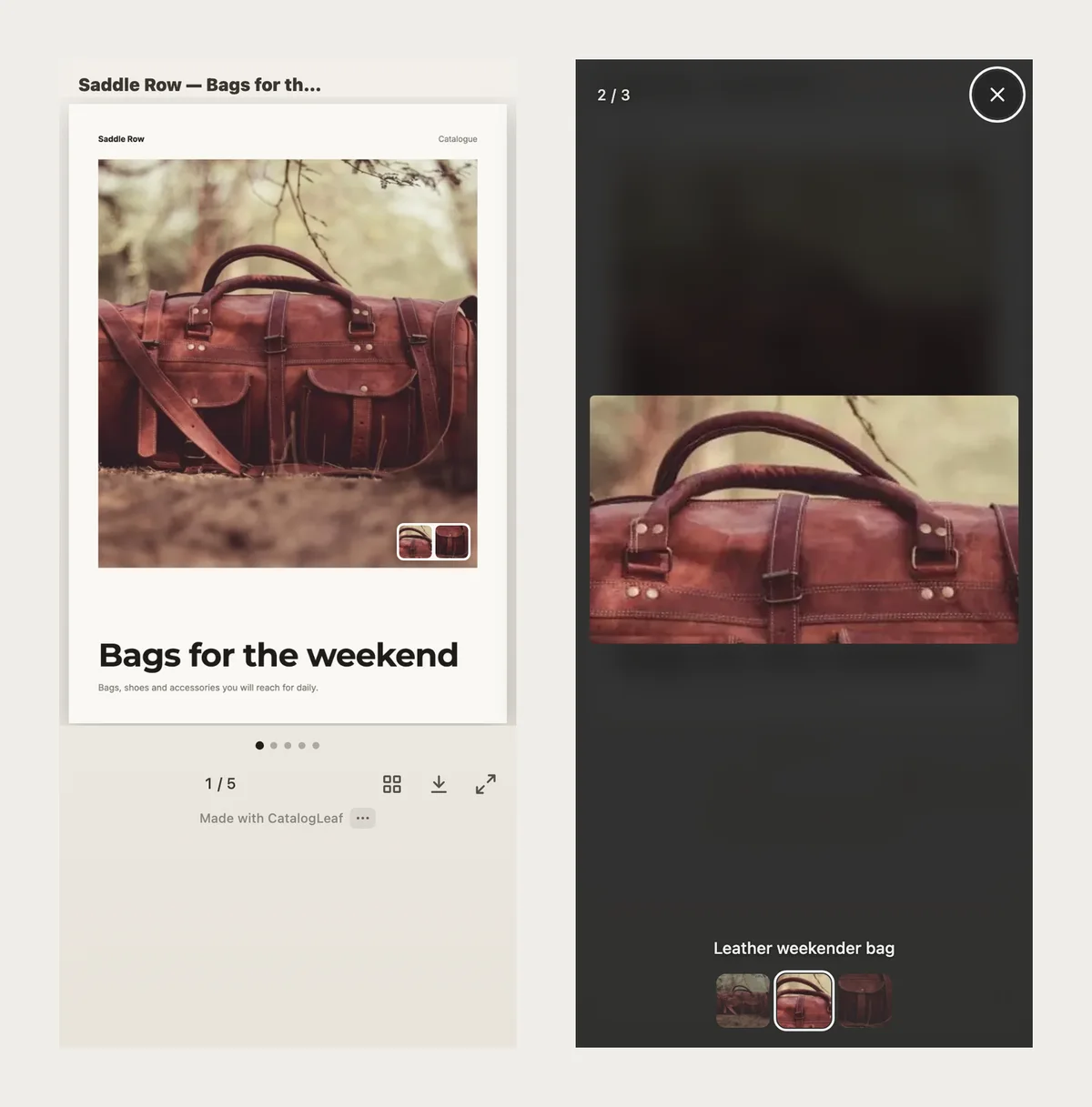
Try it below. This demo uses a finished design, Everyday Style, so it has an About page and a contact page too: five pages, not four. Tap the bag on the cover.
Where the fifth PDF page came from
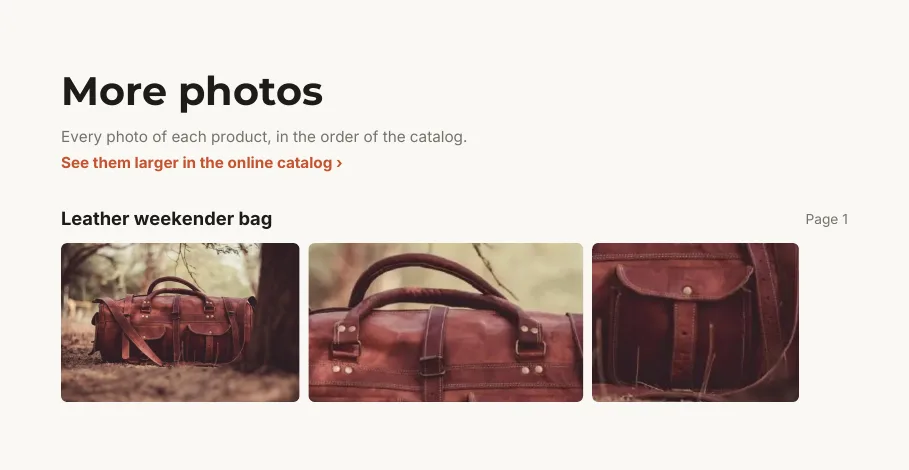
The joined PDF had five pages. The fifth is More photos, because nobody can tap a printed page. The bag's three photos wait there, with the first page it appears on.
Once your catalog has a link, that page also says See them larger in the online catalog. A reader with the PDF can tap it and land on your flipbook.
The file name trap we fell into
CatalogLeaf turns a file name into a product name, so leather-weekender-bag-1.jpg arrives as "Leather weekender bag". Photos with the same name and a number at the end join one product. The lowest number becomes the main photo.
We first named the main photo leather-weekender-bag.jpg, with no number. The close-up of the handles, -2, became the main photo, and our cover showed handles. Number the first photo too.
Camera names, like DSC_0412.jpg, don't join. Each becomes its own product with an empty name, so you type the names in.
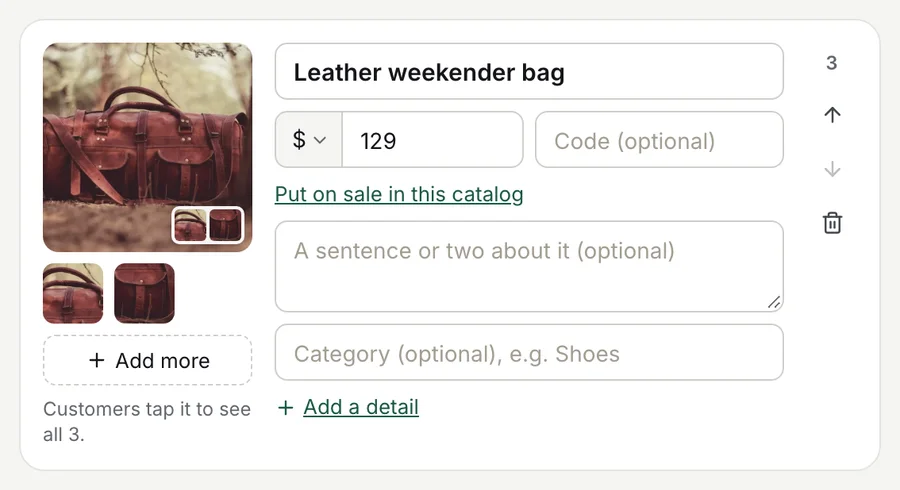
Already uploaded? On the product card, click a small photo to make it the main one. Missed a photo? The card's More photos button adds it. Once a product has two photos, it reads Add more.
Colours, sizes and close-ups
Join the photos a buyer looks at before paying one price: the front, the back, the inside, a close-up. Give a colour its own product when the buyer has to choose it. Then their order message names the right one.
Sizes rarely need a photo. Click Add a detail on the product card and pick Size, or write them in the description.
Make yours and take orders
In Share, the box Where should customers order? takes a WhatsApp number or a shop link. It puts an order button on every page.
For each click with a screenshot, read how to add more photos to one product. To start from a PDF instead, see the flipbook maker page. Want music behind the pages? Read what to check in a flipbook maker with sound.
Count the spots on your first product page. If one product fills three of them, join its photos.