
Free catalogue QR code generator
Every catalog you make gets its own QR code. Customers scan it and your catalog opens on their phone, with nothing to download. Print it for your counter, bills, bags and posters.
How it works
Make or open your catalog
Start from your photos, a spreadsheet, a template or a PDF you already have.
Tap QR code
In the preview, tap QR code. If your catalog has no link yet, make it there with one tap.
Download and print
Save a picture to send in chats, or an SVG file for printing at any size.
See it in the app
A QR code that looks like your catalog
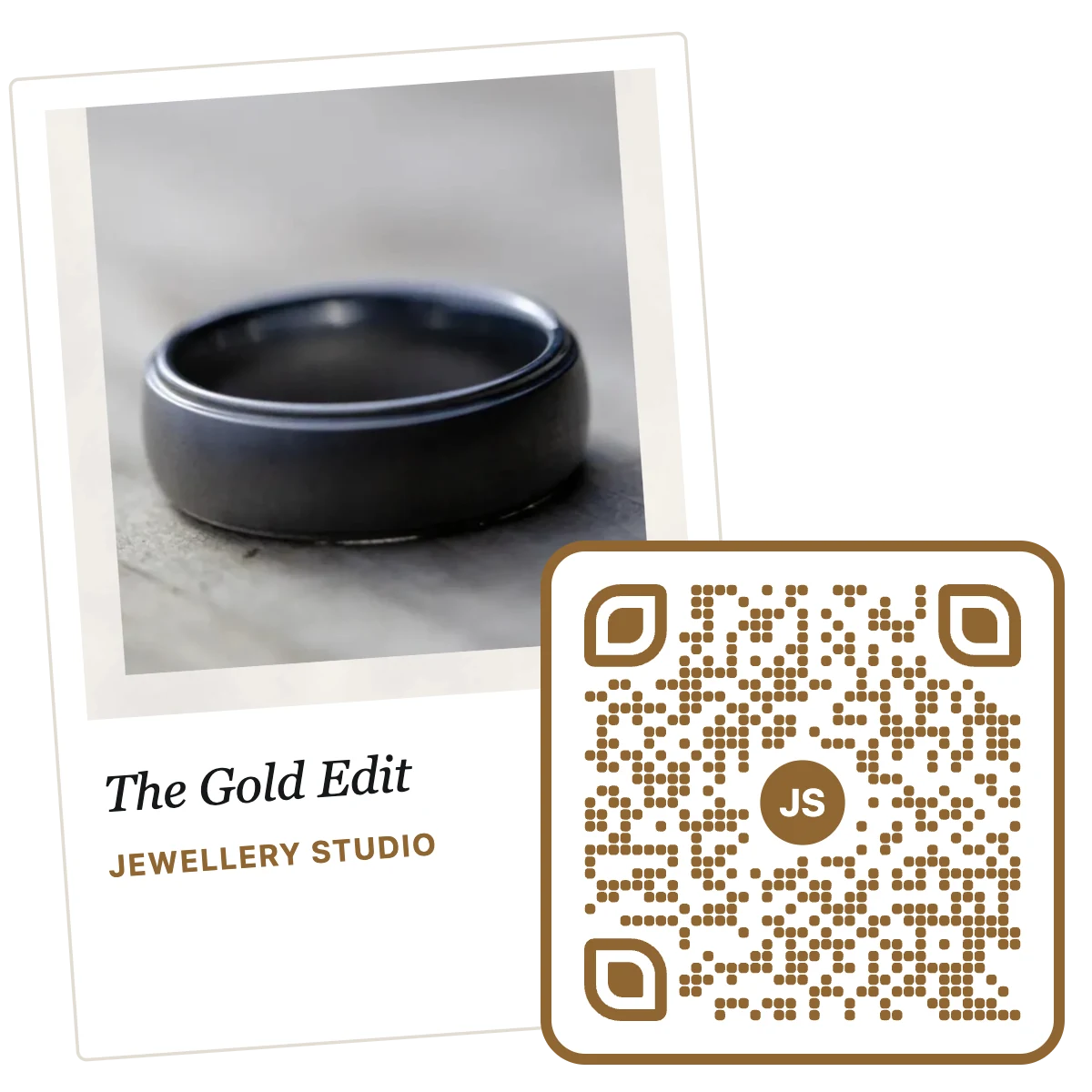
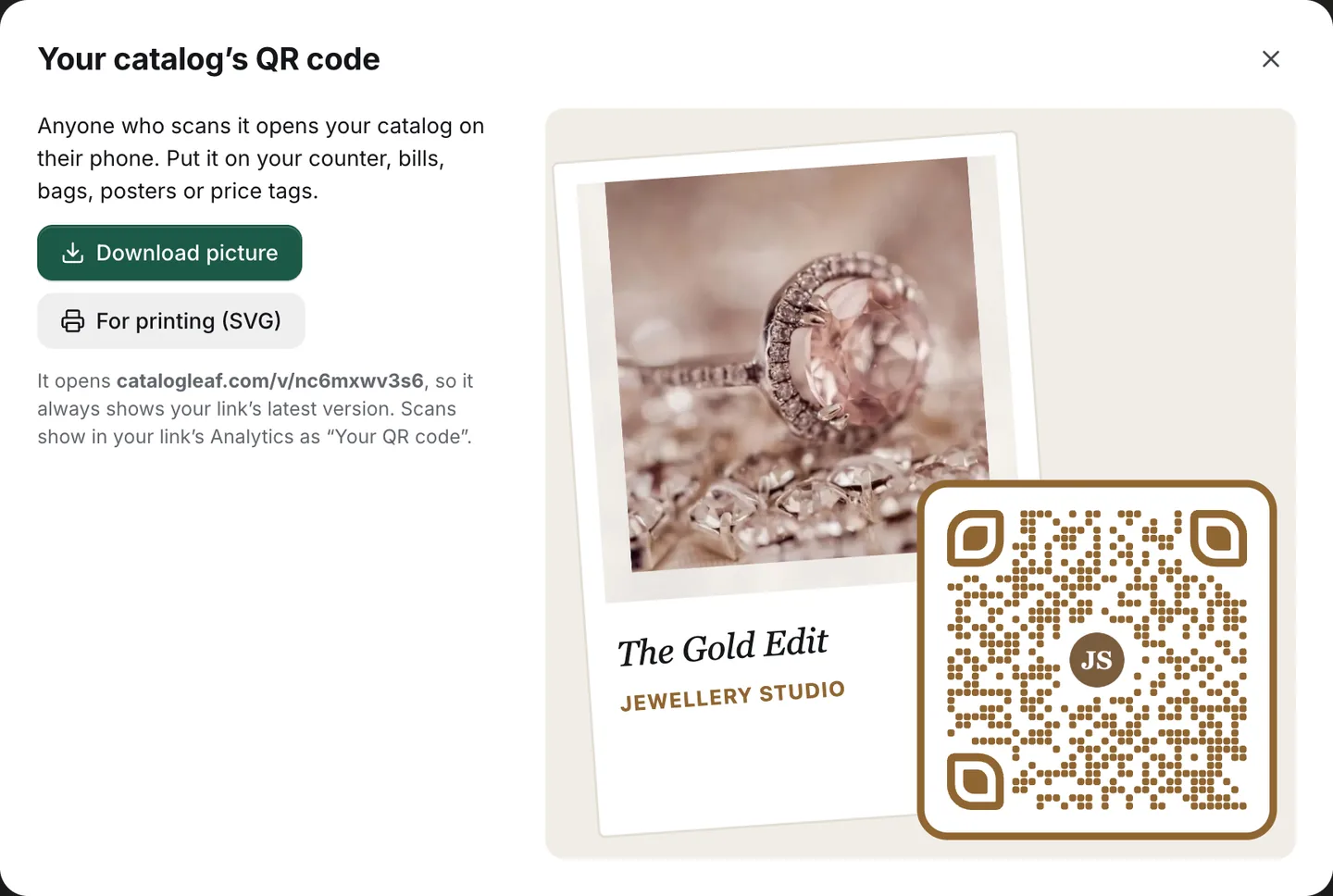
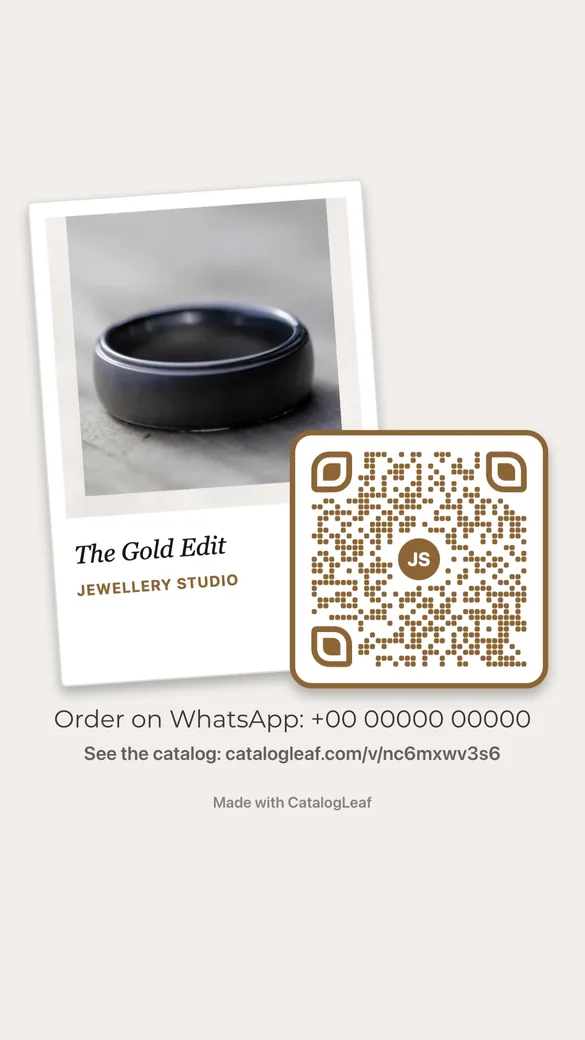
Your cover sits as an instant photo, with your catalog’s name and your business name written under it. The code sits on its corner, in your catalog’s colour.
In the middle of the code is your logo, or the first letters of your business name if you haven’t added one. Nothing to set up: it comes from the catalog itself.
Print it once, keep it up to date
The code opens your catalog’s link. Change a price or add a page, update the link, and the code you already printed shows the new catalog.
It opens on any phone’s camera, with no app to install. People see your catalog the way you chose in Share: as a flipbook, page by page or scrolling.
Where to put it
At your counter
A small stand or sticker, so walk-in customers can see everything you sell.
On bills and bags
Every order goes home with your full catalog.
On posters and flyers
One code instead of a page of prices.
At fairs and exhibitions
Visitors scan it at your stall and keep your catalog on their phone.
In your videos
Catalog videos end with the same code, so people can scan it from a screen.
See how many people scan it
Sign in to see your link’s Analytics: scans are counted there as “Your QR code”, apart from people who came from WhatsApp, Instagram or search, with the pages they read and the buttons they tapped.
Questions
Is the catalogue QR code generator free?
Yes. Making the catalog, its link and its QR code is free, with no sign-up and no watermark on your pages.
Can I put my logo in the middle of the QR code?
Yes. The logo you add to your catalog or your brand goes in the middle by itself. Without one, the first letters of your business name go there. The code is made to be read even with the middle covered.
What files do I get?
A PNG picture, 2000 pixels square, for WhatsApp, email and social media, and an SVG file that prints sharp at any size.
How big should I print it?
Print the picture at least 7 cm (about 3 inches) wide, so the code itself is about 3 cm across. Bigger is better for posters people see from a distance.
Does the QR code expire?
It opens your catalog’s link, so it works for as long as you share that link. If you stop sharing it, the code stops opening your catalog.
Can I make a QR code for any website?
No. CatalogLeaf makes QR codes for catalogs made here, so a scan opens your catalog and is counted in its analytics.
Can I make a QR code for a PDF?
Yes. Upload your PDF, and it becomes a catalog with its own link and QR code. See PDF to QR code.