Turn a PDF into a QR code
Upload your catalogue, brochure or price list PDF. It gets its own link, and the link gets a QR code: people scan it and your PDF opens on their phone, with nothing to download.
How it works
Upload your PDF
One file or several. Several PDFs are joined in the order you add them.
Tap QR code
In the preview, tap QR code, then Make the link. Your PDF goes online at its own address.
Download the QR code
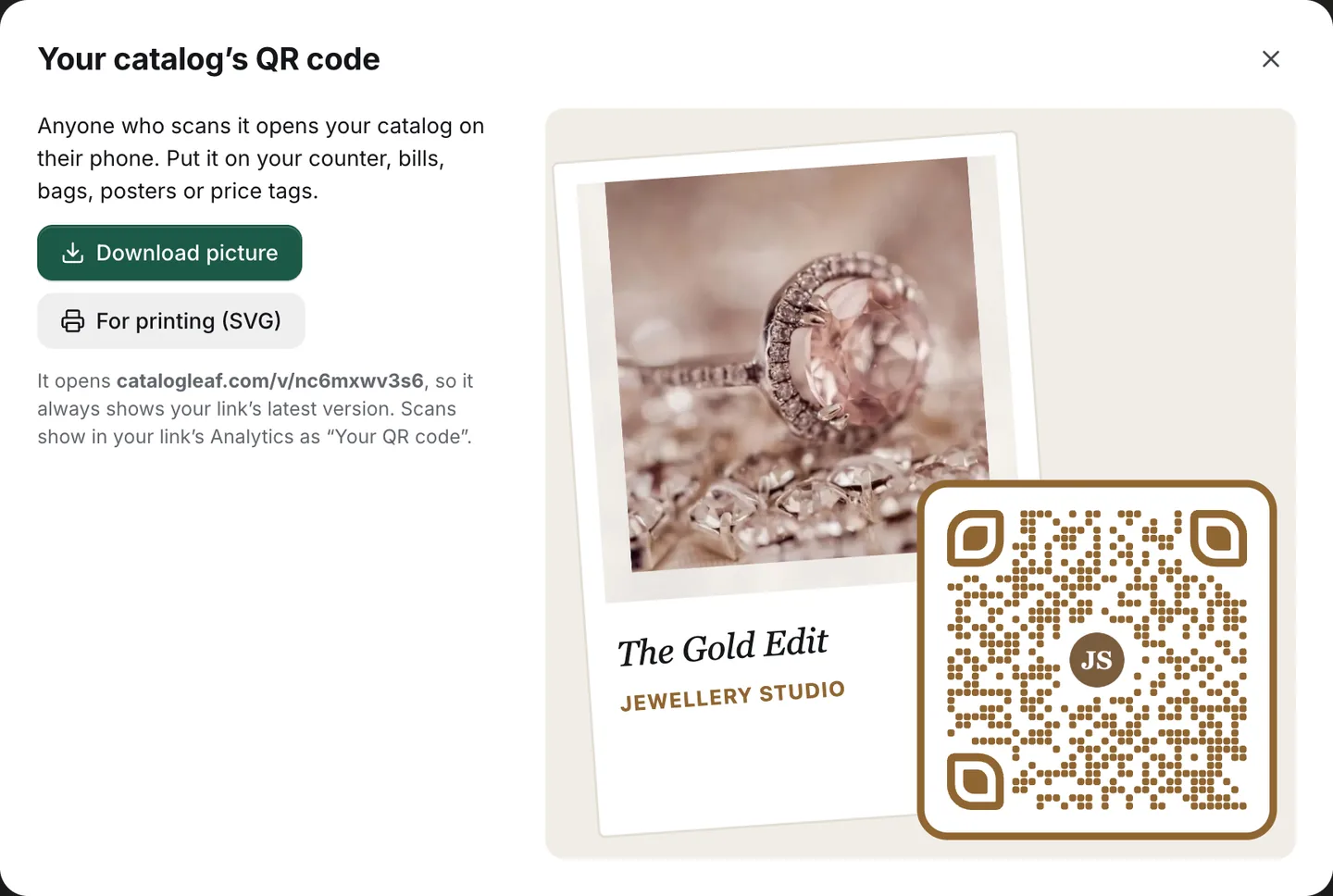
Save a picture to send in chats, or an SVG file for printing at any size.
See it in the app
Opens on any phone, nothing to download
A scan opens your PDF in the phone’s browser: as a flipbook, page by page or scrolling, as you choose in Share. Nobody needs a PDF app or space on their phone, and only the pages near the screen are loaded.
You decide if people can download the PDF file as well.
Change the PDF, keep the code
Add pages, change prices or put a new photo on top, then update the link. The QR code you already printed opens the new version, at the same address.
More than a PDF file
Buttons that work
Put Buy now, Order on WhatsApp or Follow us buttons on any page, even on a PDF you upload.
A QR code that looks like yours
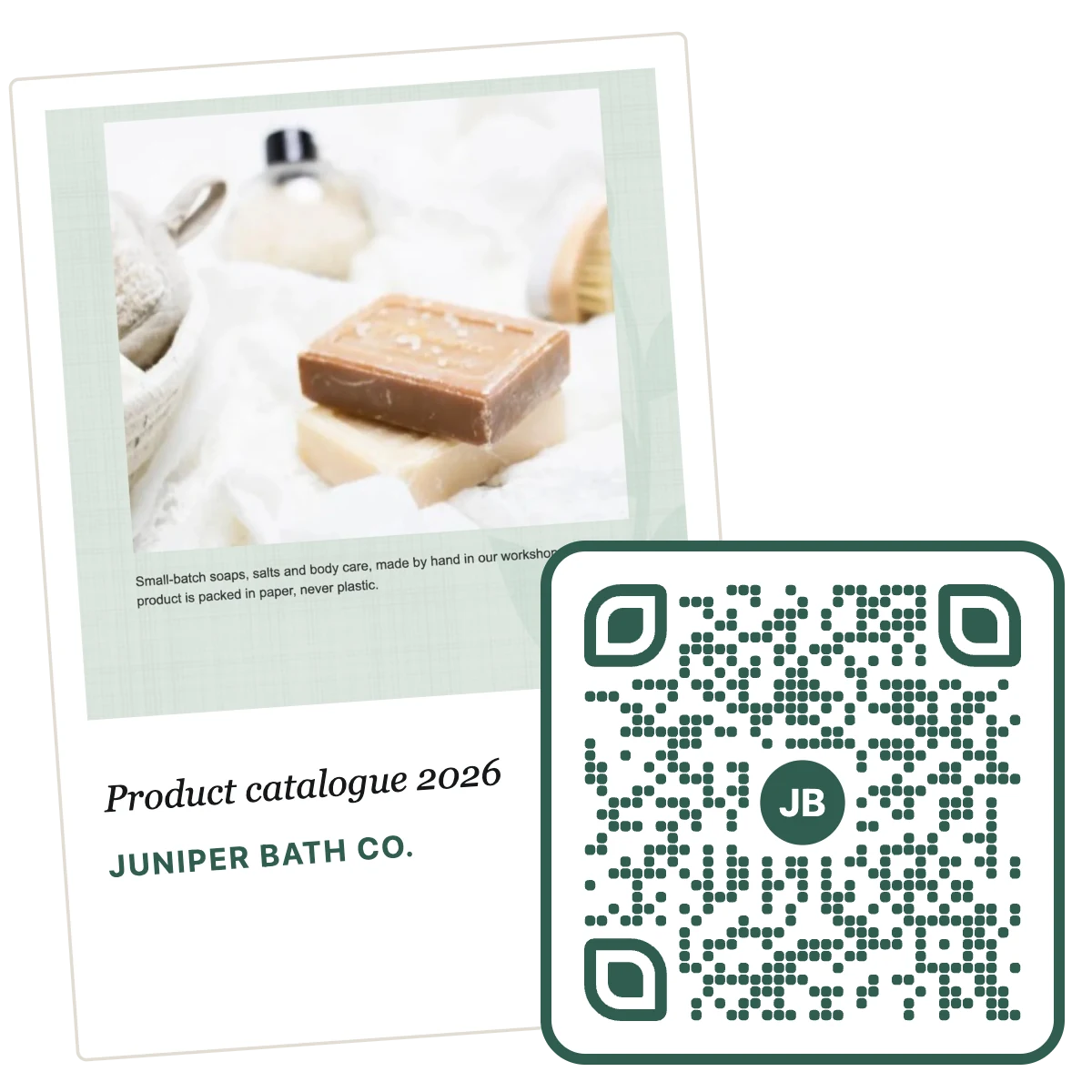
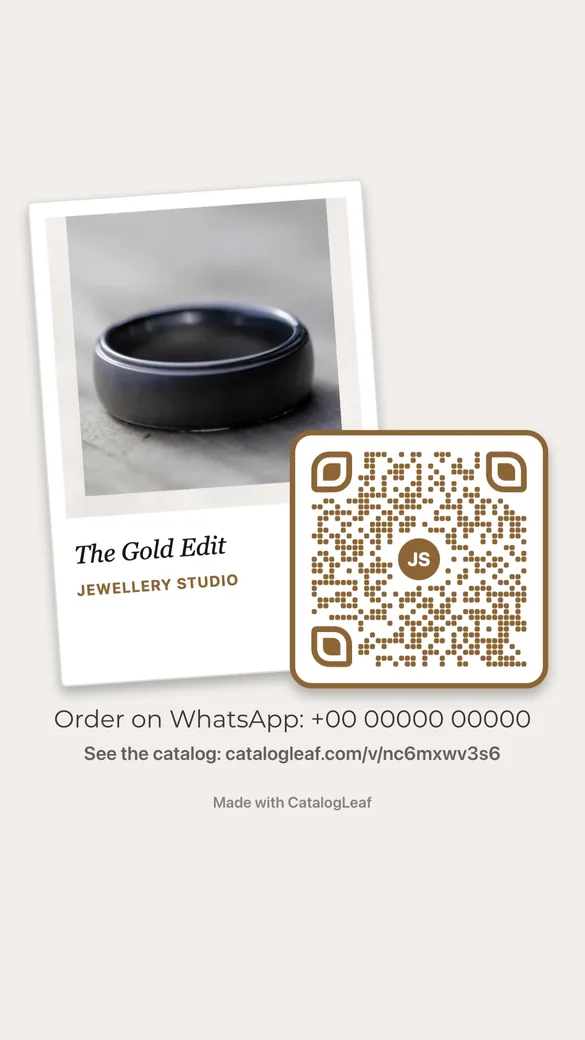
Your cover as an instant photo, your names under it, and the code in your colour with your logo in the middle.
See who scans it
Sign in to see scans as “Your QR code” in your link’s Analytics: how many people, which pages they read and what they tapped.
Good to know
Size
Up to 200 pages and 250 MB per link.
Password-protected PDFs
Remove the password first, then upload.
Files
A PNG picture, 2000 pixels square, and an SVG file for printing.
Questions
How do I turn a PDF into a QR code?
Upload the PDF, tap QR code in the preview, then Make the link. Download the QR code as a picture or as an SVG for printing. No account needed.
Is the PDF to QR code generator free?
Yes, with no sign-up and no watermark on your pages. A small "Made with CatalogLeaf" credit sits under them on the link.
Does the QR code expire?
It opens your PDF’s link, so it works for as long as you share that link. If you stop sharing it, the code stops opening your PDF.
Can I change the PDF after printing the QR code?
Yes. Make your changes and update the link. The same code opens the new version.
Who can see my PDF?
People who scan the code or have the link. Search engines are asked not to list it, and you can stop sharing at any time.
Can I use it for a menu or a price list?
Yes. Any PDF works: a catalogue, brochure, menu, price list or flyer.
Will it work with a PDF made in Canva or Word?
Yes. Save or export it as a PDF from any app, then upload it here.