Free digital menu maker
Type your dishes and prices, or drop in a photo of each. Your menu gets its own link and a QR code for the tables and the counter. Change a price, and the same code shows the new menu. No app, no sign-up.
How it works
Add your dishes
Type each name and price, with a short line if you like. Drop in photos of the dishes you want people to see.
Make it look like your place
Café Board, a chalkboard-style menu, is already picked. Type your business name, choose colours, or switch to another menu design.
Print the QR code
When the menu is made, the QR code window opens. Make the link with one tap, then download the code for printing.
Print the code once, change the menu any time
The QR code opens your menu’s link. When a price goes up or a dish is off for the day, edit the menu and tap Update link. The codes already on your tables open the new menu, so there is nothing to reprint.
Guests scan it with their phone’s camera. There is nothing to install: the menu opens in the browser, one page at a time.
Menu designs to start from
These menus were made for cafes, bakeries and sweet counters. A restaurant can use them the same way, with its own dishes and prices.
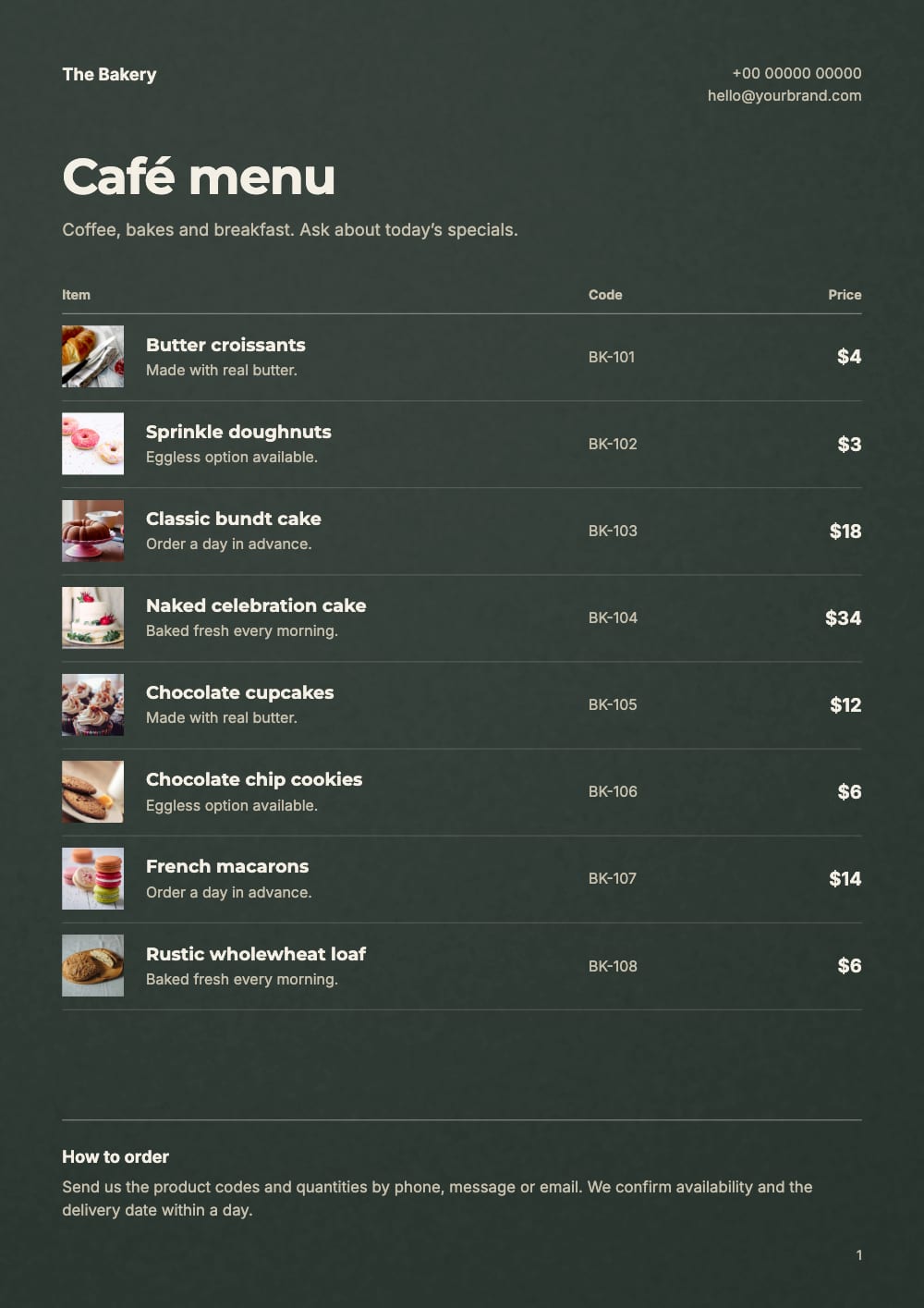
Café Board
Dark green like a chalkboard, with gold.
Irani Café
Café-tile blue and tomato red, for chai, sandwiches and cakes.
Peach Fizz
Peach and cream, with the menu in two columns of round photos.
Menu Board
A cream page with a small photo beside each item.
Pista Counter
Pistachio green, for a sweet counter or a home baker.
What a menu link can do that paper can’t
Take orders
Add one Order on WhatsApp button to every page, for takeaway and delivery.
Today’s specials
Add a line or a page for the day’s specials and update the link. Take it off tomorrow the same way.
Count the scans
Sign in to see your link’s Analytics: scans of the code are counted as “Your QR code”, apart from visits from WhatsApp or search.
Still print it
Download the same menu as an A4 PDF for the counter, the window or a folder.
Already have your menu as a PDF?
Tap Upload my menu PDF. It gets the same kind of link and QR code, and you can put an order button on its pages. A price printed in the PDF is part of the page: to change it, put a text box over it, or add the new pages from your updated PDF and remove the old ones. Then tap Update link, and the code on the tables shows the new menu.
Where to put the code
On every table
A small card or sticker, so guests can read the menu while they sit.
At the counter
For people ordering to take away.
On the door or window
People passing can see the menu before they walk in.
On takeaway bags
Next time, they can order from the menu at home.
Questions
Is the digital menu maker free?
Yes. The menu, its link, its QR code and the PDF are free, with no account and no watermark on your pages.
Do guests need an app to read the menu?
No. They point the phone’s camera at the code and the menu opens in the browser.
How big should I print the QR code?
At least 7 cm (about 3 inches) wide on a table card, and bigger on a door or window. Use the SVG file for printing: it stays sharp at any size.
Can I change prices after printing the code?
Yes. Edit the menu and tap Update link in Share. The same code opens the new menu, at the same address.
Can I make a menu without food photos?
Yes. Tap Add an item without a photo for each dish; each row keeps a plain square where the photo would go. Or upload the menu PDF you already have.
How long does the QR code work?
As long as you share the menu’s link. If you stop sharing it, the code no longer opens your menu.