
Product photo background ideas from one phone photo
You don't need a new photo for every background. One phone photo of a teapot gave us white, cream, a blur, wooden boards and a word behind it, free in a few minutes.
One teapot photo gave us eight backgrounds. Two of them surprised us, and one we would never use again.
The photo is ordinary. A black glazed teapot sits on a kitchen table, with a warm, blurry window behind it. We use it for Ember Lane Pottery, a teapot business we invented for this test.
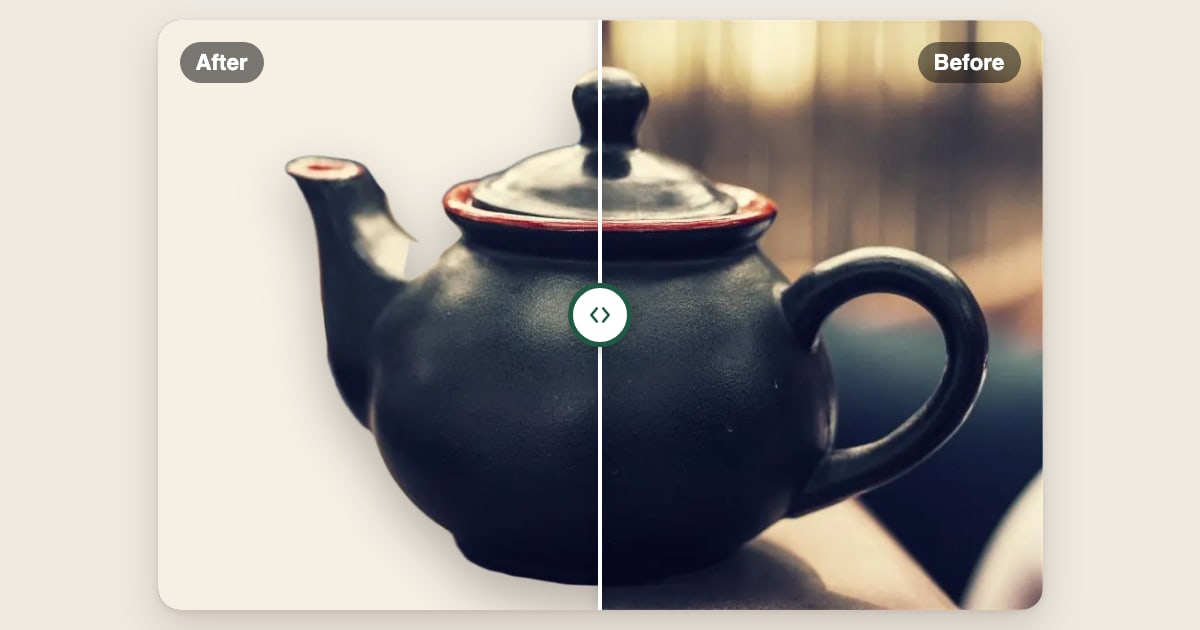
We took the background out once, with our new free background remover. Then we tried every product photo background idea below on that one cut-out, and downloaded each result.
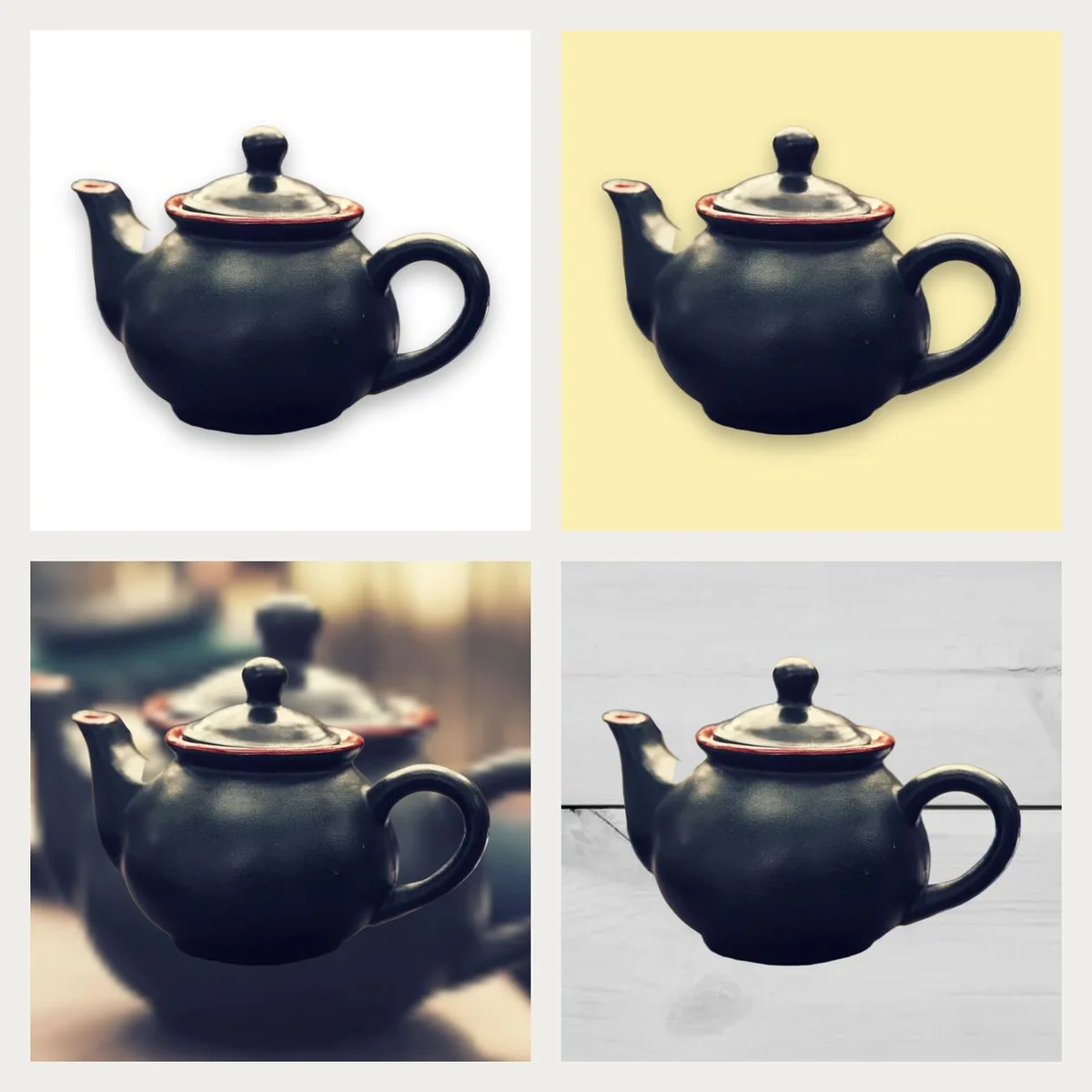
Plain white, for when buyers compare
When a customer scrolls past ten teapots from ten sellers, white makes yours easy to compare. If you also list products on Google, its rules ask for the product to fill 75% to 90% of the picture.
Pick White, then Square under Size. Our teapot filled 84% of the width, inside that range. Turn on Soft shadow too. Without it, our teapot looked pasted on.
Cream or one brand colour for a page or a feed
A white photo on a white catalog page has no edge. The product floats in the middle of the page. Cream or Light grey gives each photo a soft frame of its own.
The same goes for an Instagram grid. Pick one colour and keep it behind every product. We tried Butter, a pale yellow, and it suited the dark glaze. Have a brand colour already? Tap Any colour, the rainbow circle.
The real place, softly blurred
Blur the photo keeps the kitchen behind the teapot, out of focus. It feels homely, like a photo taken on a slow morning.
This was the one we would not use again. Our teapot filled most of the first photo, so a soft second teapot showed up behind the sharp one. Blur suits a photo where the product is small and the room is big.
A surface you photograph once
Take one photo of a nice surface, like an old table or a painted wall. Then put it behind every product with Your own picture. We used a photo of white-painted boards.
Look at the bottom-right teapot above. With Soft shadow off, it seems to hang in the air above the boards. Turn the shadow on for this idea.
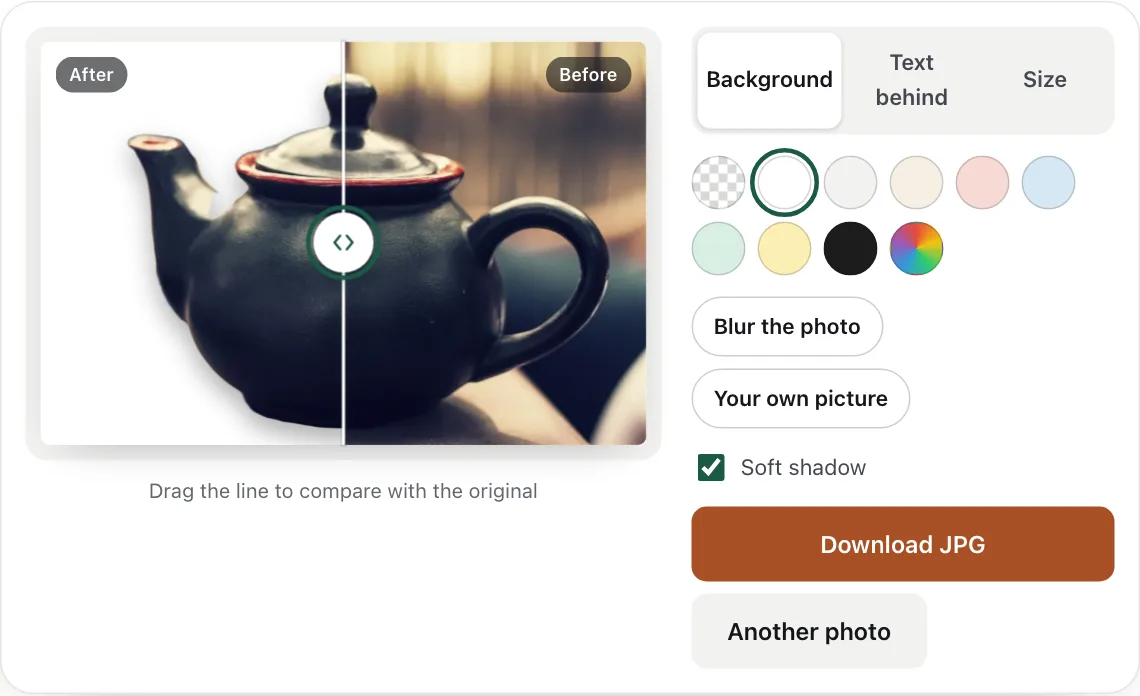
Before you use any of these, drag the line across the picture. It shows the first photo on one side, so you can check the edges. Ours had a small notch where the spout meets the body.
A word behind the product
Type one short word under Text, and the product covers part of it. Our red "TEA" first landed almost fully above the squat teapot. It only worked once we dragged it behind the lid.
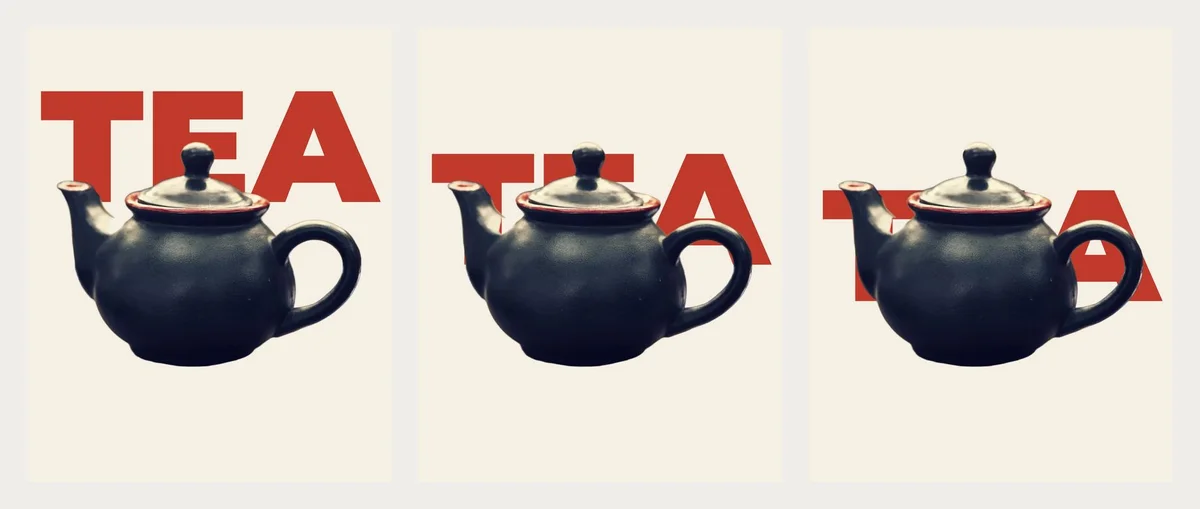
Keep this one for posts. Google's rules turn down main product photos with added text. Our guide to text behind a photo for an Instagram story shows every step.
No background: a PNG nine times the size
Leave the background on the checkerboard and you get a see-through PNG. Use it when you place the product on a designed page or a flyer.
At Square, our PNG was 1.41 MB. The same teapot on white was a 163 KB JPG, almost nine times smaller. At Original size the PNG dropped to 376 KB. If you only want to send a photo, send the JPG.
A shape for each place
Square suits catalog pages and listings, and Portrait (4:5) suits a feed post. Story (9:16) is the tall shape for Stories and Status.
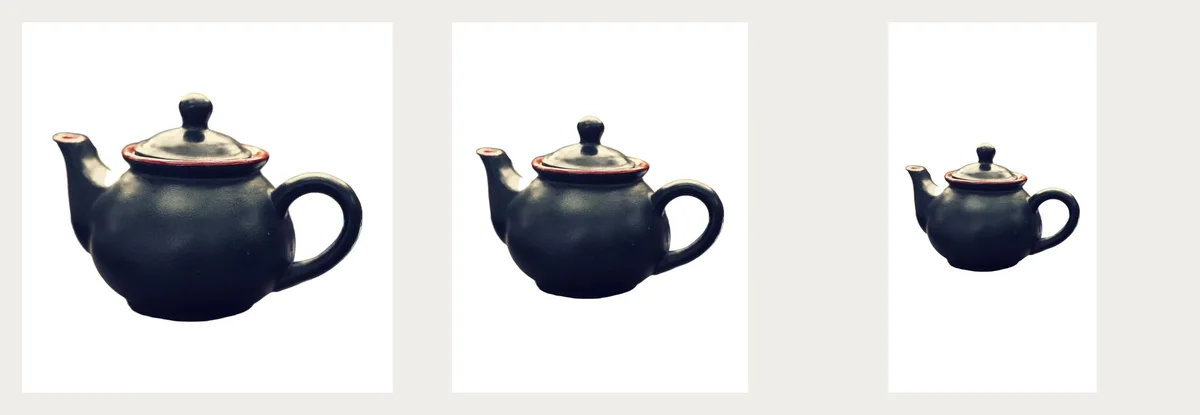
A wide product gets small in a tall frame. In Story, our teapot used only about a third of the height. For a wide product, post a Portrait instead.
Start from the full-size photo
Our photo was only 960 pixels wide. The square file blew the teapot up 2.2 times, and up close the glaze looked soft. Use the original from your phone's camera. The tool keeps up to 2400 pixels on the long side.
The three free tools we used
Three pages share the same free tool, with no sign-up:
- Remove background for white, a see-through PNG or any idea above.
- Change photo background opens straight on white.
- Text behind image opens on a word behind your product.
After a download, the page offers Put it in a catalog. Your photo goes into a new catalog as its first product, with no second upload.
Pick the background you like, then zoom in on the thinnest part of your product. If the edge looks clean there, the photo is ready to post.
Turn your products into a video New
Pick a design, add your words and photos, and watch it play: made for WhatsApp Status, Reels and Shorts.