Text behind a photo for your Instagram story, step by step
Cut your product out, type one or two words, drag them behind it and download a tall 9:16 picture. Then keep the top 14% clear, where Instagram puts your name.
Two lines made our letters twice as big. That was the first surprise when we put words behind a plant for an Instagram story.
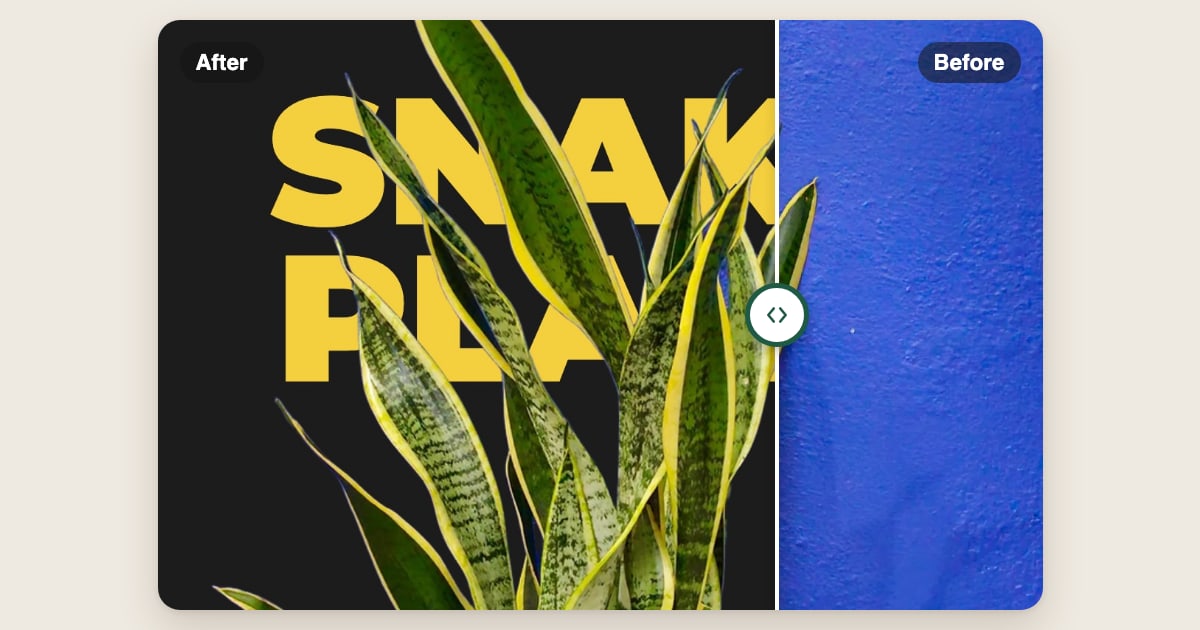
You have seen the look: a big word sits behind the product, and the product covers part of it. Instagram's own text tool can't do it. Its words always sit on top of your photo.
So we made the picture first, in our free text behind image tool, and posted it as a normal Story photo. It runs in the browser on a phone or a computer, with no app and no sign-up.
Our example is Leafline Plants, a plant business we invented for this guide. The photo is a snake plant in a clay pot, against a bright blue wall.
What you need:
- One photo of your product, the taller the better.
- One or two short words: the plant's name, NEW, or an offer.
Step 1: Upload your photo
Open the text behind image page and tap Upload a photo. In a few seconds the background is gone and the editor opens.
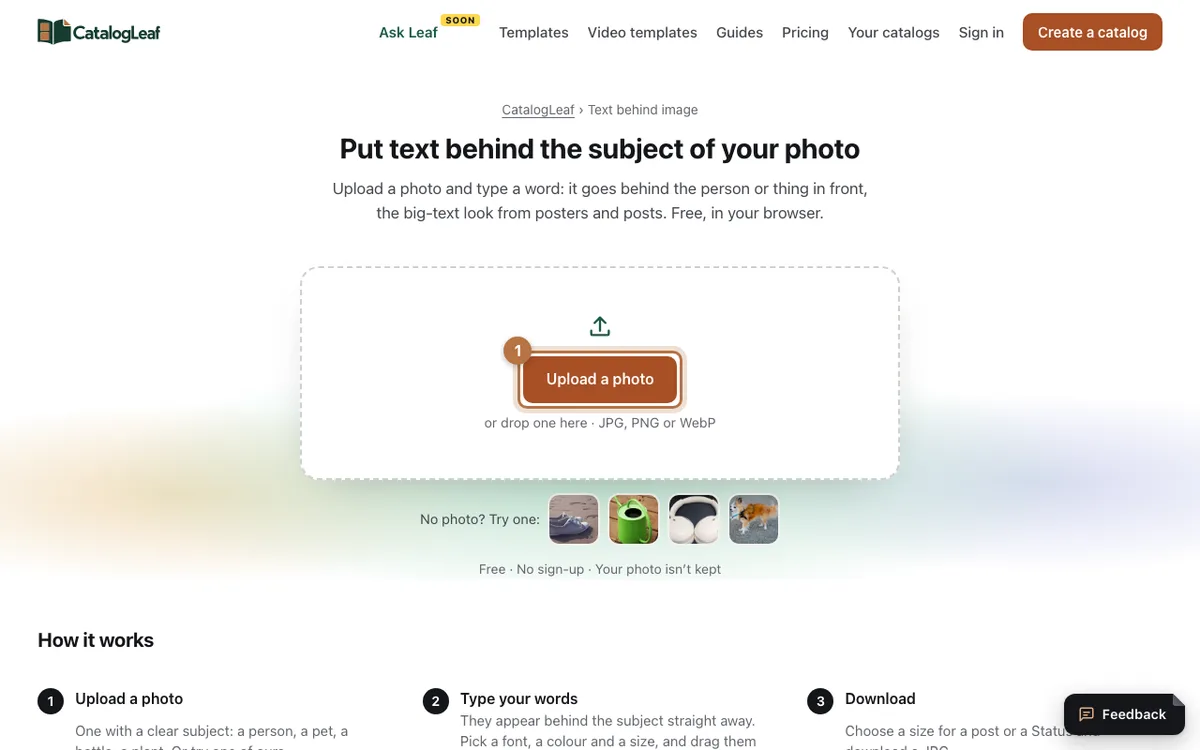
Your photo goes to our server only to take the background out. It comes straight back, and we don't keep it.
Step 2: Type your words on two lines
The page starts you off with HELLO behind your product. Replace it in the box under Text. Press Enter to start a second line.
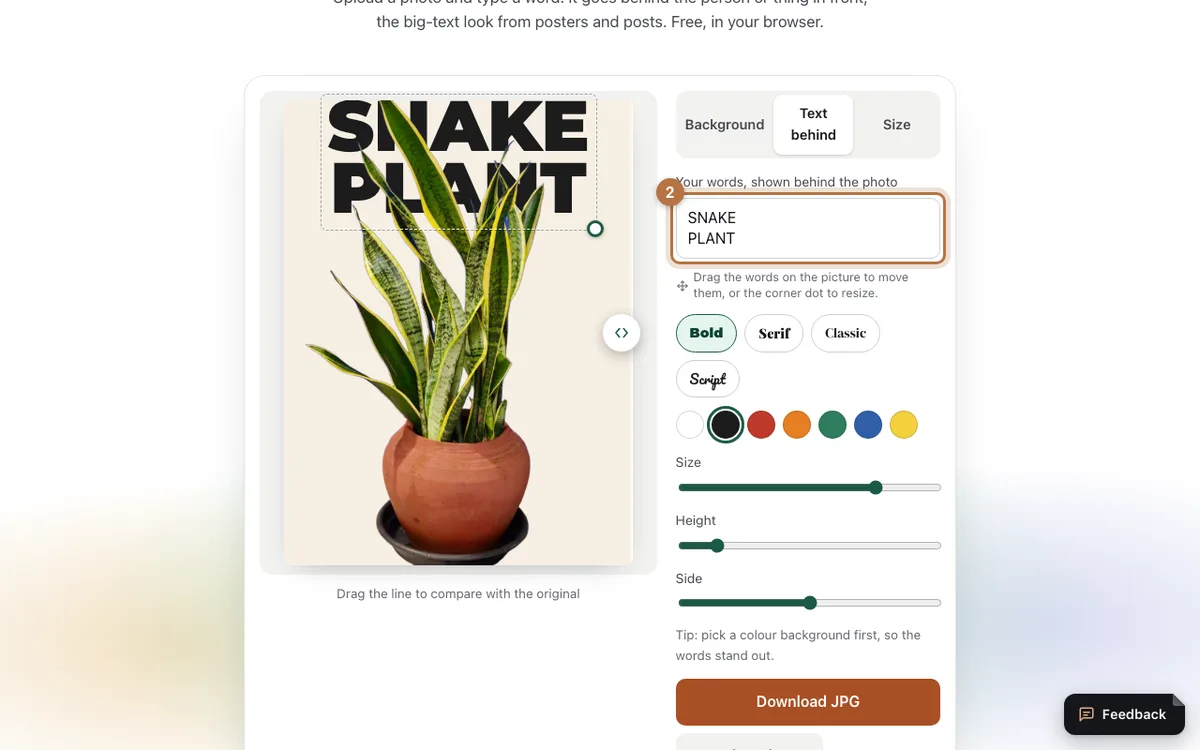
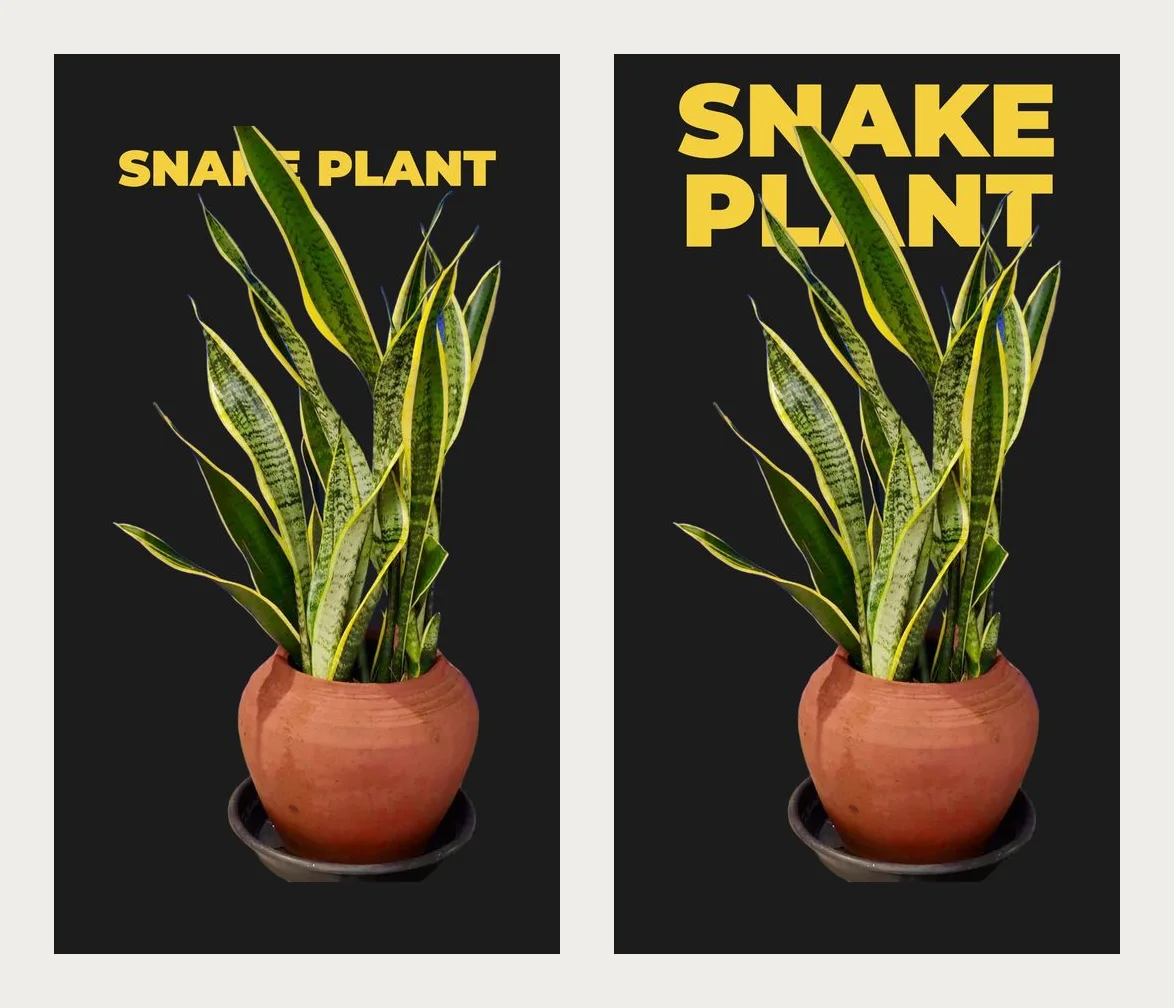
We typed "SNAKE PLANT" on one line first. It came out as a thin strip across the Story. Split into "SNAKE" and "PLANT", each word had the full width, and the letters grew to about twice the size.
Step 3: Pick a font and a colour
Bold is the poster look; Serif, Classic and Script are softer. Under them, tap one of the round text colours. We kept Bold and picked yellow.
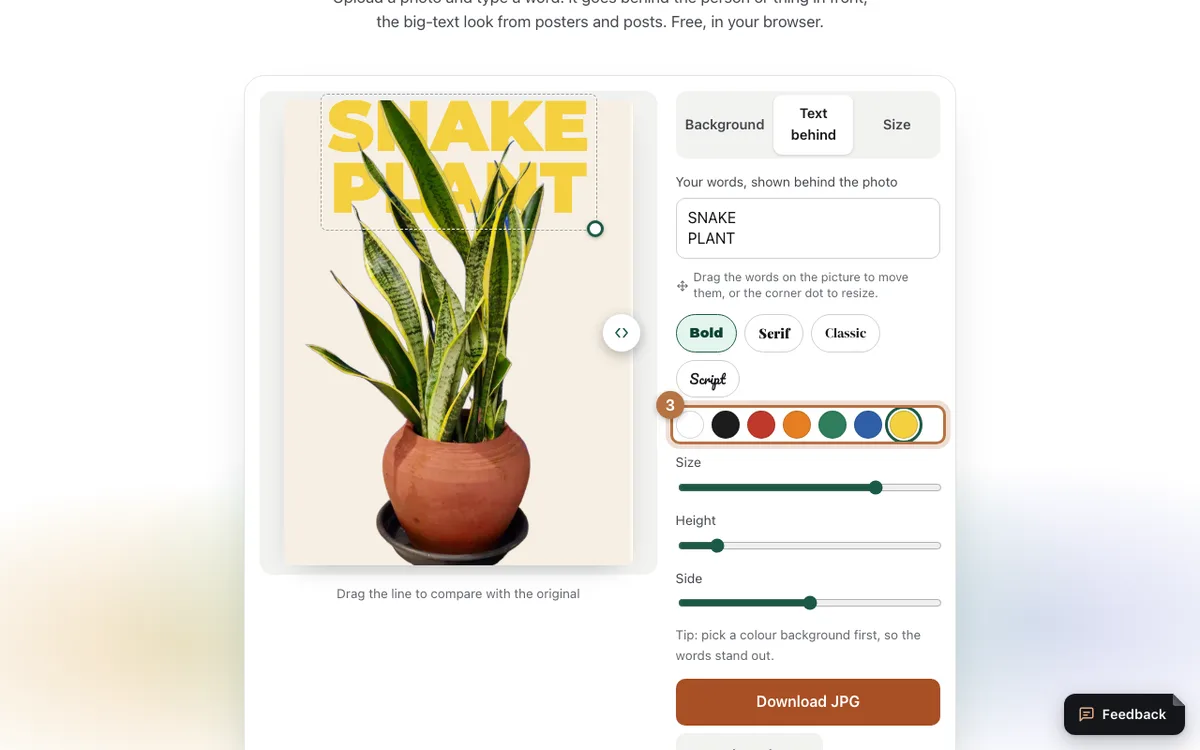
Yellow is in our plant too, but only as a thin line on each leaf. The leaves are mostly green, so yellow words still stand apart from them. Green words would have melted in.
Step 4: Change the background
Open Background and tap the black circle. The blue wall is gone, and the yellow words now jump out.
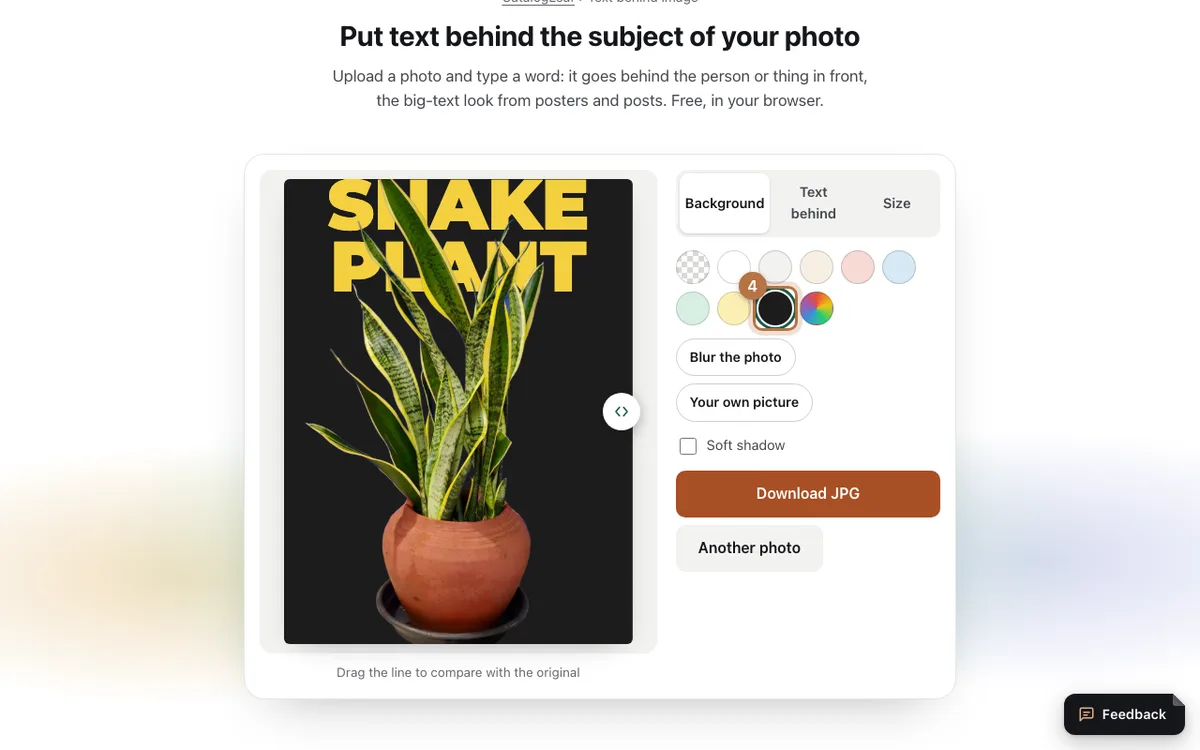
A plain or dark background works best for this look. A busy picture behind the words makes them hard to read.
Step 5: Make it Story size
Open Size and tap Story. The picture becomes 1125 × 2000 pixels, the tall 9:16 shape of a phone screen.
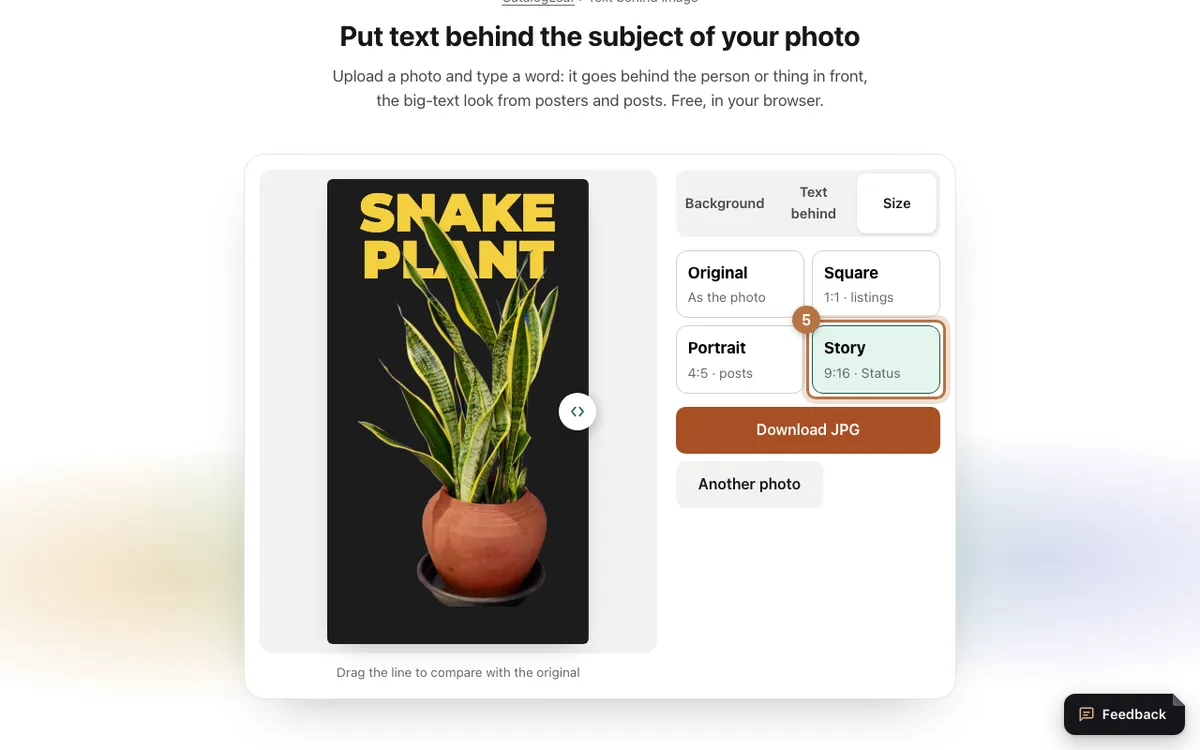
Do this before you place the words. Your product moves to fit the new shape, so the words should be placed after it.
Step 6: Drag the words into place
Go back to Text. A dashed line now shows around your words. Drag them on the picture to move them.
To make them bigger or smaller, drag the round dot on their corner. You can even push them partly off the edge for a cropped look. Near the middle line they snap to the centre, and Height and Side move them in small steps.
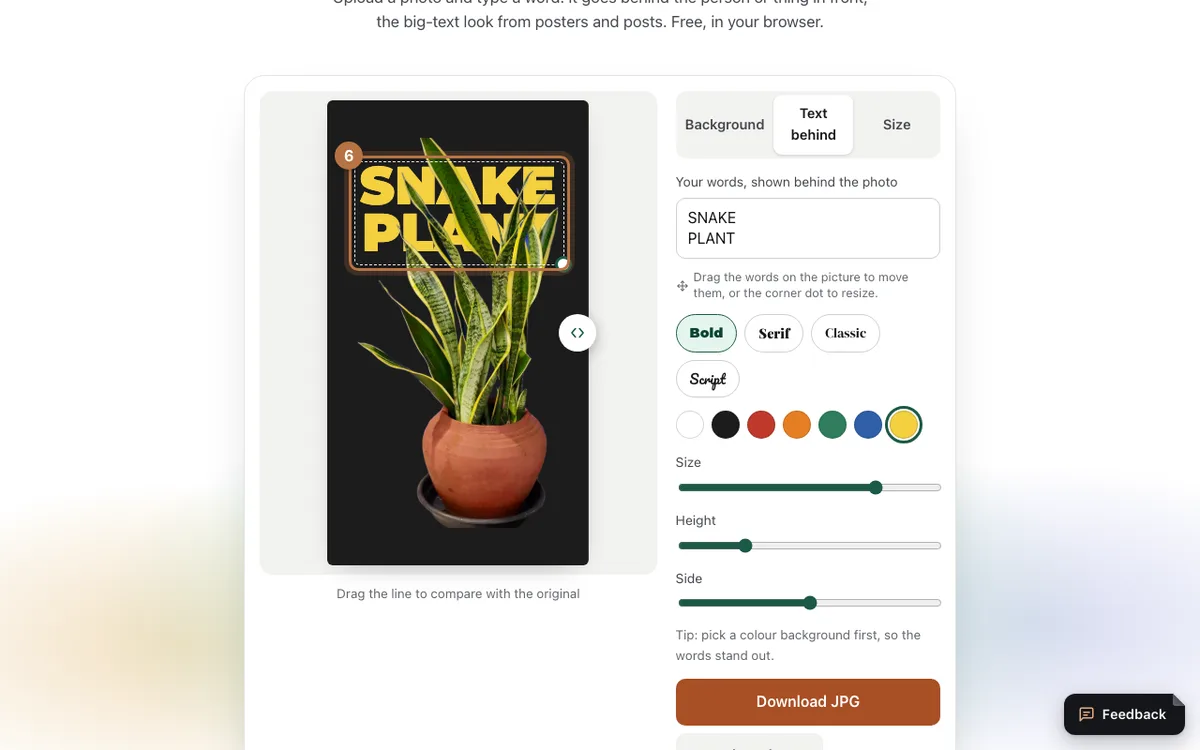
We moved ours down until the tallest leaves crossed the letters. PLANT lost its last letters behind the leaves. With SNAKE above it, we still read it at a glance, so we kept it.
Step 7: Download and post it
Tap Download JPG.
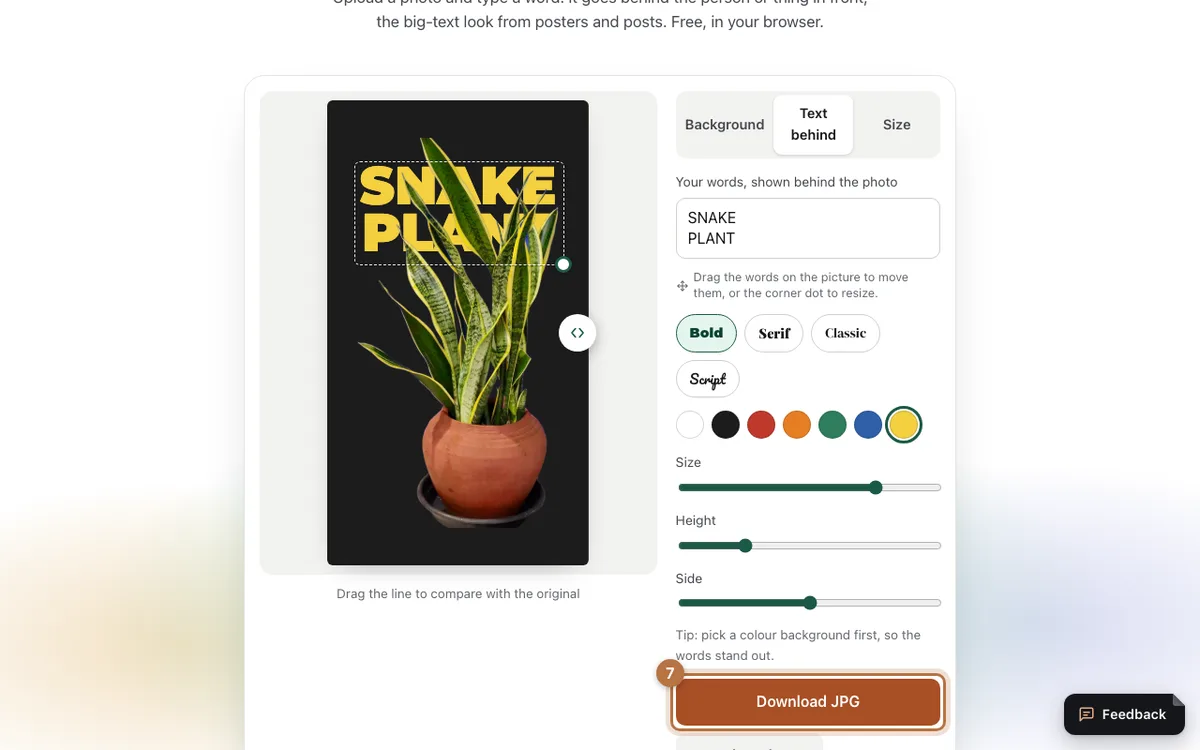
On your phone, open Instagram, start a new Story and pick the picture from your photos. Instagram's own stickers, like a link or a poll, still go on top as usual. The Story size is also the one marked for WhatsApp Status.
The finished Story
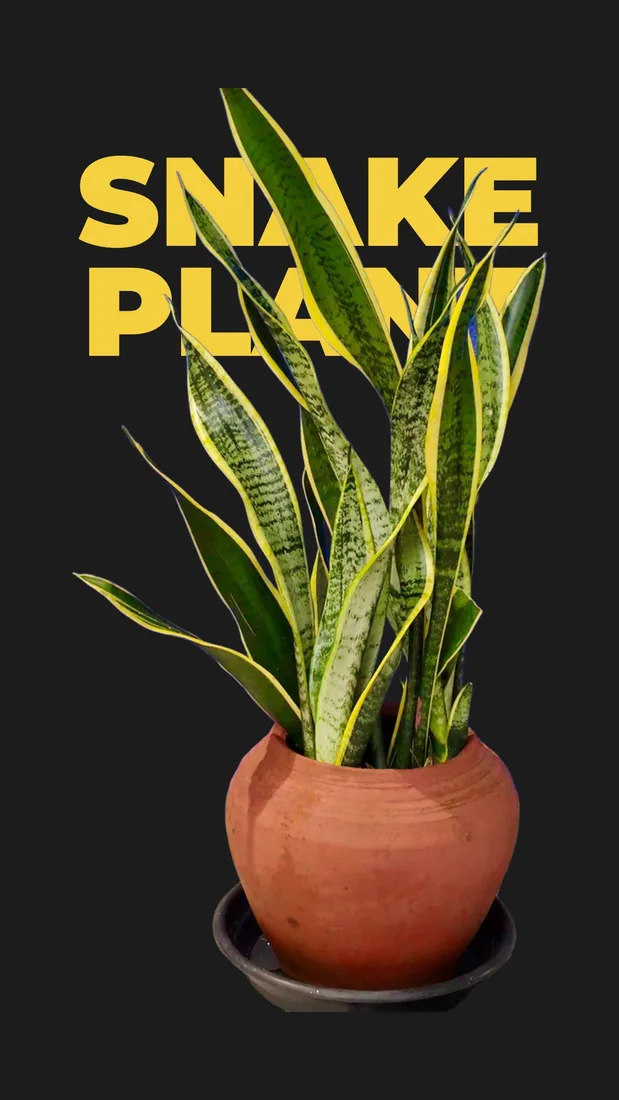
Keep your words out of the top strip
Instagram puts your name, picture and progress bar across the top of every Story. Meta's guide for Story ads says to keep text out of the top 14% of the picture. In our 2000-pixel picture, that is the top 280 pixels.
The editor first placed our words just above the plant. The top of SNAKE sat only 65 pixels from the edge, well inside that strip. Dragged down, the words started below it.
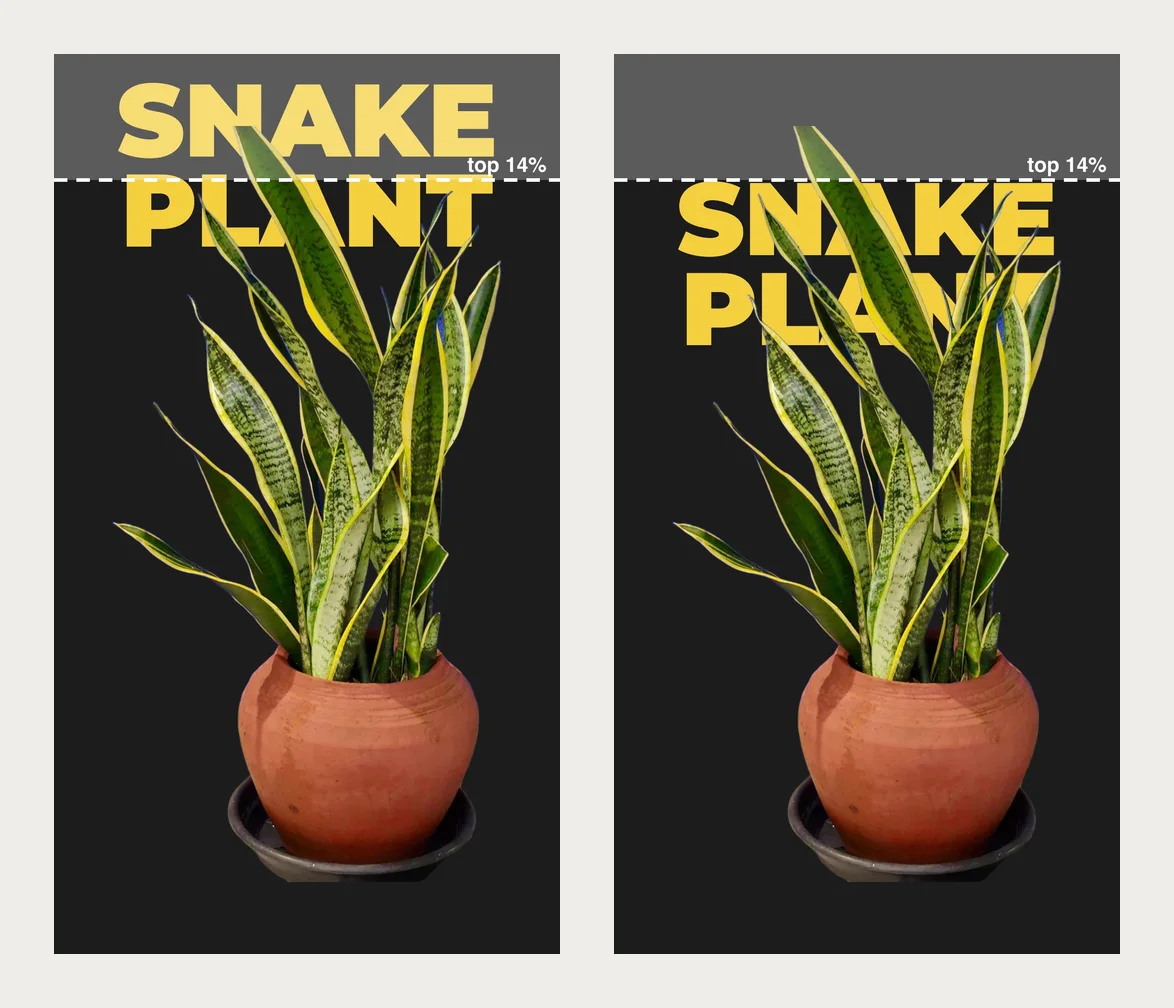
Ads need room at the bottom too, and a normal Story has its reply box down there. Keep the bottom for the pot. This picture is for an ordinary Story: for a paid Story ad, Meta asks for a bigger file.
Four checks before you post
- Is the product tall? A plant, a bottle or a vase covers part of the letters. A short, wide product leaves the words floating, as our teapot did in these product photo background ideas.
- Can you read the word in one second? If the product hides too much of it, drag the words up a little.
- Is the top 14% empty? Your name will sit there.
- Does it look right full screen? Send it to yourself and open it on your phone before you post.
Making Stories for five plants? Do each one the same way: same font, same colour, same height. Side by side in your Stories, they will look like one set.
Turn your products into a video New
Pick a design, add your words and photos, and watch it play: made for WhatsApp Status, Reels and Shorts.