
How to make a price list with photos (free PDF)
Pick a price list template, drop in your product photos, type the prices and download the PDF. It takes about five minutes, and it is free.
A price list shows your customers what you sell and how much it costs. When it has photos, people find what they want much faster.
With CatalogLeaf you can make one in a few minutes. You don't need design skills, and you don't need an account. In this guide we make a price list for a small bakery. The steps are the same for any shop.
What you need:
- A photo of each product. Phone photos are fine.
- The price of each product.
Tip: name each photo after the product, like french-macarons.jpg. CatalogLeaf uses the file name as the product name, so you type less.
Step 1: Open the price list templates
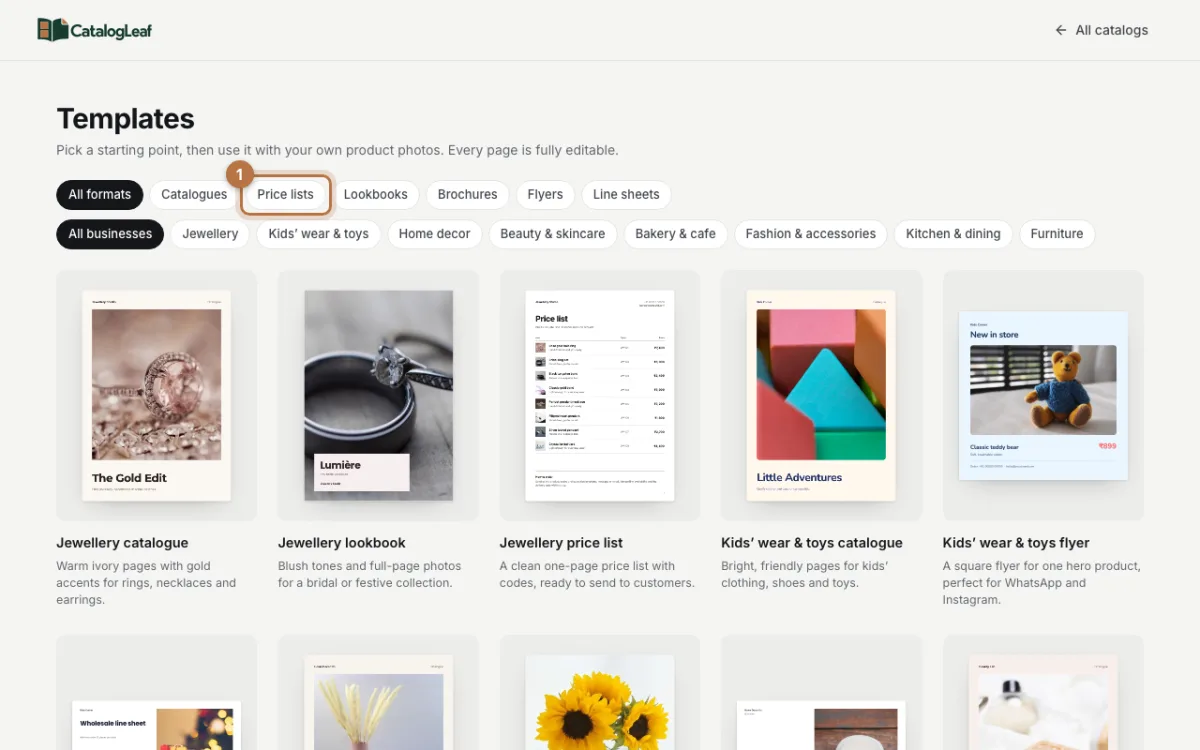
Go to the template gallery and click Price lists. You will see ready-made price lists for different kinds of shops.
Step 2: Pick a price list
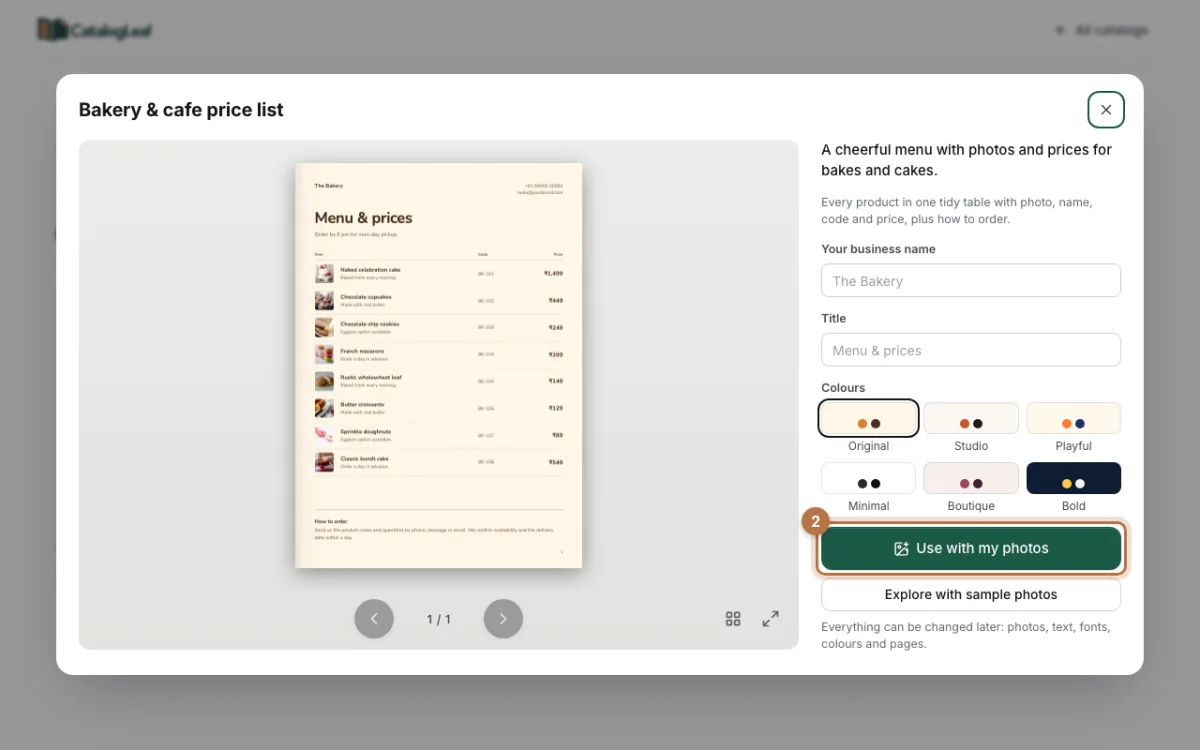
Click the price list you like. A preview opens. Here you can type your business name and choose your colours. You can also change them later.
When you are happy, click Use with my photos.
Step 3: Add your product photos
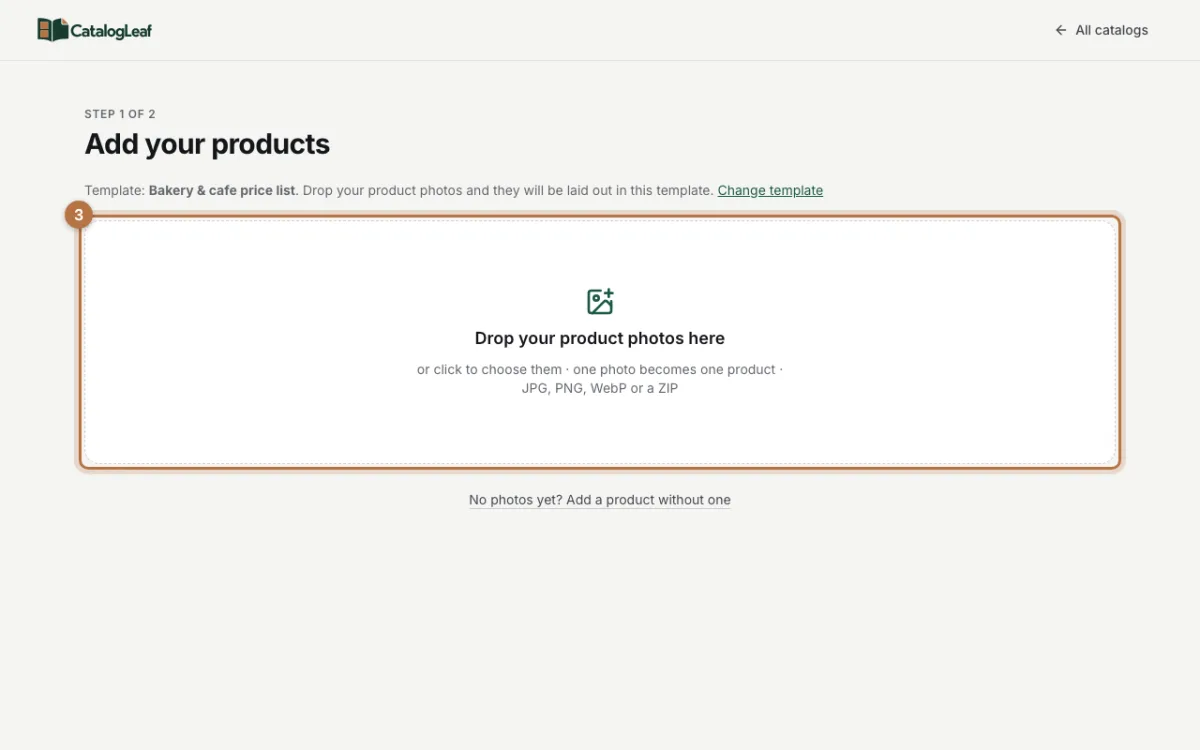
Drag your photos into the big box. You can also click the box and choose them. Each photo becomes one product.
Step 4: Type your prices
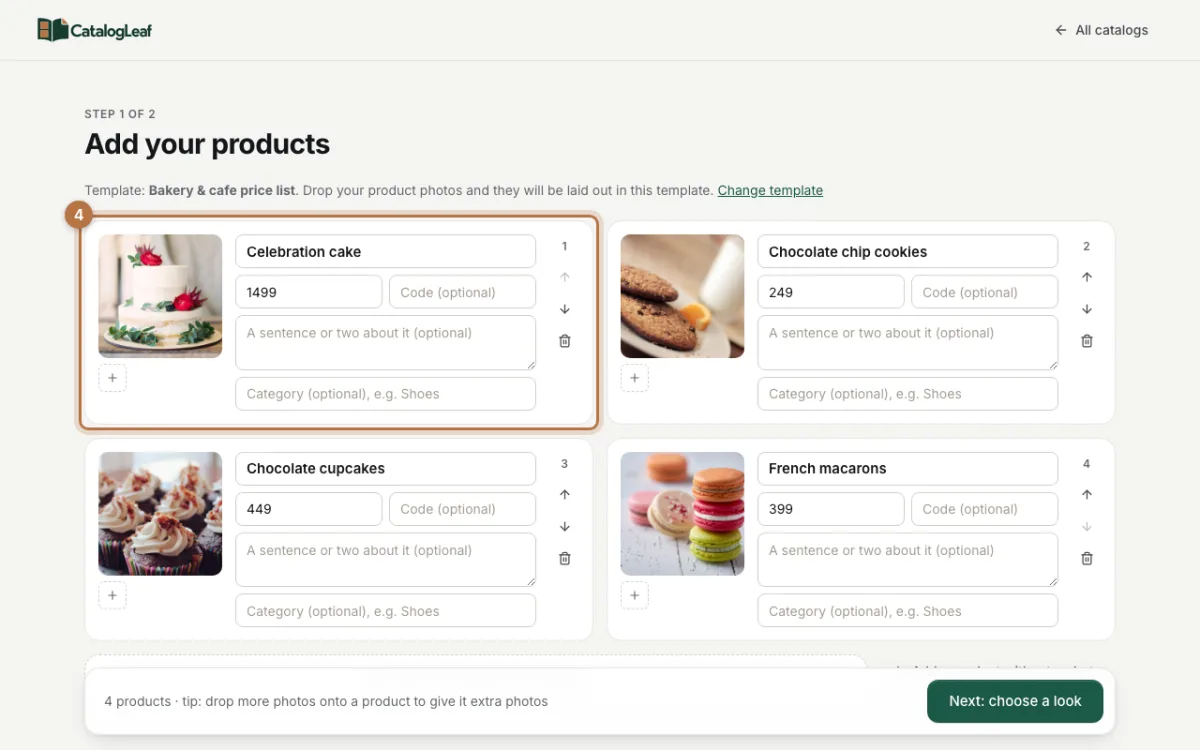
Check the name of each product, then type its price. Type only the number. CatalogLeaf shows it in your country's currency.
You can also add a short line about each product, or a product code. The order on this page is the order on your price list. Use the small arrows to move a product up or down.
Then click Next: choose a look.
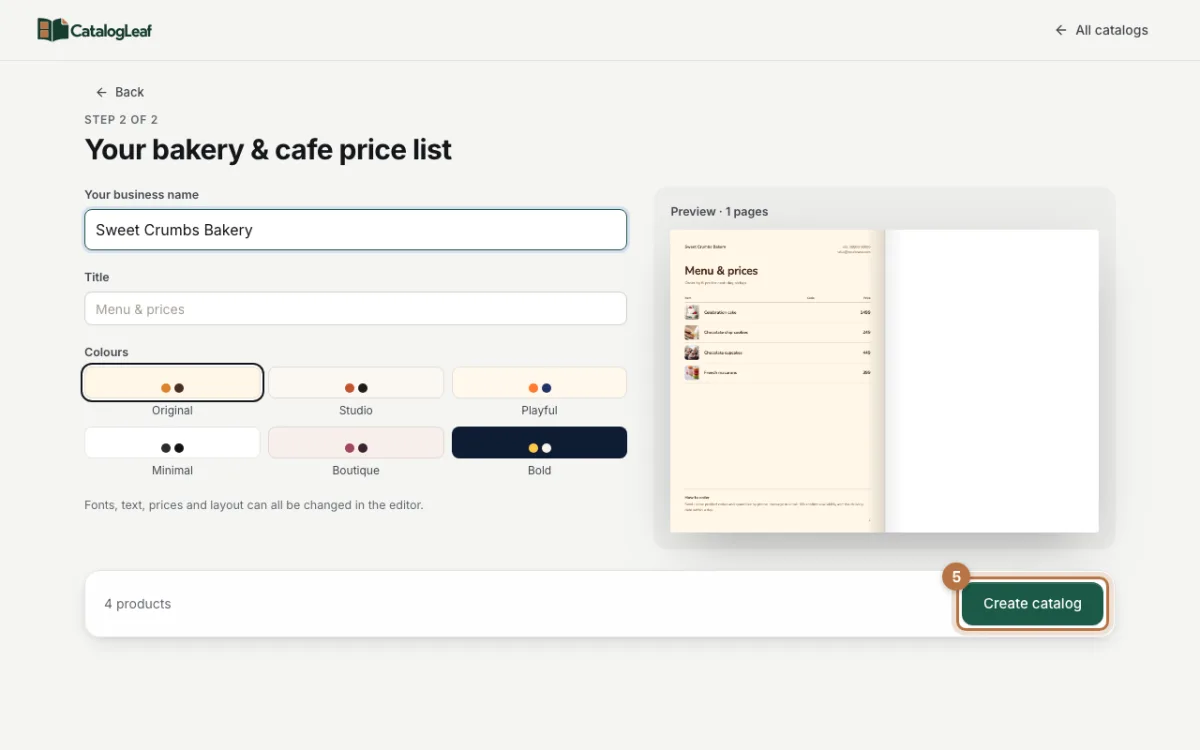
Step 5: Add your business name
Type your business name and pick your colours. The preview on the right shows your price list as you make it. When it looks right, click Create catalog.
Step 6: Download the PDF
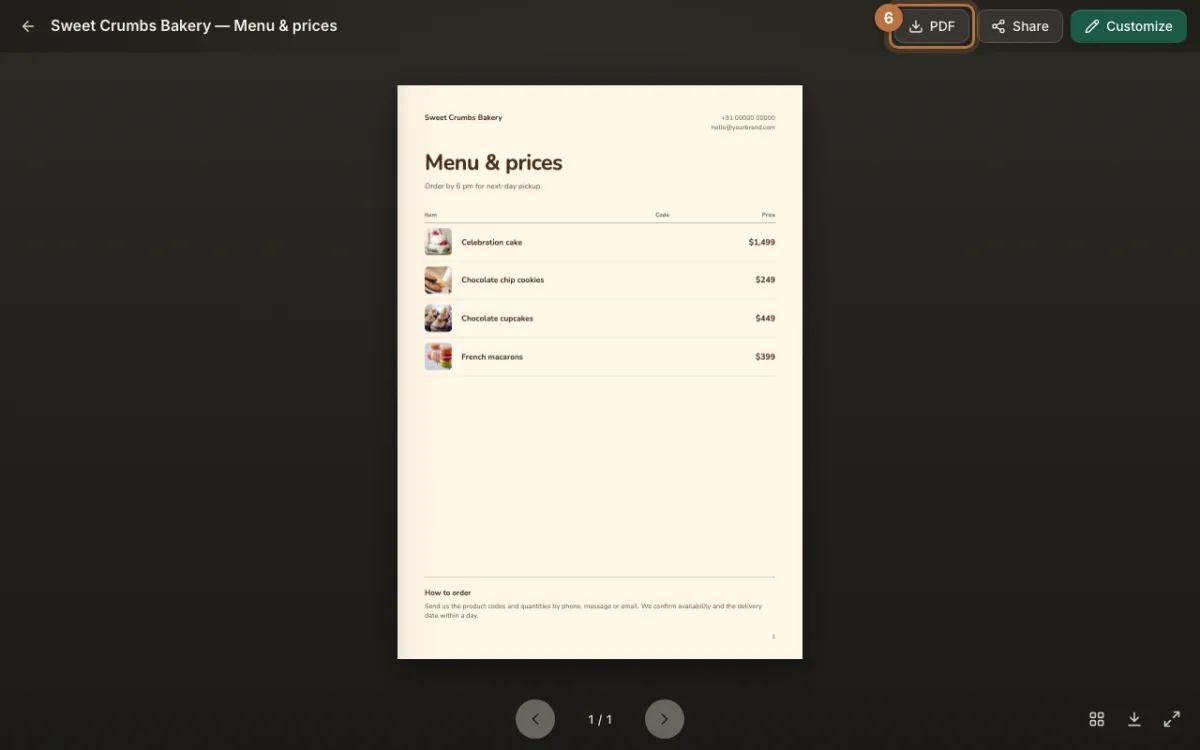
Your price list is ready. Click PDF at the top to download it.
Pick Compact if you want to send it on WhatsApp or by email, because the file stays small. Pick Print if you want to print it.
Your finished price list
Here is the bakery price list from this guide:
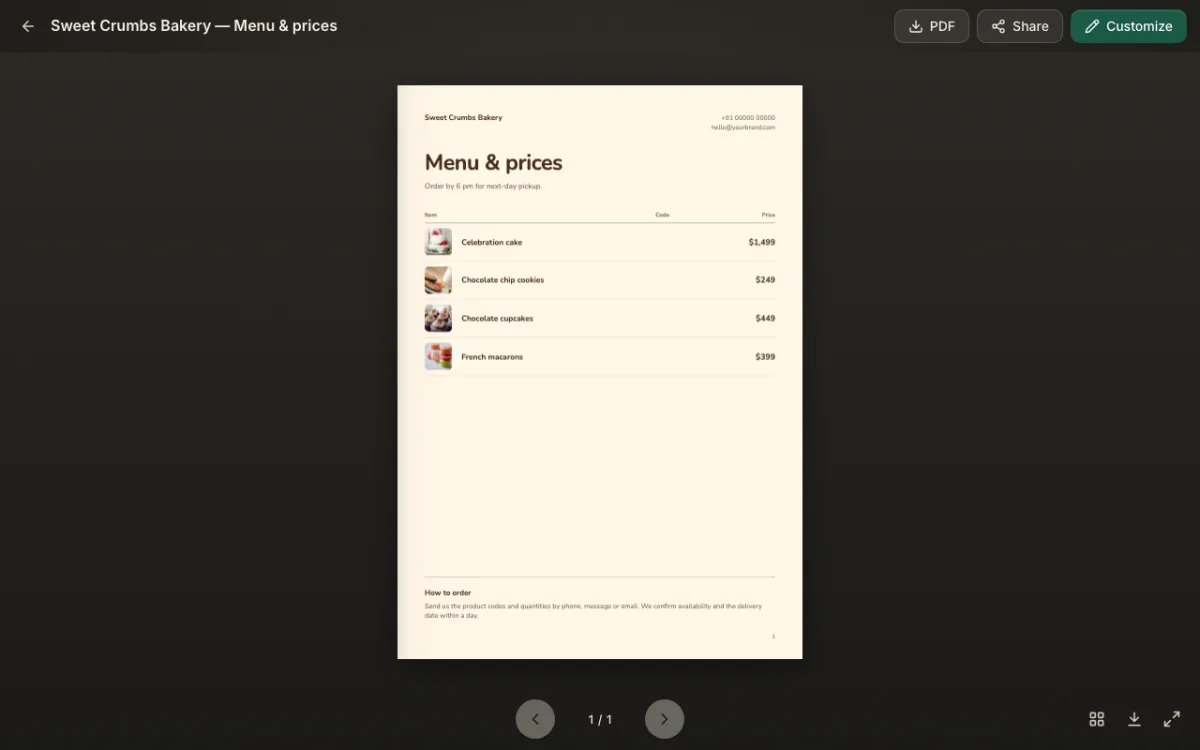
Every product sits in one neat table, with its photo, name, code and price. At the bottom there is a short note that tells people how to order. You can change this note to fit your shop.
Tips for a better price list
- Use bright, clear photos with a plain background.
- Keep product names short, so they fit on one line.
- Check every price before you send the PDF.
- Prices changed? Open your catalog, change the price and download the PDF again. CatalogLeaf saves your catalog in your browser.
Want to share it as a link instead of a file? Read about making a catalogue for WhatsApp.
Ready to try? Open the bakery price list or pick any other template.